The information on an iPhone, iPad or iPod touch is valuable, so backups matter if the device is damaged. This tutorial explains backing up and restoring important content. If you are unsure which option suits you, see whether to use iCloud or iTunes for backups.
Should I back up with iCloud or iTunes?
For help choosing the better backup service for your content, read this guide.
Using iCloud
iCloud backups are presented as a straightforward, reliable option for automatic wireless iOS-device backups.
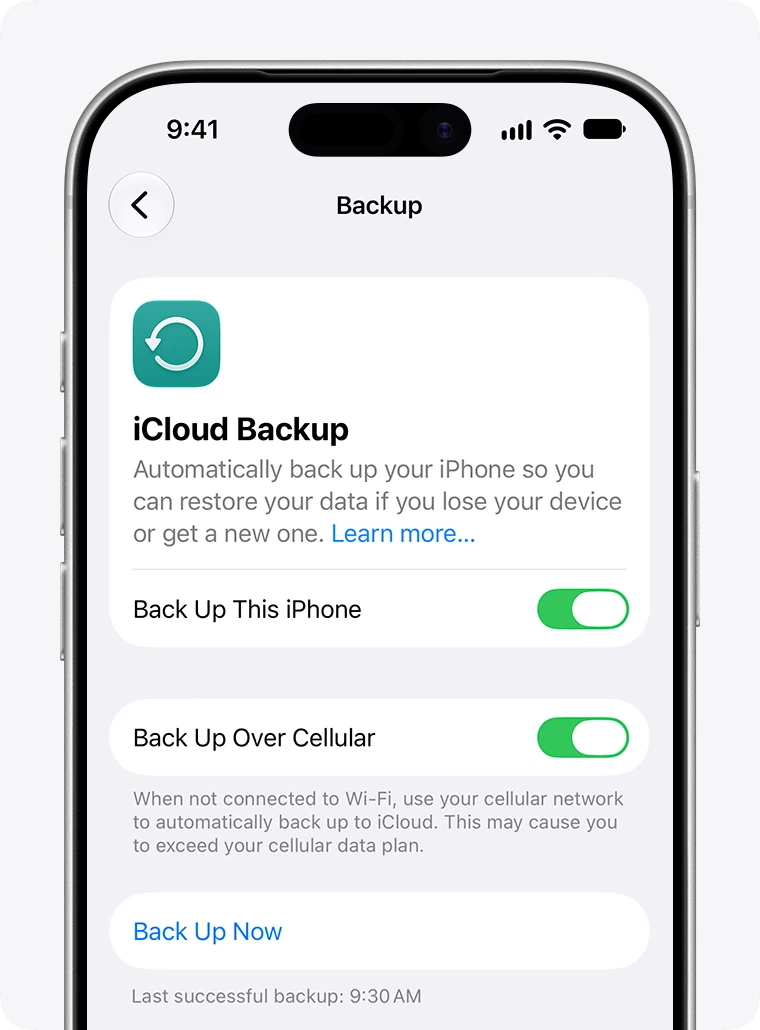
iCloud backup
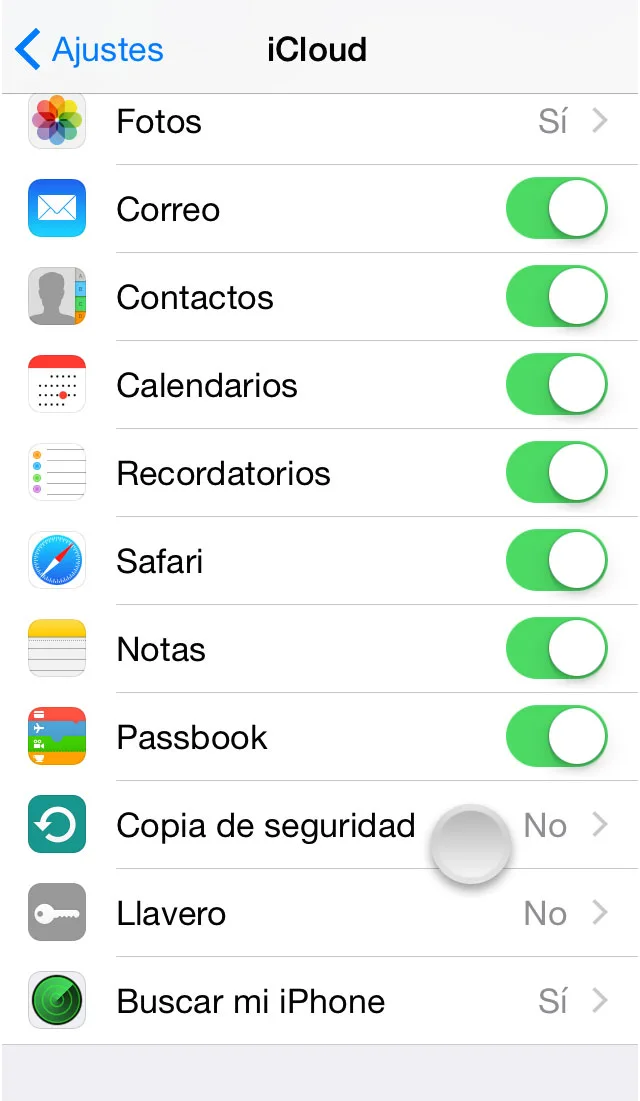
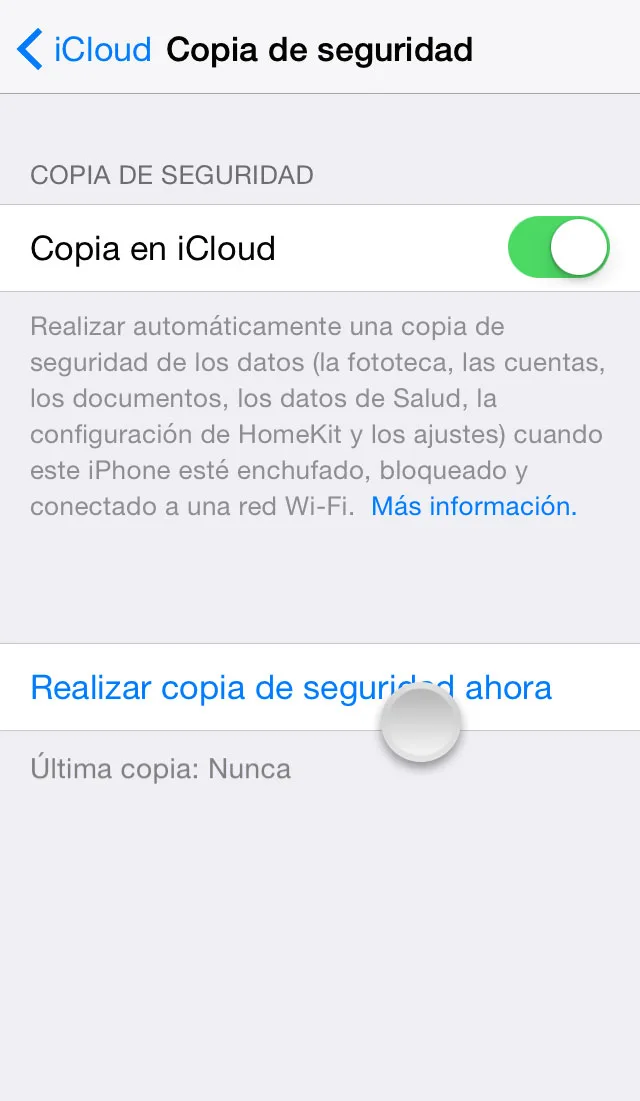
If enabled, iCloud can back up data automatically. Check that iCloud Backup is on and up to date using these steps:
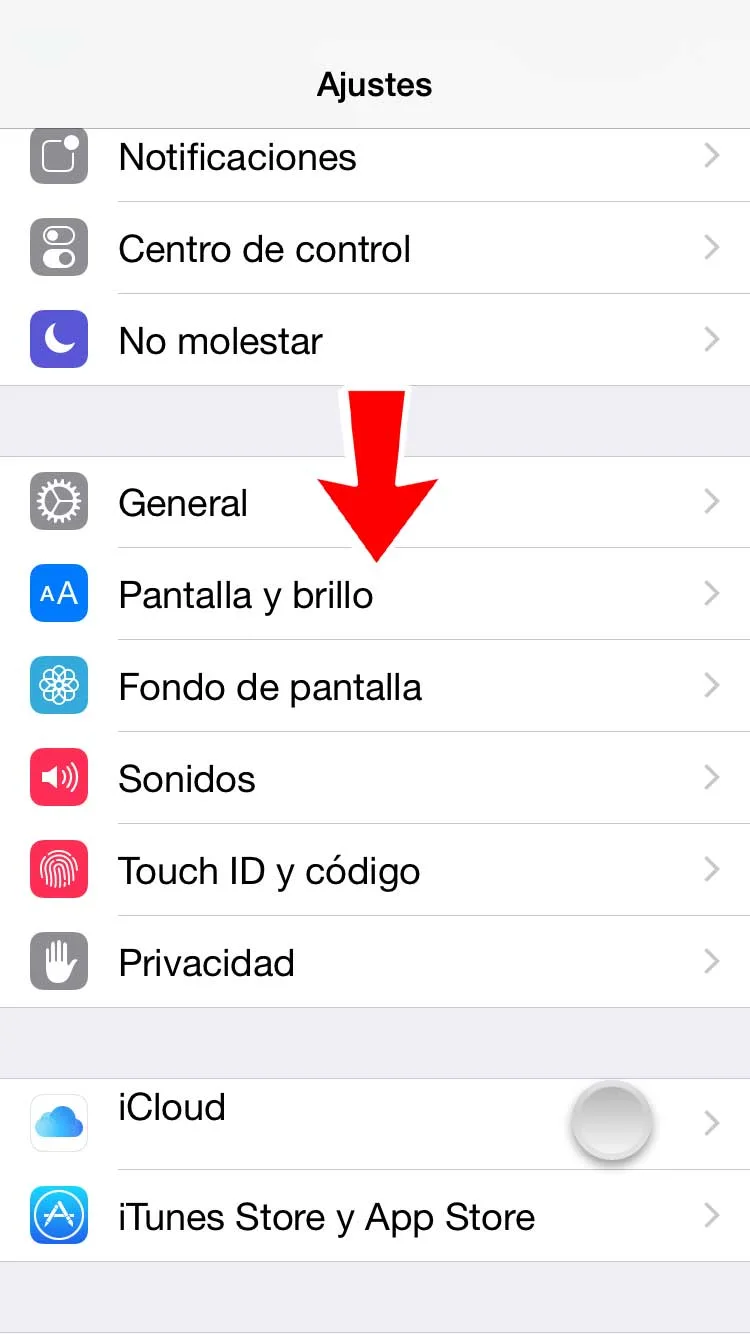
1. Tap Settings.
2. Tap iCloud.
[
](https://www.igeniuscr.com/wp-content/uploads/2014/12/tutorial-iphone-Ajustes-iCloud.jpg)
3. Select Backup.
4. Turn on iCloud Backup if it is off.
5. Tap Back Up Now.
Restore from an iCloud backup
For a new iOS device or one that needs restoration to resolve a problem:
1. Complete the initial iOS Setup Assistant steps, including language selection.
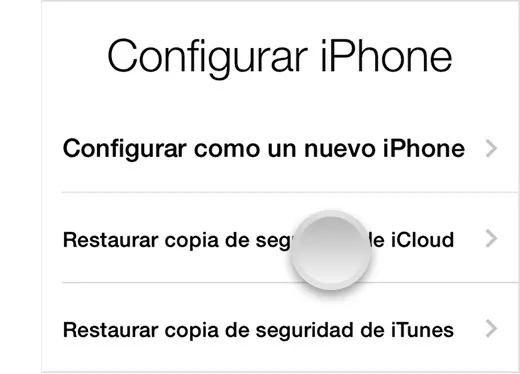
2. Choose Restore from iCloud Backup when asked how to set up the iPhone or other iOS device.
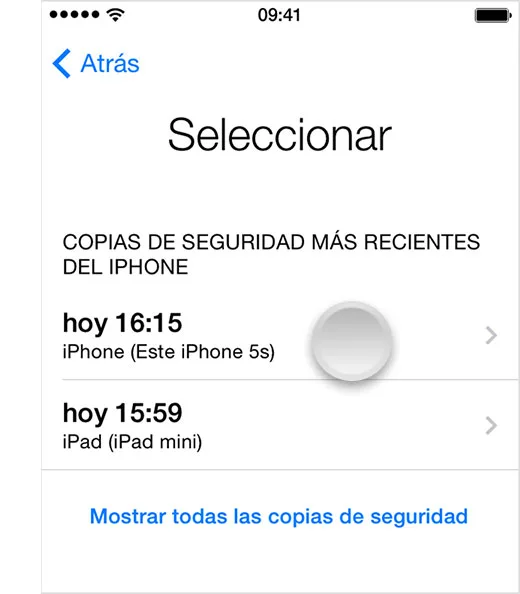
3. Select the backup made previously.
[
](https://www.igeniuscr.com/wp-content/uploads/2014/10/HT1766-ios7-choose_backup-002-es.jpg)
The article states that restoring an iCloud backup is performed through iOS Setup Assistant.
Using iTunes
iTunes can back up an iPhone, iPad or iPod touch. The source notes that backups made on newer iOS versions cannot be installed on devices running older versions.
Make an iTunes backup
To back up your device's contents:
1. Make sure the computer has the latest version of iTunes.
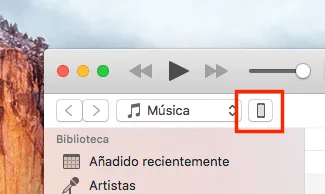
2. Connect the iOS device to the computer with its cable.
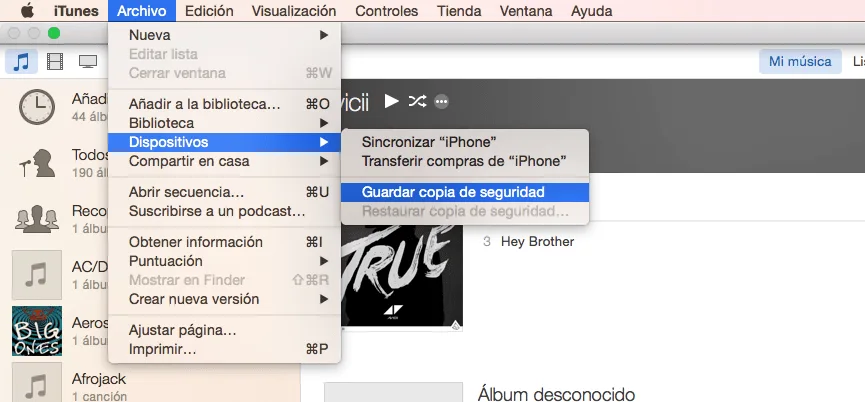
3. Select File → Devices → Back Up.
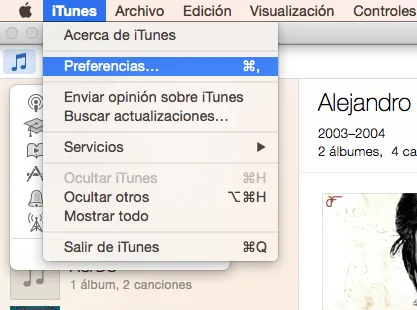
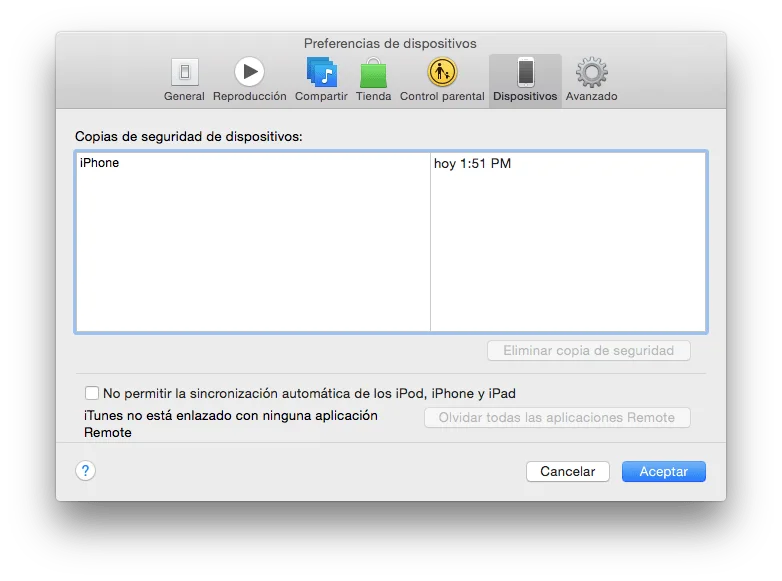
To check completion, open iTunes Preferences and the Devices tab. The device name appears with the date and time the backup was made.
Restore from a backup
For a new iOS device or one requiring restoration to resolve a problem:
1. Connect the device to the computer holding the backup.
2. Make sure the computer has the latest version of iTunes.
3. Select File → Devices → Restore from Backup.