
Make sure your information can be recovered: back up to iCloud, confirm it finished and understand why your photos need a separate copy.
Tell backup and sync apart
If the phone is damaged or lost, what saves your information is a copy made in time. Two things look like that copy, and they are not equally so.
- A backup: it lets you restore the device's information and settings.
- Sync: it keeps information current across devices.
iCloud is the Apple service that keeps your information on the internet. When iCloud Photos is on, those pictures are not included again in the daily iCloud backup or in the computer backup of the iPhone.
To keep an independent copy of your important pictures, export the originals to an external drive or memory card and check that they open.
- Connect the drive or memory card to the iPhone.
- Open Photos and select the photos and videos you want to copy.
- Tap the Share button, then Export Unmodified Original.
- Tap your storage device, below Locations, then tap Save.
Back up to iCloud
Before you start, check that your account has enough space: open Settings, tap your name, then tap iCloud. The storage used and the storage available appear at the top of the screen.
- Connect to a Wi-Fi network.
- Open Settings.
- Tap your name.
- Tap iCloud.
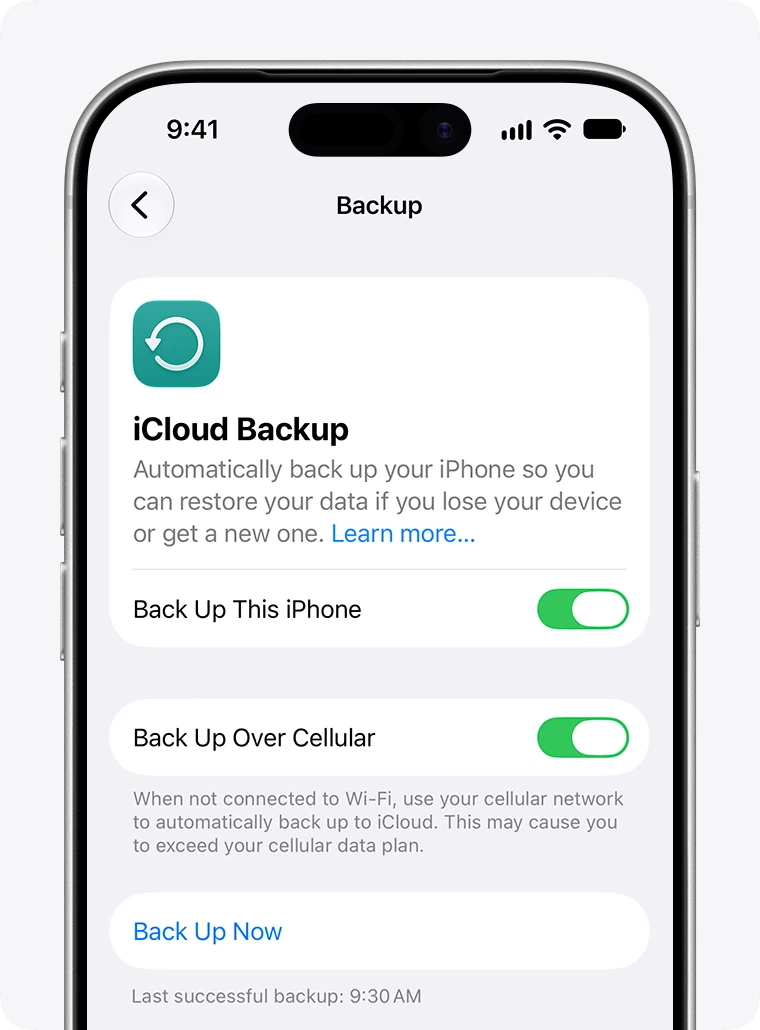
- Tap iCloud Backup and turn on Back Up This iPhone.
- Tap Back Up Now and stay connected until it finishes.
- Check the date and time of the last successful backup.
Use a computer if it suits you
You can also keep the backup on a computer. Trust it only when it is yours or you are authorized to use it.
- Connect the iPhone to the computer with a cable.
- On a Mac with macOS 10.15 or later, open the Finder and select your iPhone in the sidebar. On Windows, open the Apple Devices app or, if your computer does not have it, iTunes.
- Click General at the top of the window.
- On the Mac, select Back up all of the data on your iPhone to this Mac.
- To protect the backup with a password, select Encrypt local backup.
- Click Back Up Now.
An encrypted backup is protected with a password and cannot be read without it. It can include additional data, such as Health and saved passwords. Not every item or app sign-in is included, and synced services keep their own rules.
Verify before updating or erasing
Confirm that you have a completed backup and the ways to access your accounts. A restore can replace content; do not use it as a test to check one photo. Keep the old phone and the original files until the transfer is verified.
YOUR TURN
Try it now
You did it if you can say when your last backup was, or that there is none yet, and whether your photos sync with iCloud.
Your progress is saved only in this browser. No sign-up.