GUIDES AND KNOWLEDGE

Reset your iPhone settings to their defaults

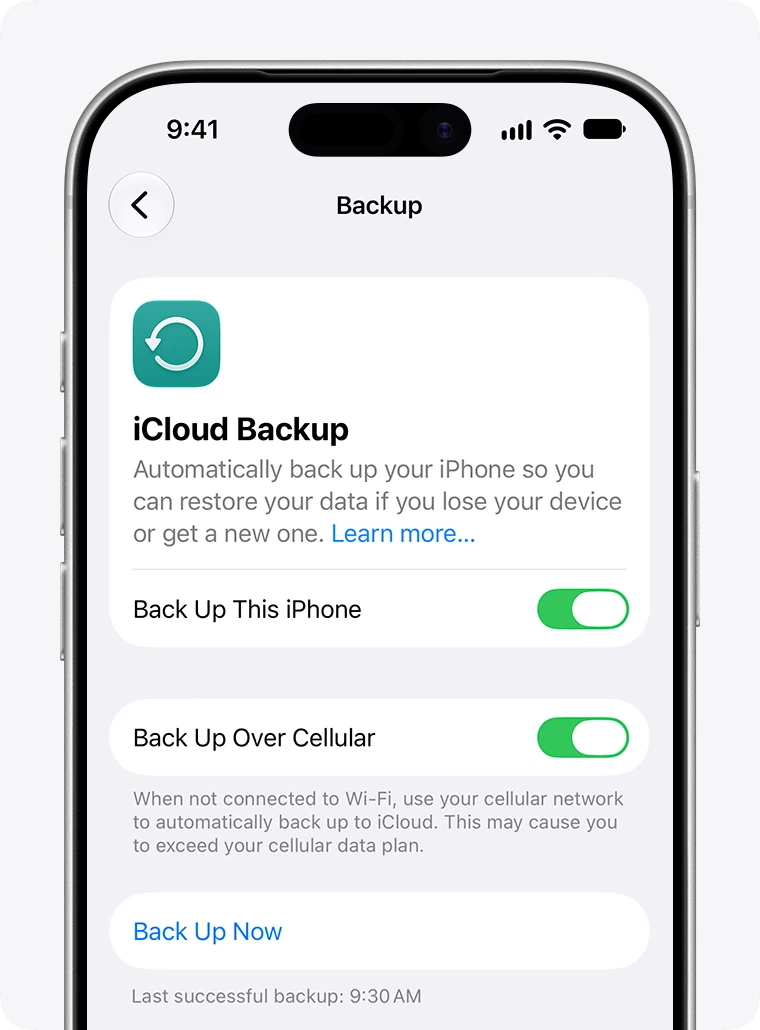
Resetting iPhone settings can help with software-related problems and is presented as an option before a complete restore. The steps below reset customized settings such as wallpaper and ringtones while retaining personal content such as contacts, photos, apps and music. Before changing settings, make a backup.
Original article image: Reset your iPhone settings to their defaults

Follow these steps:

Find Reset

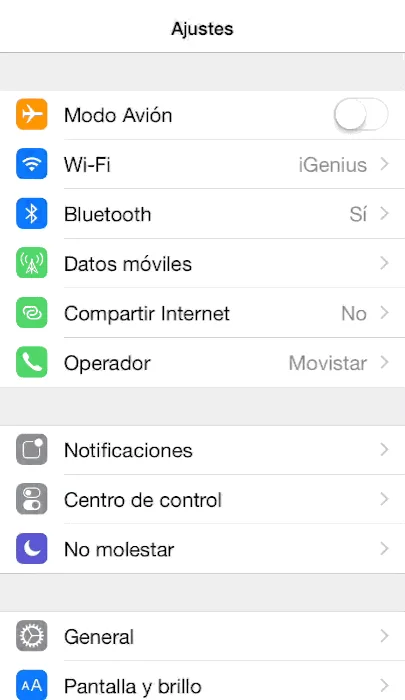
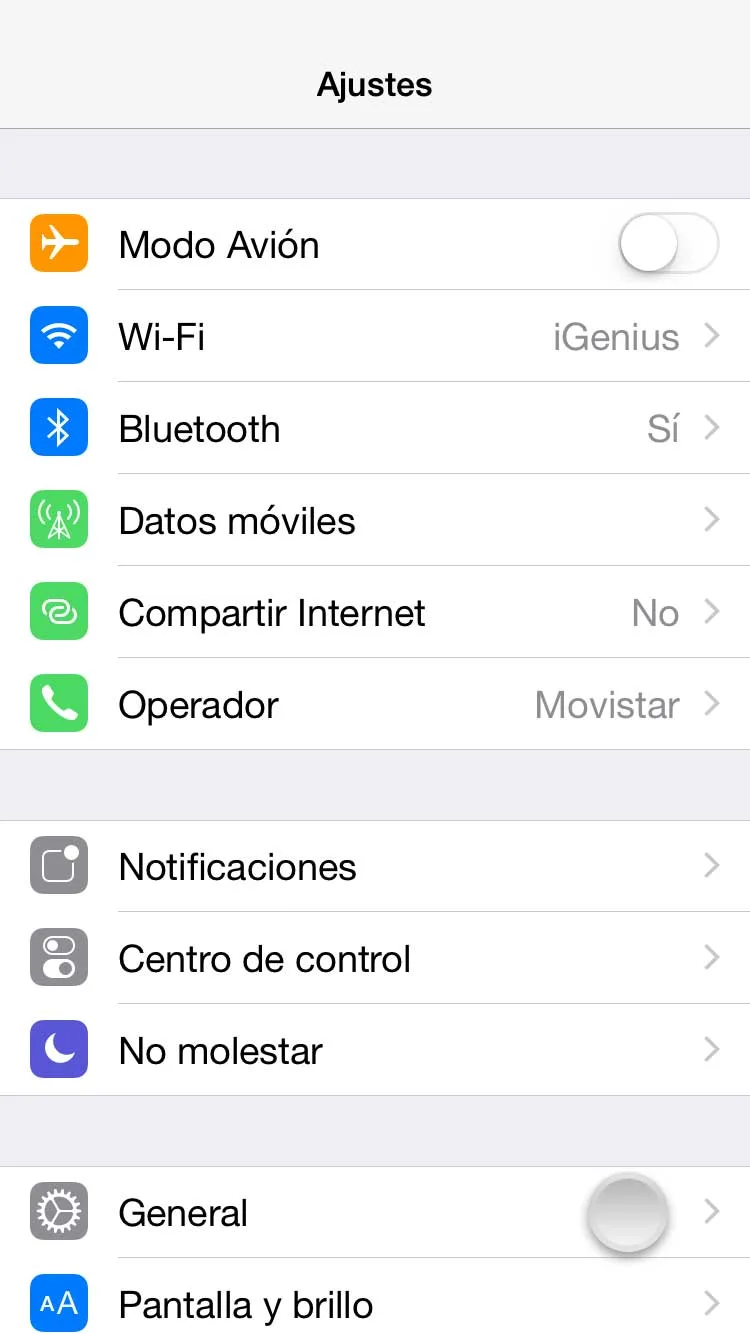
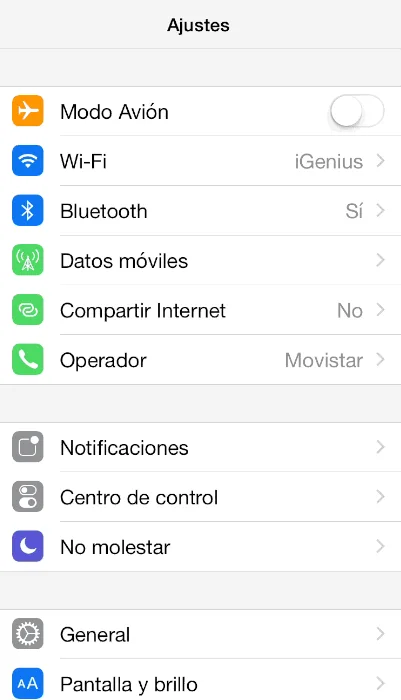
1. Open Settings.

2. Select General.
Original article image: Reset your iPhone settings to their defaults

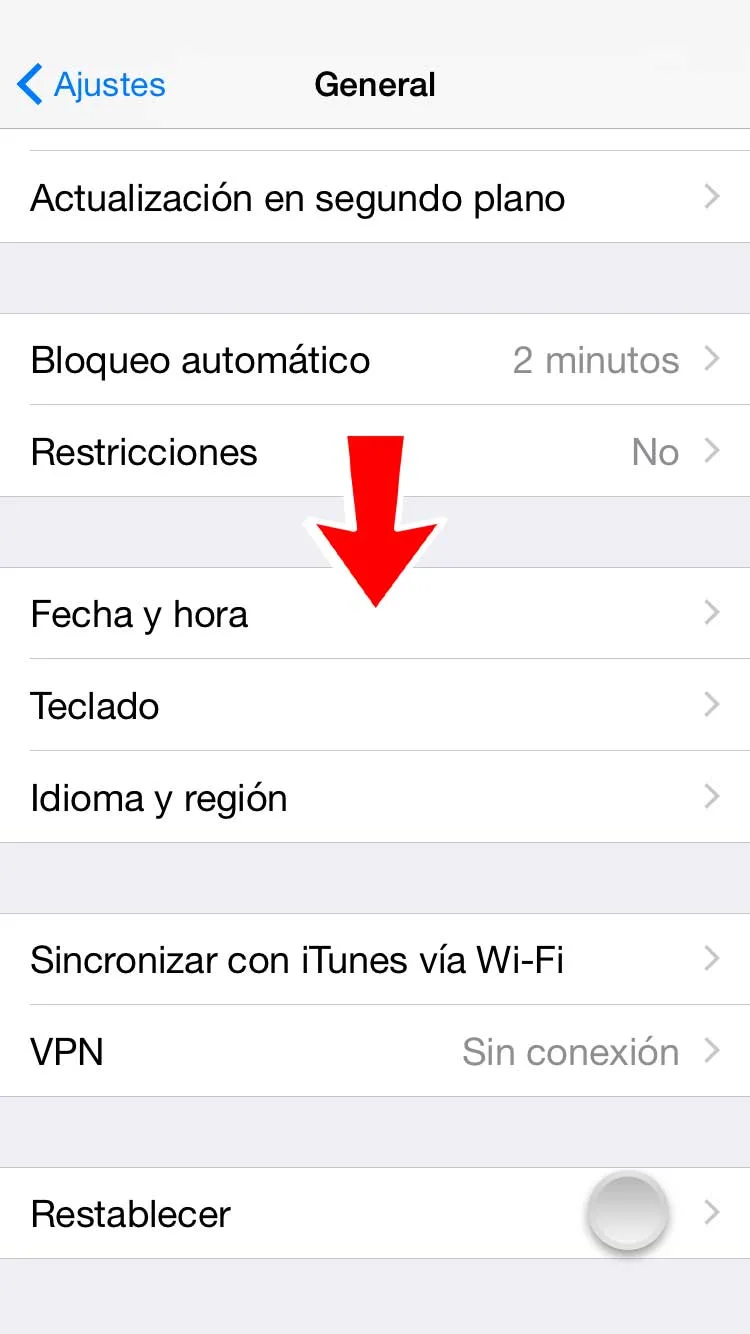
3. Scroll to the bottom and select Reset.
Original article image: Reset your iPhone settings to their defaults

Choose the action

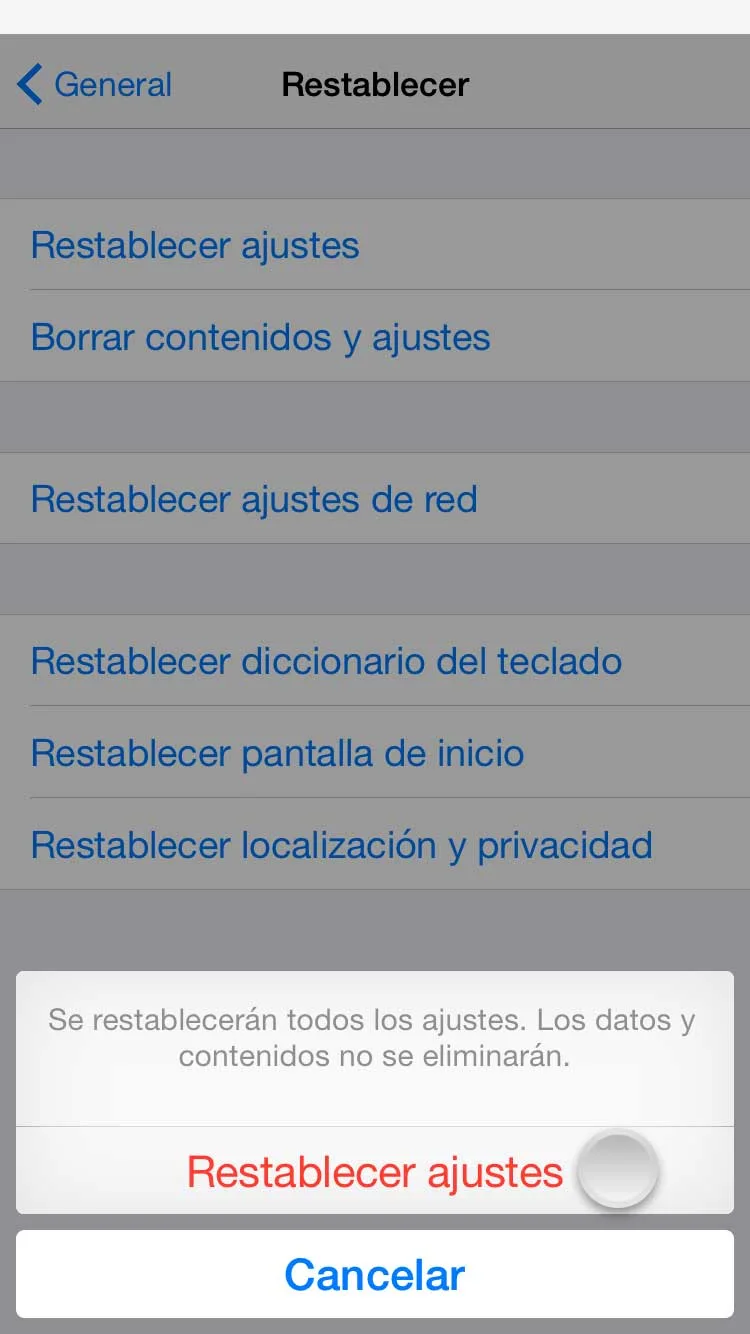
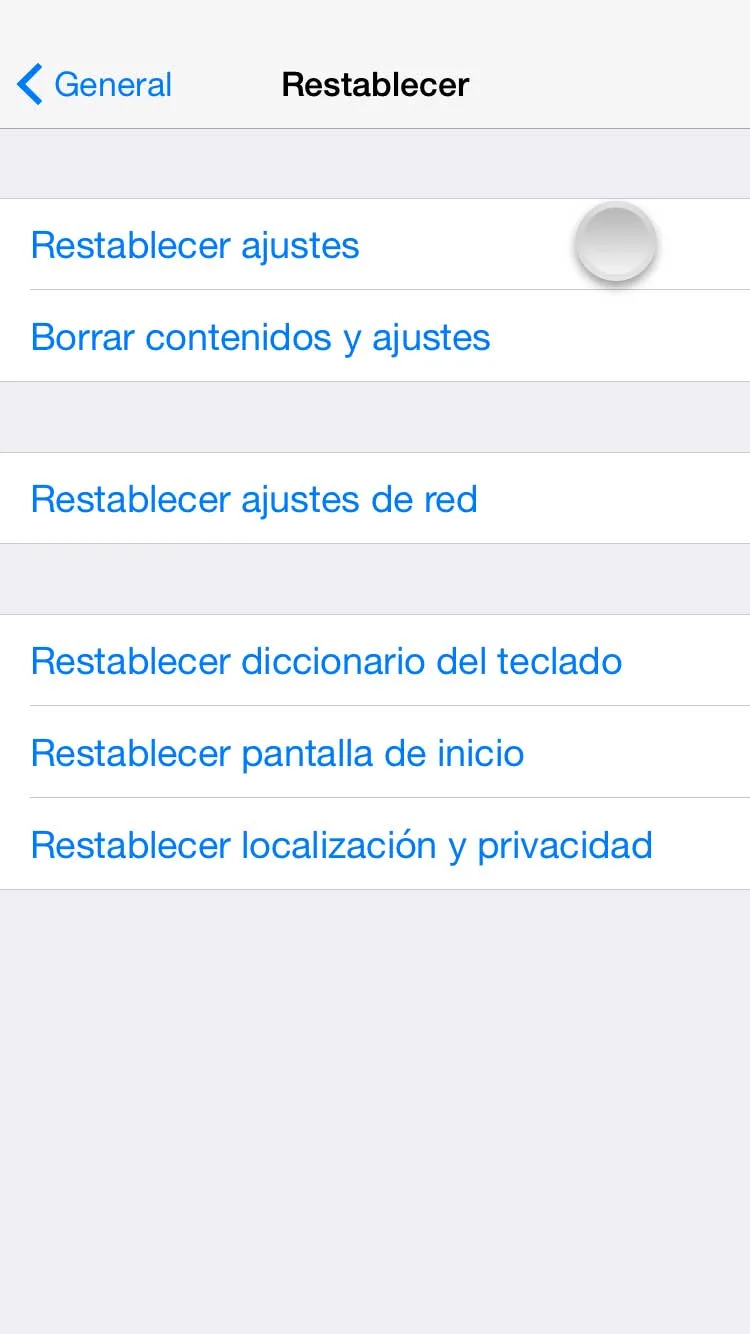
4. Select Reset All Settings. Enter the screen-unlock passcode if one is configured.
Original article image: Reset your iPhone settings to their defaults

5. Select Reset All Settings again.

Original article image: Reset your iPhone settings to their defaults

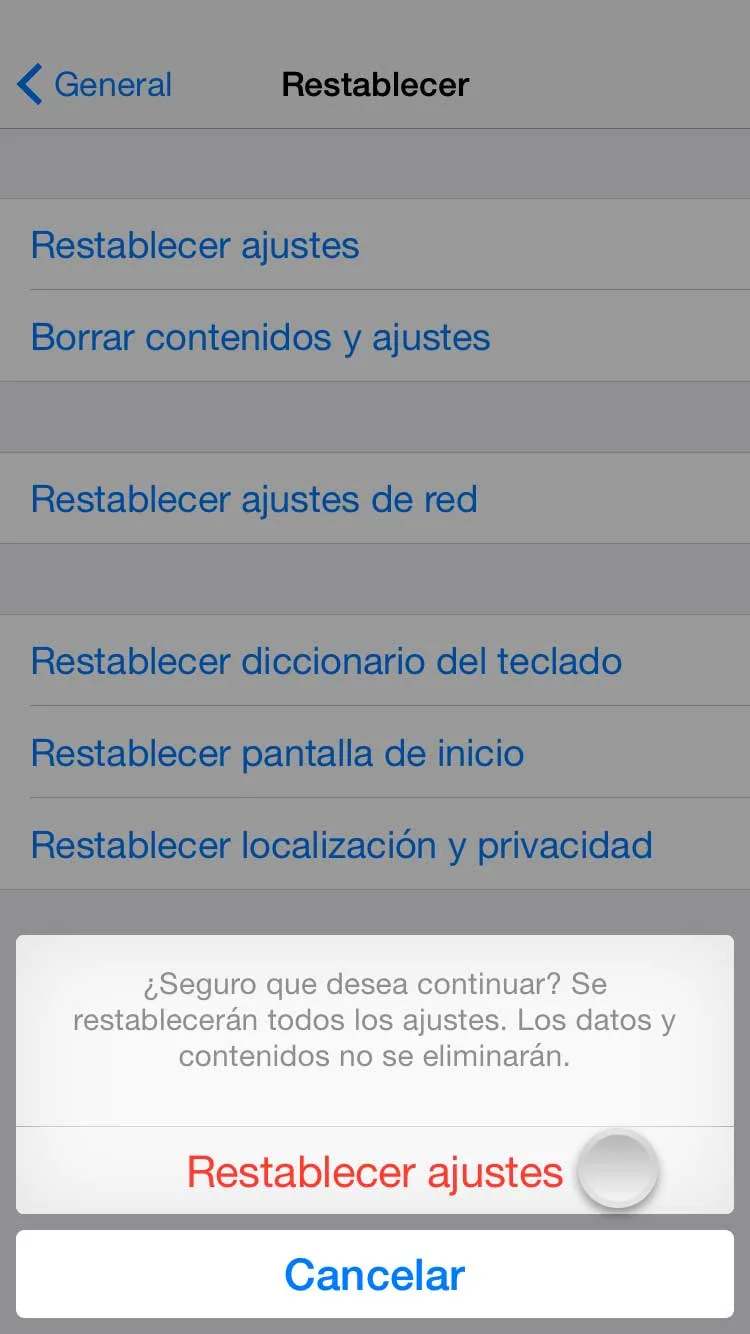
6. Select Reset All Settings once more to confirm.
Original article image: Reset your iPhone settings to their defaults

If the tutorial does not resolve the fault or you have another problem, contact iGenius.
Keep reading

Let’s talk about your device.

Leave an available contact method, even if your phone isn’t working. You can send your inquiry from this site.

iPhone repair at iGenius

Repair my device

Your privacy,
your choice.

You can allow optional Google Analytics measurement to help us improve this page. We don't send your inquiry content, passwords or device details. You can browse without this measurement.

Read privacy policy
STEP 1 OF 51 of 5

REPAIR REQUEST

Which device needs repair?

Choose one. Next we ask for the model and the fault.

Choose your device