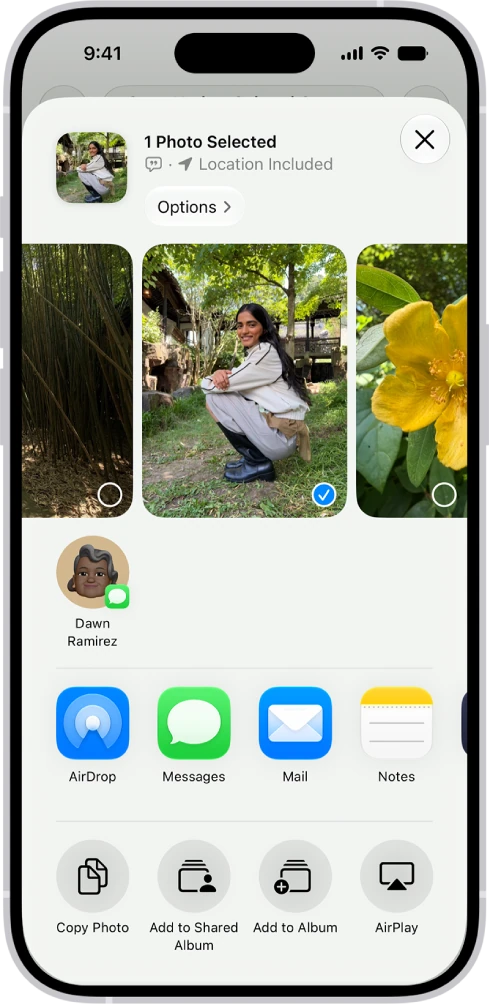
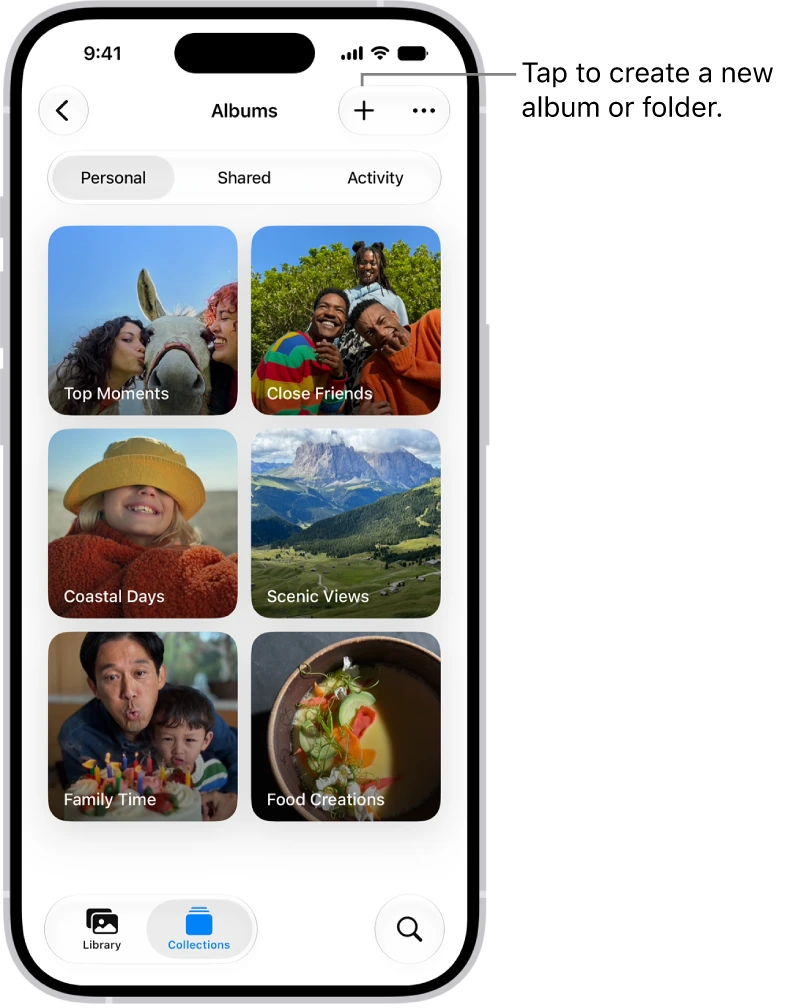
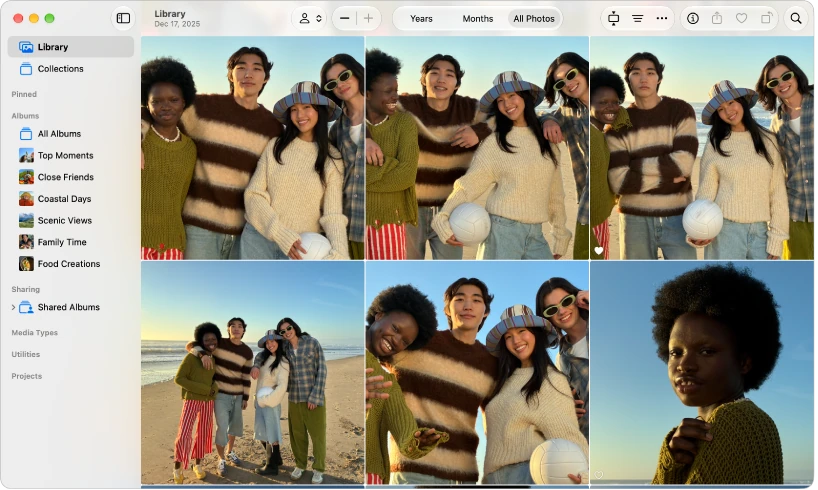
Shared albums let you share selected photos and videos with chosen people. They can view, like and comment on the content, download photos to their devices, and add their own photos and videos from an iOS device or Mac.
On a device running iOS 8:
1. Open Photos, tap Shared at the bottom, then Start Sharing.
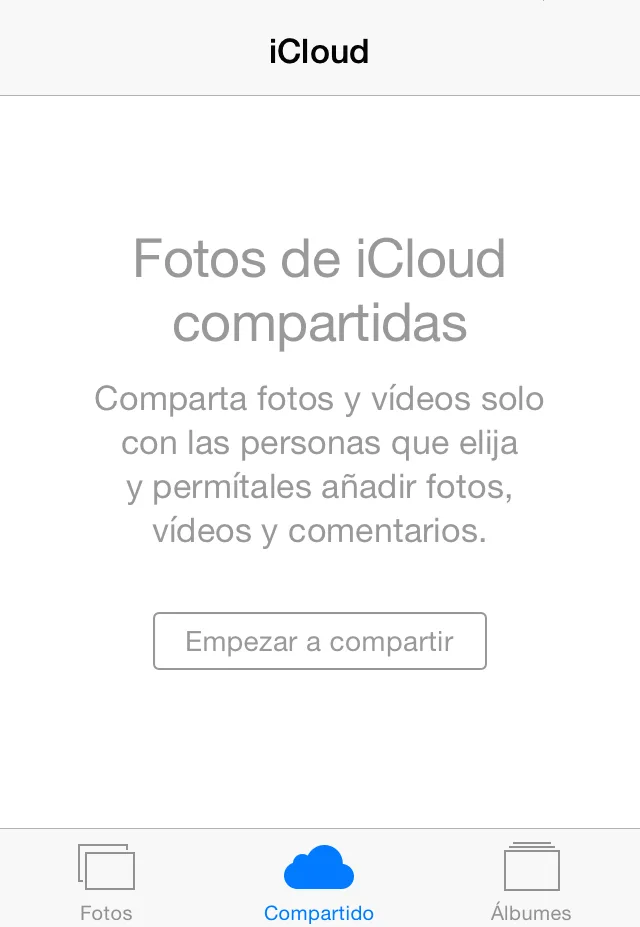
2. Give the shared album a name and tap Next.
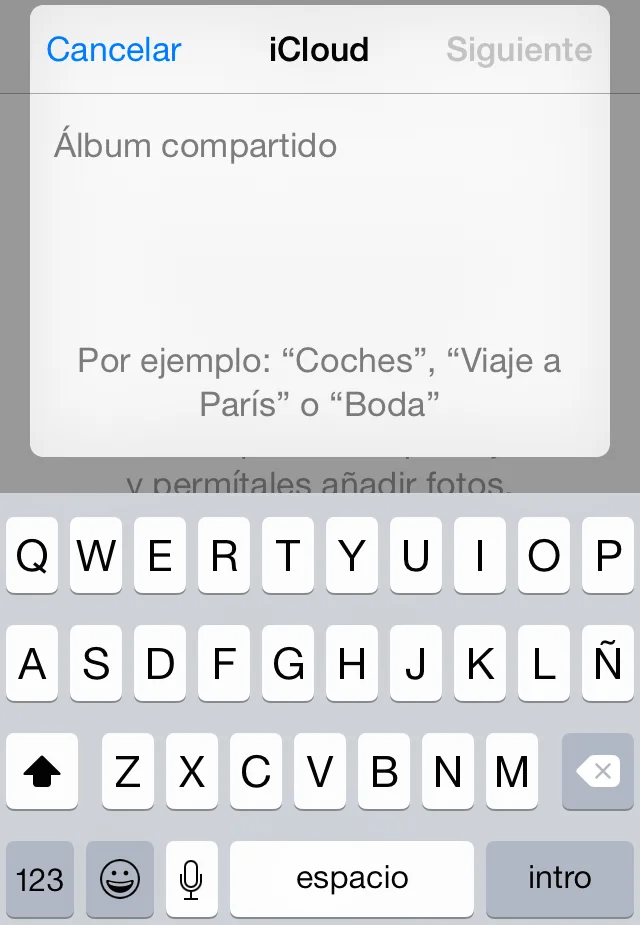
3. Invite subscribers by entering their email addresses or tapping (+) to select contacts.
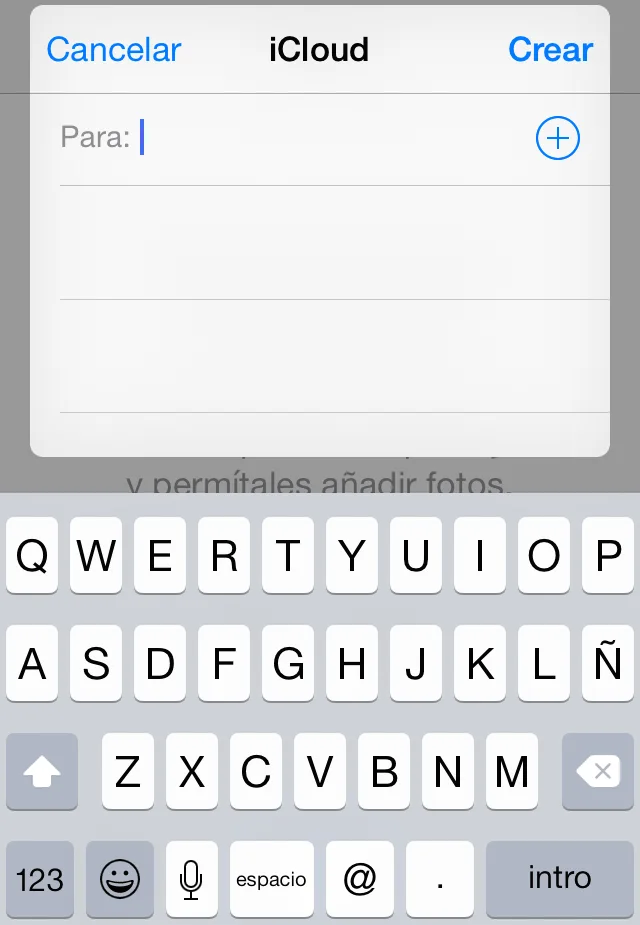
4. Tap Create to finish.
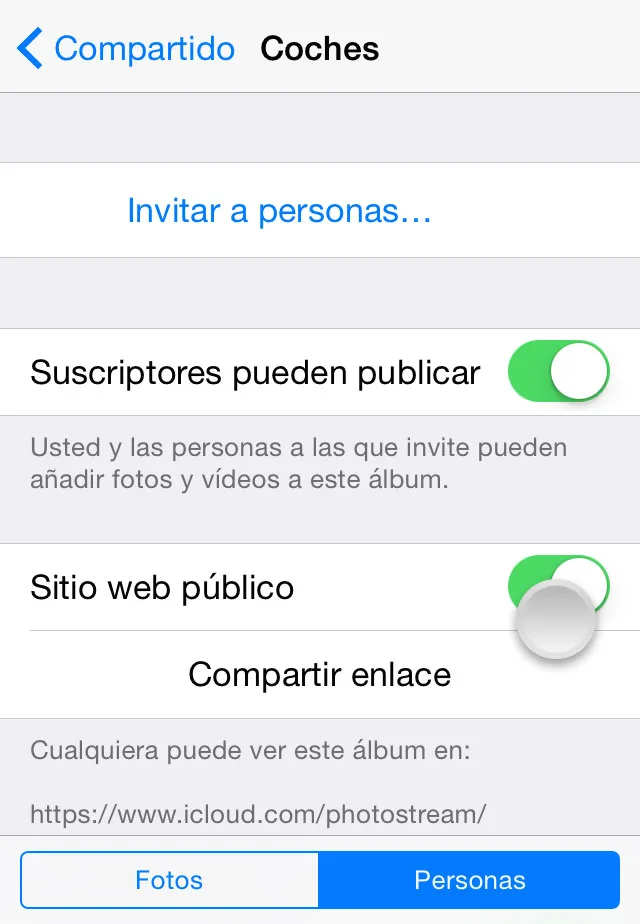
Note: To make the shared album viewable on the web, open it in the shared-albums list, tap People at the bottom and enable Public Website. To send its address to friends, choose Share Link and select a channel such as Messages, Mail, Twitter or Facebook.
On a Mac using iPhoto:
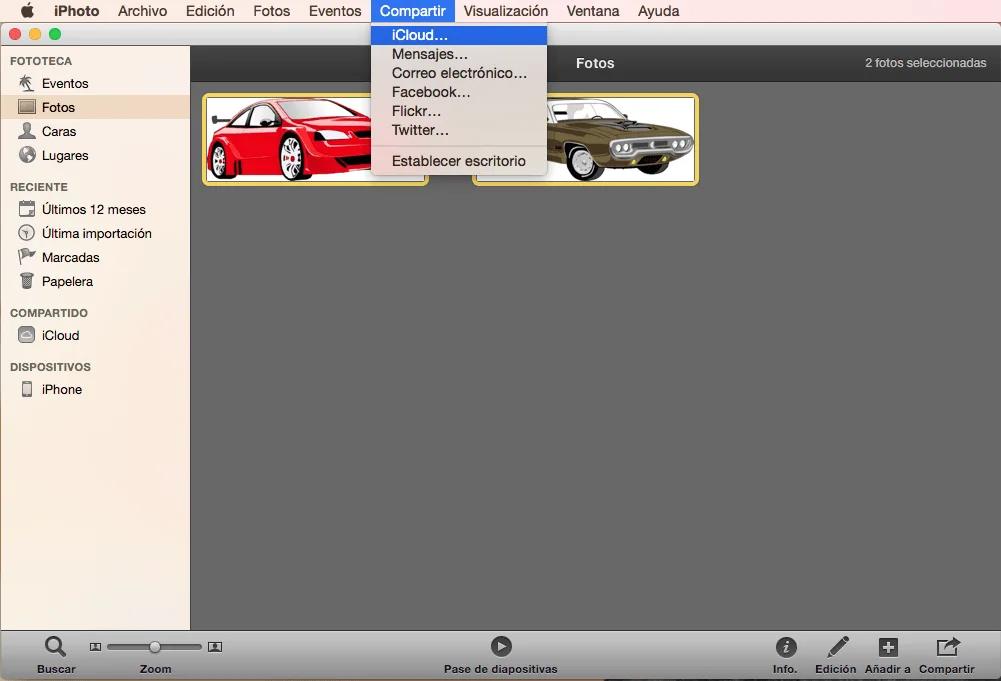
1. Select the photos and videos to share.
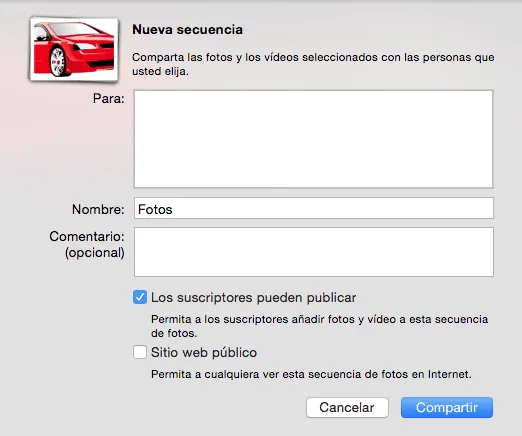
2. Click Share in the toolbar, select iCloud, then New Photo Stream.
Invite the people you want to subscribe by entering their email addresses, then name the new stream or shared album. If you want, you can make the album public, so anyone with the link can view it, by turning on Public Website. To finish, click Share.
In addition to sharing with friends and family, the article explains that this can preserve access to the shared photos and videos if an iOS device is damaged, because they can be accessed from another Mac or iOS device signed in to the iCloud account. This is a description of shared content, not a verified complete-device backup guarantee.