
Sort your photos into albums, make copies when you need them, and know which music and video is yours and which depends on a subscription.
Each type of content has its app
Your Mac comes with an app for each type of content. Knowing which one to open saves you from looking in the wrong place.
- Photos: organizes your photo library, the collection of your photos.
- Music: manages your music and offers services depending on your account.
- TV and Podcasts: hold other content.
Import and sort your photos
- Open Photos.
- Choose Photos > Settings, then click iCloud.
- Look at the iCloud Photos checkbox: if it is selected, your photos are also kept in iCloud, Apple's online service. Turning it on may start a large sync and use iCloud storage.
- To add your own pictures, choose File > Import.
- Select a folder or a device.
- Confirm the import has finished before deleting anything from the source.
- To create an album, select a group of photos and choose File > New Album with Selection.
- Type the album's name in the sidebar and press Return.
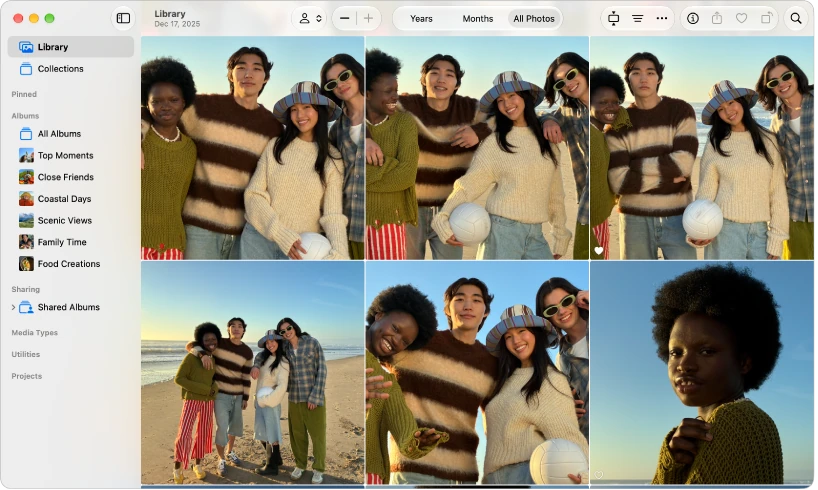
An album organizes references within the library. Adding a photo to several albums generally does not create several originals. To add a photo to an album that already exists, drag it to the album in the sidebar.
Edit a photo and make a copy
Open a practice photo and choose Edit. You can adjust the light, crop or rotate. Keep your originals and review the options for reverting changes.
To place a copy in Finder, the app where you see the files and folders on your Mac, choose File > Export and select the appropriate version. Dragging a thumbnail and copying a whole photo library are different operations.
Remove, delete and share without surprises
Removing a photo from an album is not the same as deleting it from the library. To take it out of the album only, open the album, select the photo and, in the Image menu, choose to remove it from the album. The photo stays in your library and in your other albums.
Before sharing, check whether you are sending an image, a link or a shared album. Photos can retain location and other metadata. Review the export and privacy options for the destination.
Music and video: your own and a subscription's
For your own files, use the app's import option or open the file in a compatible player. Content downloaded from a subscription may depend on keeping it active. For offline copies, check that they have actually downloaded and that their use is permitted.
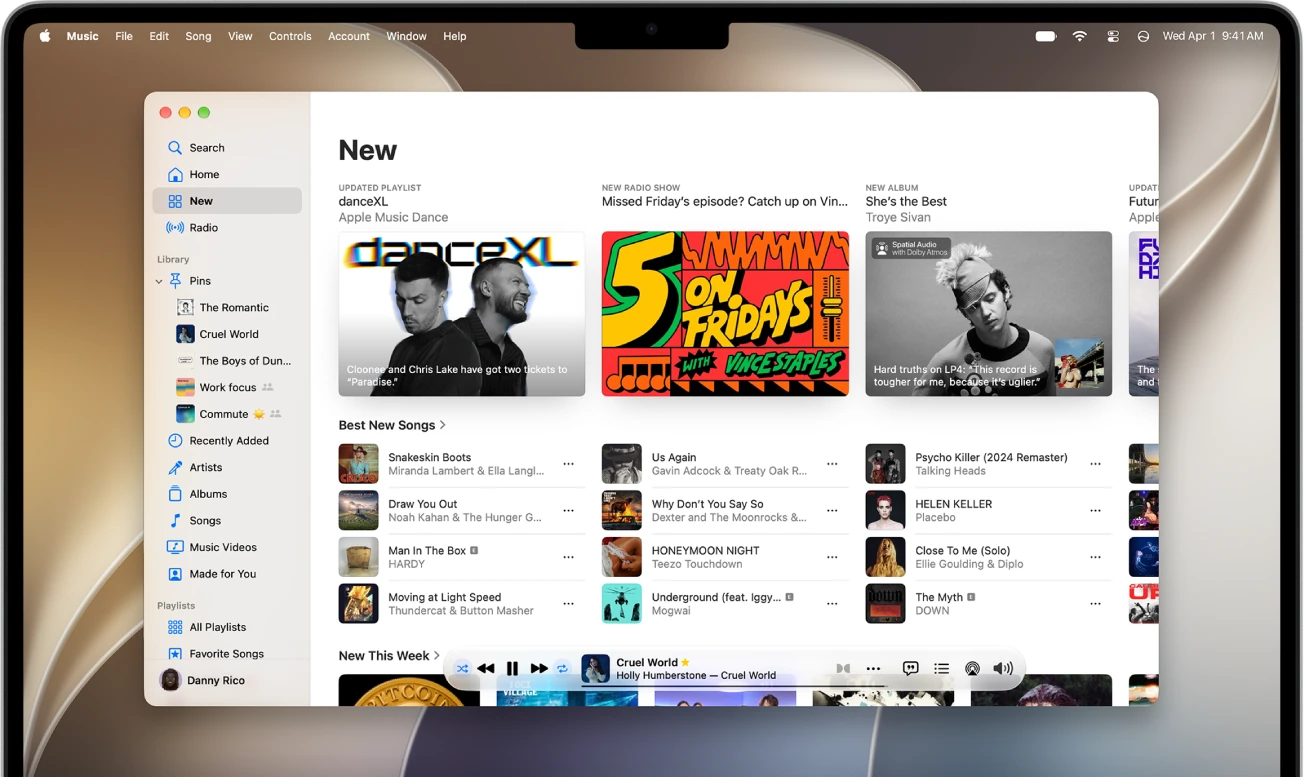
In modern macOS, a connected iPhone is managed in Finder. Music and other media have their own apps.
YOUR TURN
Try it now
You did it if the photo appears in the album and also as a file in the folder you chose, and the original is still in its place.
Your progress is saved only in this browser. No sign-up.