
Build a simple system for finding any photo in seconds: albums, favorites, and the keywords and star ratings that arrive with iOS 27.
Get to know the ways to group photos
With hundreds of pictures, scrolling through the whole library to find just one gets tiring. Photos gives you several ways to mark pictures so you can reach them quickly.
- Album: groups photos from the library without creating another independent copy of each original.
- Folder: holds albums; it does not replace the library.
- Favorites: highlights pictures; it neither backs them up nor prevents deletion.
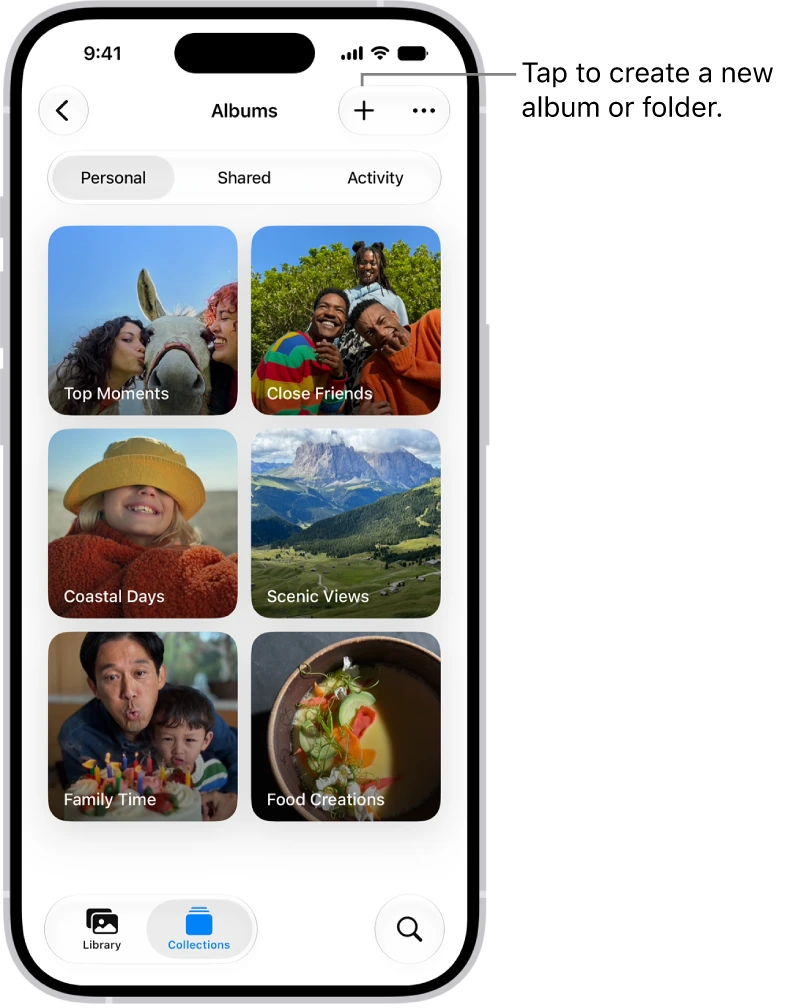
Create your first album
- Open Photos and tap Collections.
- Tap Albums.
- Tap the Add button at the top of the screen, then tap New Album.
- Type a name you will recognize and add some practice photos.
- Tap Create.
- Go back to Library and check that those pictures are still available there.
To gather several albums from one project, in Albums tap the Add button, then New Folder; name it, tap Add Albums and choose which ones to include. Mark a photo as a favorite when you want to find it easily. In People & Pets, review the suggestions before confirming identities or merging groups, because recognition can be wrong.
Tag with keywords, new in iOS 27
A keyword is a label you attach to a photo so you can find it later by that term.
- Open a photo.
- Tap the Info button or swipe up on the image.
- Tap Add Keywords and type a consistent term, such as birthdays, recipes or home-project.
- Tap Done.
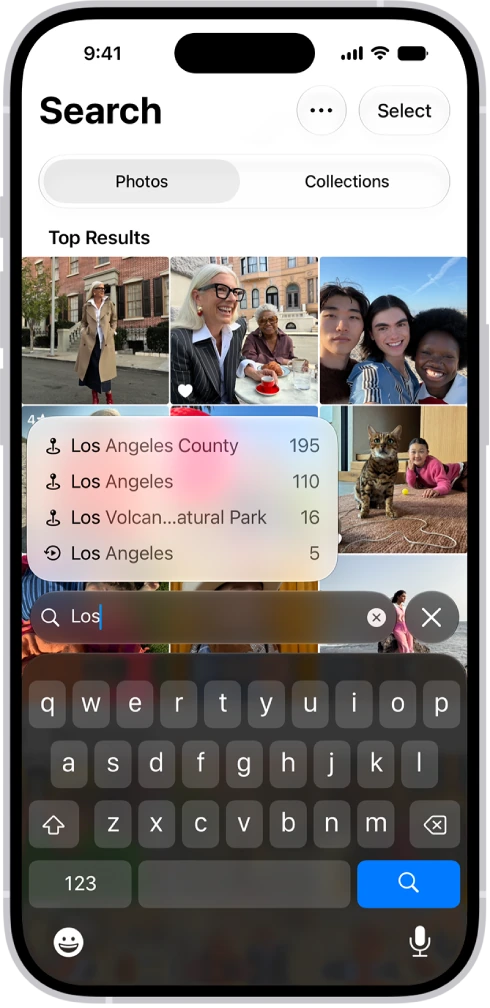
You do not need a separate tag for every variation of one idea. To search, tap the Search button in the bottom-right corner of Photos, type the keyword and tap the suggestion that has Aa before it. To rename or delete tags, tap Collections, then your profile in the top-right corner, then Manage Keywords.
Rate with stars, new in iOS 27
- Tap Collections, then your profile at the top of the screen.
- Turn on Show Ratings Controls.
- Open a photo, tap the Unrated button and choose one to five stars.
- To review your selection, go back to Library, tap the Sort and Filter button and tap Rating.
- Tap a rating level to see only the photos that have it.
A simple rule could be five stars for the best photos you want to print. Stars are not an extra copy or a privacy permission: they organize, they do not protect.
YOUR TURN
Try it now
You did it if a suggestion with Aa before it appears and, when you tap it, you see your photo without having to scroll through the whole library.
Your progress is saved only in this browser. No sign-up.