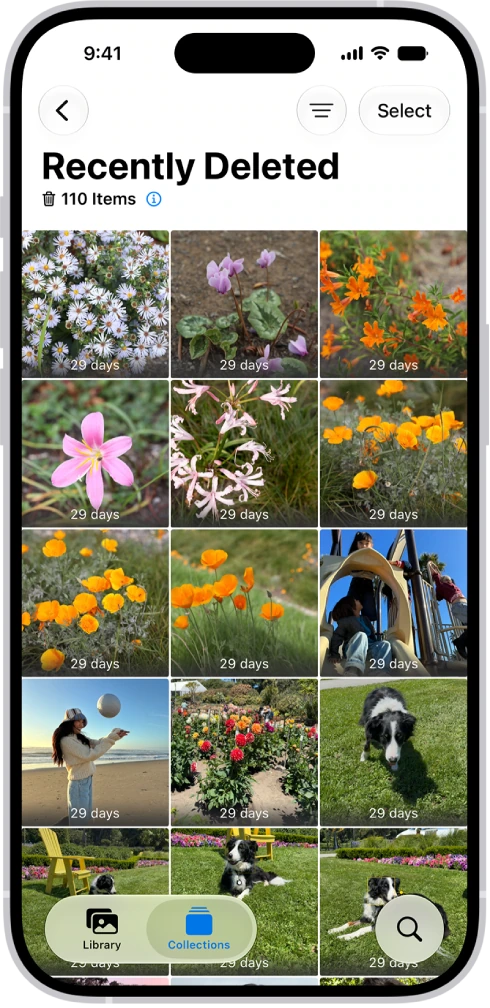
iOS 8 introduced an easy way to recover deleted photos. Deleting a photo on an iPhone or iPad moves it to Recently Deleted rather than erasing it immediately; it is deleted permanently after 30 days unless you act sooner. This guide explains how to remove one or many photos or videos immediately without waiting for automatic deletion.
How to delete photos permanently
1. Delete one or more images in Photos as usual on an iPhone or iPad running iOS 8.
2. In the same app, open Albums, then Recently Deleted. This album also allows recovery of accidentally deleted photos.
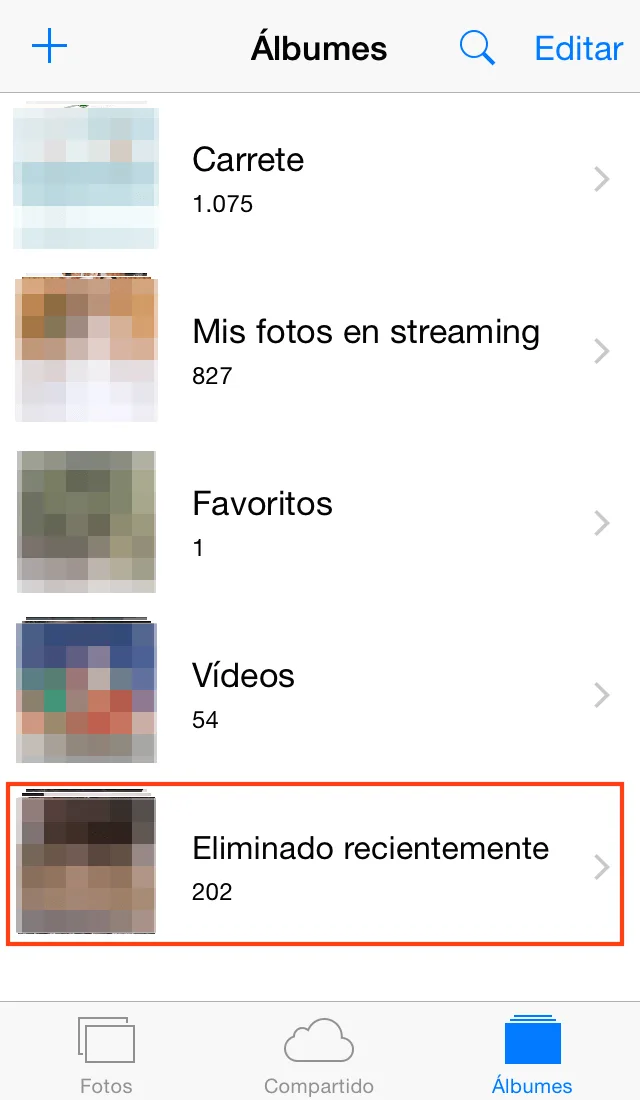
3. Use one of these three methods:
- Delete one image by opening it and tapping Delete at the lower left.
- Delete several photos by tapping Select at the upper right, choosing only the photos to remove permanently and tapping Delete at the lower left.
- Without selecting an image, tap Delete All at the lower left to remove every recently deleted photo and video.
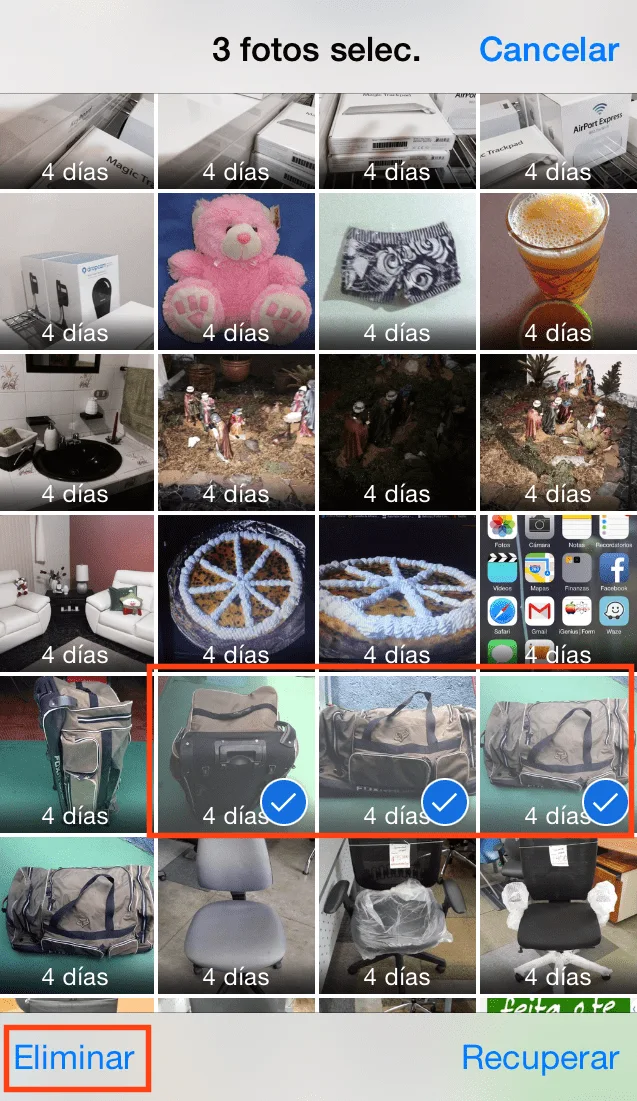
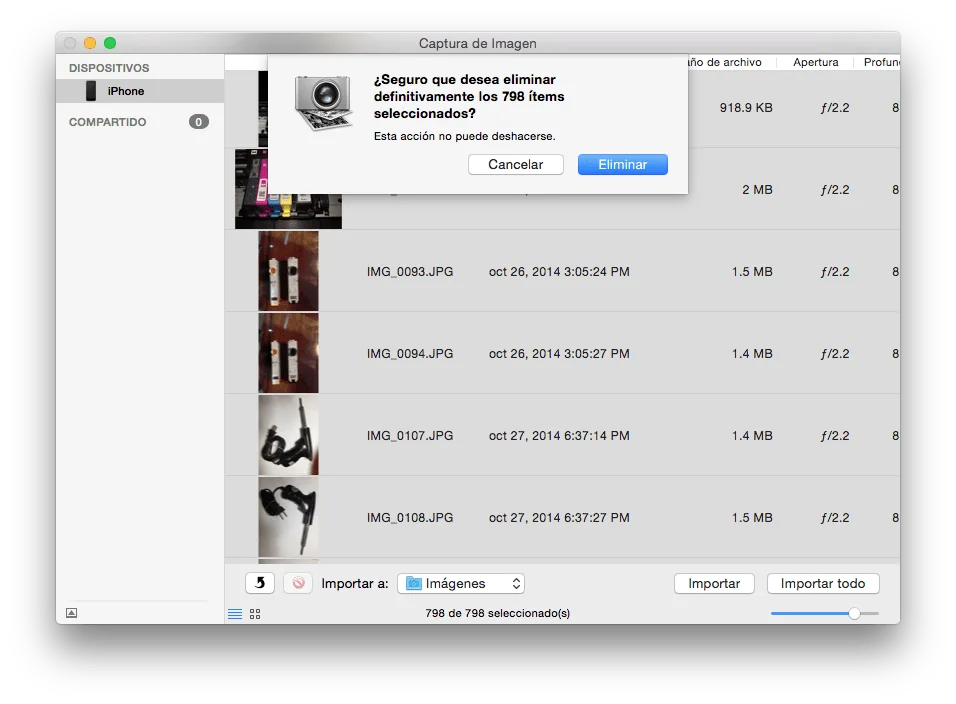
4. Confirm permanent deletion.
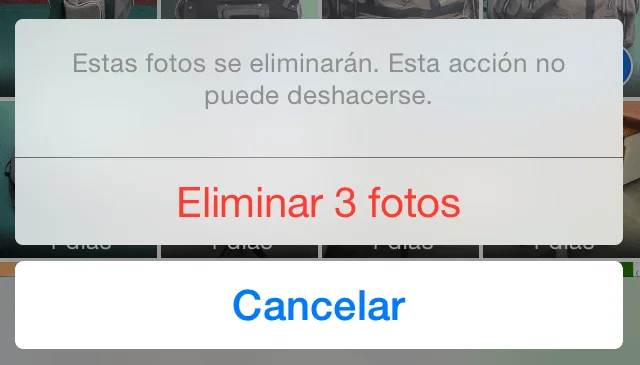
Note: Deletion from this album cannot be reversed. Be careful and certain about what you are removing.