
Tidy your photo library without scares: learn how hiding, removing from an album and deleting differ, and how to recover a photo deleted by mistake.
Check your copies before deleting
Before deleting many pictures, confirm which library is open, whether iCloud Photos is on and where you keep an independent copy. Open a few exported photos from that destination. An iPhone backup does not include another copy of photos already synced in iCloud.
Review duplicates
- Open Photos and tap Collections.
- Tap Utilities, then Duplicates.
- Compare the group: detail, format, edits and metadata can differ. Similar frames from a burst are not identical files.
- Tap Merge next to the group when you are sure, then confirm on the button that says how many items will be merged.
- Check the result and keep your backup.
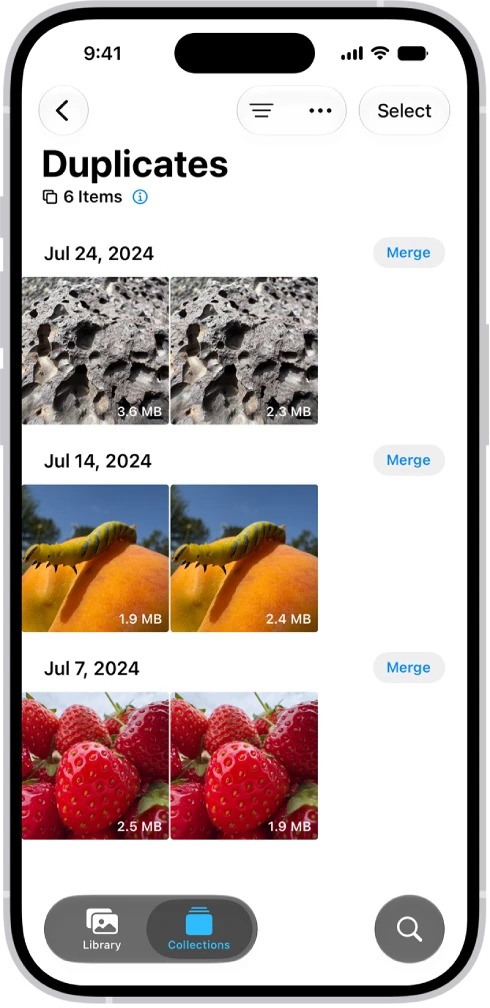
If the Duplicates collection does not appear, Photos found no duplicate photos or videos in your library. It does not mean a fault.
Know how far each action reaches
| Action | What happens to the photo |
|---|---|
| Remove from an ordinary album | It stays in Library. |
| Hide | It is taken out of the normal views. This does not create a separate account or another copy. |
| Delete from Library | It can be removed from the whole library and, with iCloud, from synced devices. In a shared library it can affect other people too. |
Recover a photo deleted by mistake
Deleted photos are kept for 30 days in the Recently Deleted collection before they are permanently removed.
- In Photos, tap Collections.
- Tap the Recently Deleted collection, below Utilities, then View Album.
- Authorize with Face ID, Touch ID or your passcode: the collection asks for it by default.
- Tap Select and choose the photo.
- Tap the More button, then Recover.
- Confirm it is back in Library.
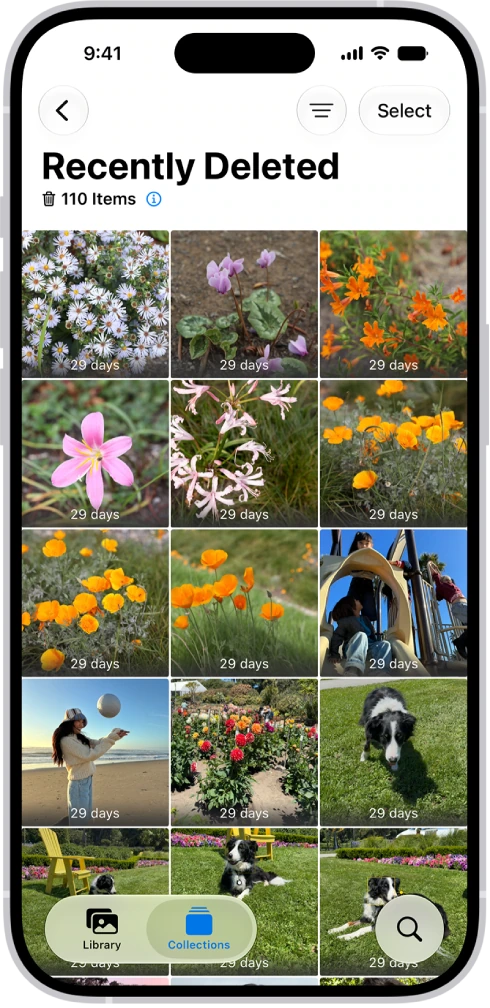
Permanent deletion is neither a backup nor a practice operation. If the photo no longer shows up for recovery, look for exported copies and other appropriate backups before assuming it can be restored from any device.
Remember that hiding is not deleting
To hide a photo, open it, tap the More button and tap Hide. The photo moves to the Hidden collection, below Utilities, which asks for Face ID, Touch ID or your passcode by default. If you would rather that collection not appear at all, open Settings, tap Apps, then Photos and turn off Show Hidden Album.
YOUR TURN
Try it now
You did it if the photo is no longer in the album but is still in Library, and you now know where to look for a photo deleted by mistake.
Your progress is saved only in this browser. No sign-up.