The iPhone, especially from iPhone 5 onward, can be a good replacement for a simple camera. However, photos can take up a lot of space on your device. If you have hundreds or thousands of photos on your iPhone, you probably don't want to tap them one by one to select them all. So what can you do? If you have a Mac, just connect your iPhone: it's very simple.
Note: This article assumes you have already saved every photo you want to keep to your computer or cloud before deleting anything.
To import all or selected photos into a Mac folder first, select them, choose the destination folder and click Import or Import All. Image Capture handles the transfer.
Other methods and paid utilities exist, but this post aims to keep the process simple and avoid additional costs.
How to delete iPhone photos using a Mac
[
](https://www.igeniuscr.com/wp-content/uploads/2014/11/Captura-de-pantalla-2014-11-26-a-las-1.48.17-PM.png)
- Connect the iPhone to a USB port on the Mac with its cable.
- Open Image Capture from Applications.
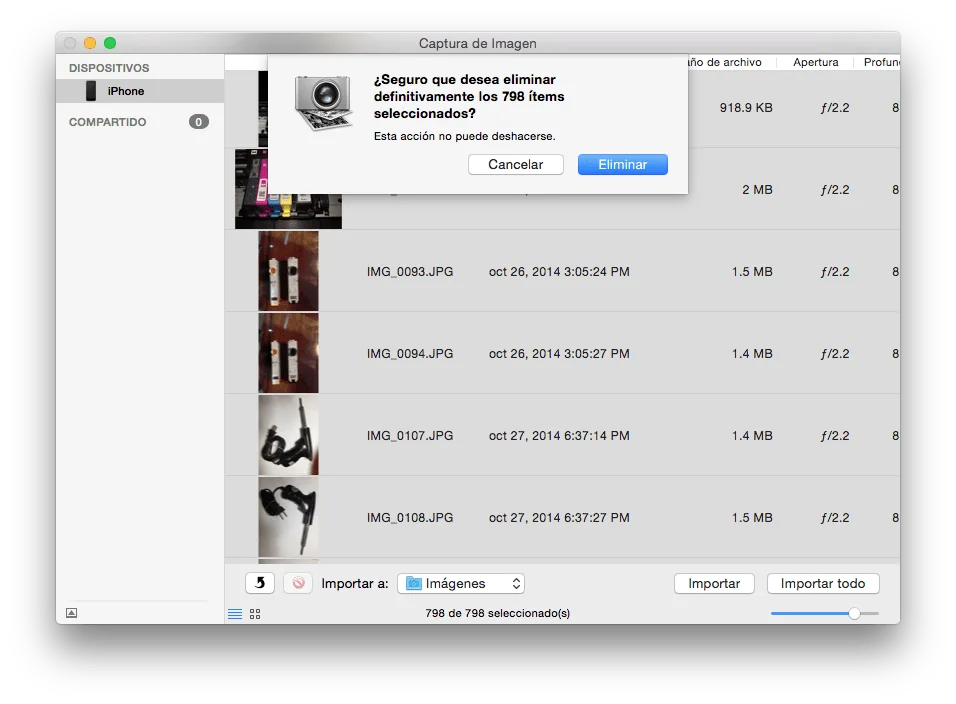
- Select the iPhone in the device list on the left and press Command + A to select all photos.
- Click the red Delete button at the lower left (
 ) to delete the selected photos.
- Click Delete when asked to confirm, as shown above.
- Wait for the process to finish; it may take a while.