At publication, the article described Dropbox as a popular, trusted cloud-storage service for almost ten years. It favored its usability and pricing over Google Drive and iCloud, while noting that Dropbox does much more than store files. This is the author's historical comparison, not a current product recommendation.
Here are seven ways to get more from Dropbox:
1. Digitize paper documents
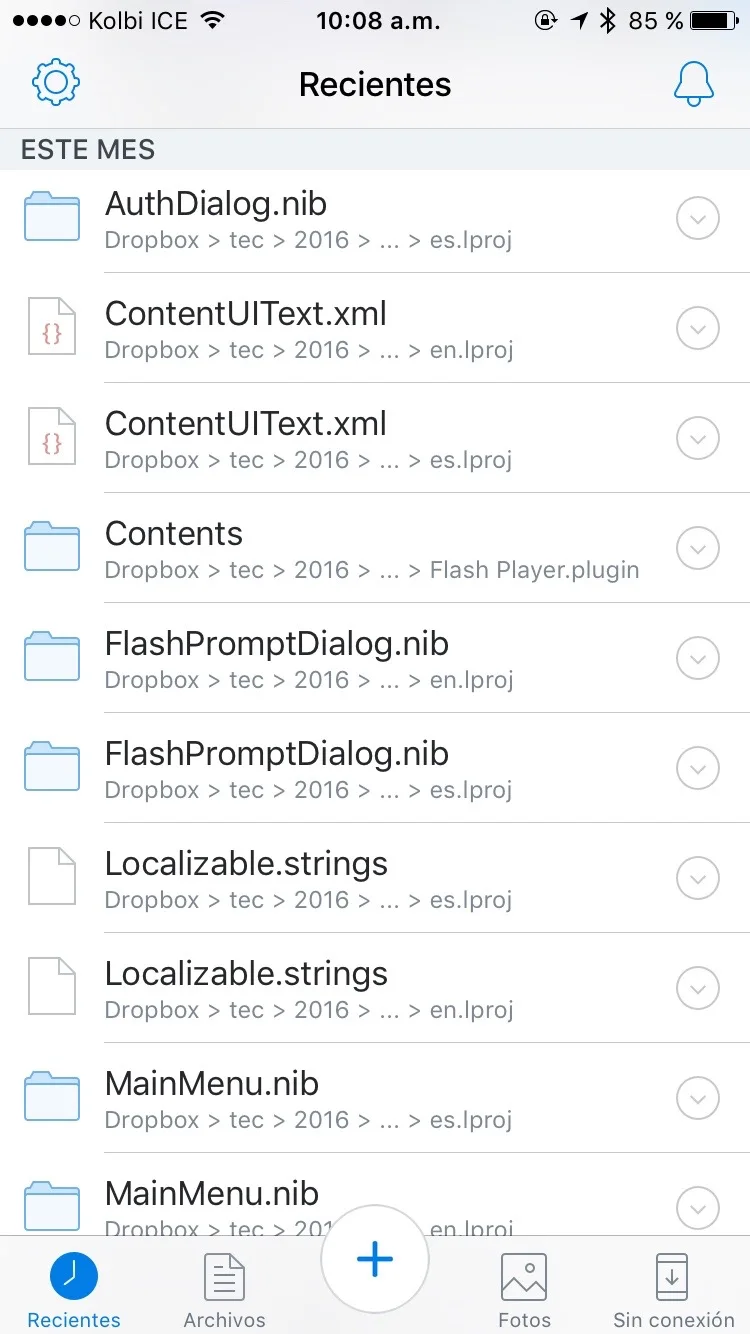
The Dropbox app for iOS can scan documents with the iPhone camera. And if you pay for a premium Dropbox account, you also get a tool called OCR (optical character recognition), which lets you search for specific words in a document or file.
On Files, tap the new + button at the bottom.
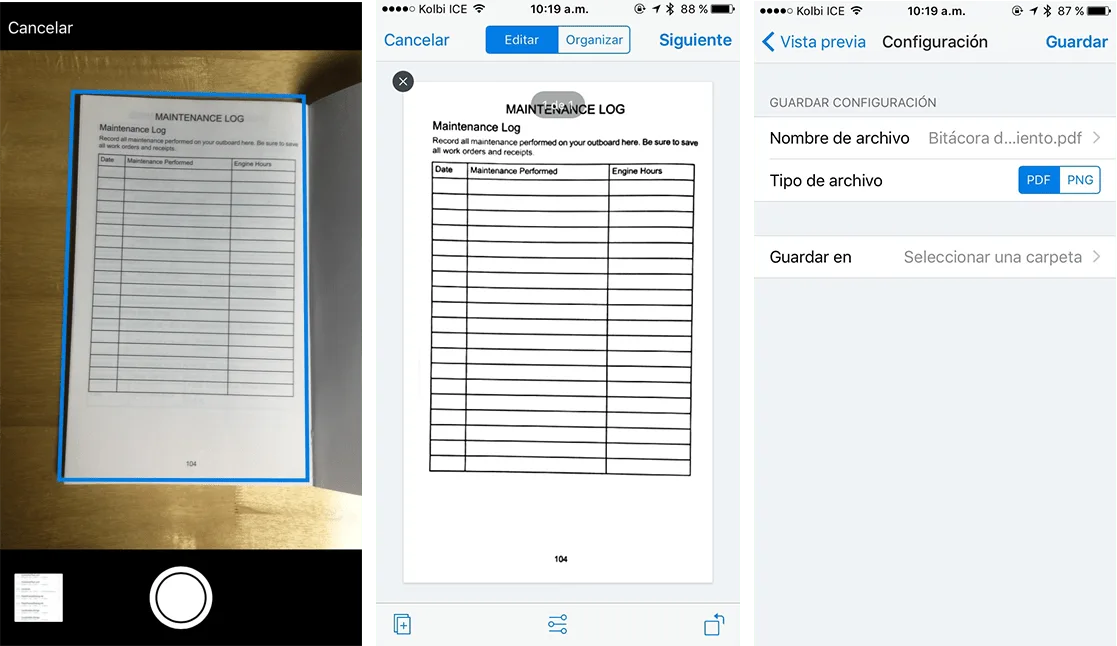
Choose Scan Document and point at the page. A surface contrasting with the document helps Dropbox detect it and mark a blue border. Take the photo, then adjust contrast, rotate or add pages. Tap Next to save the scan as a PDF in the desired folder.
2. Recover deleted files
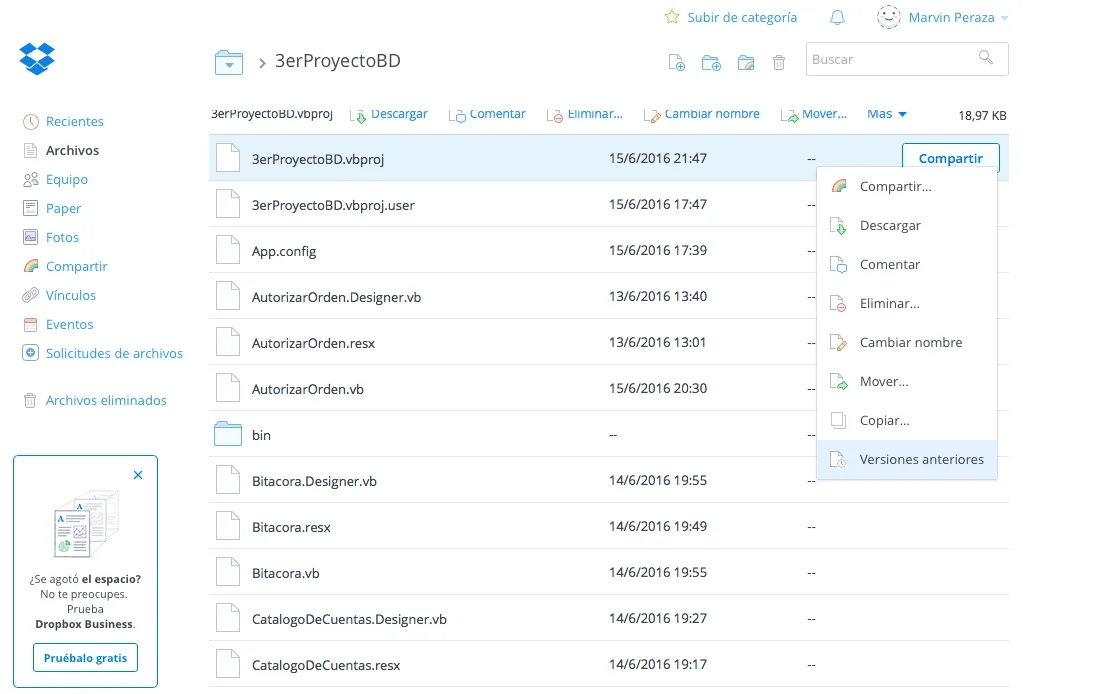
A useful but less-known feature is recovering deleted files, provided they synced to the cloud before deletion. In the web interface, select Deleted Files or open a folder and click the trash icon.
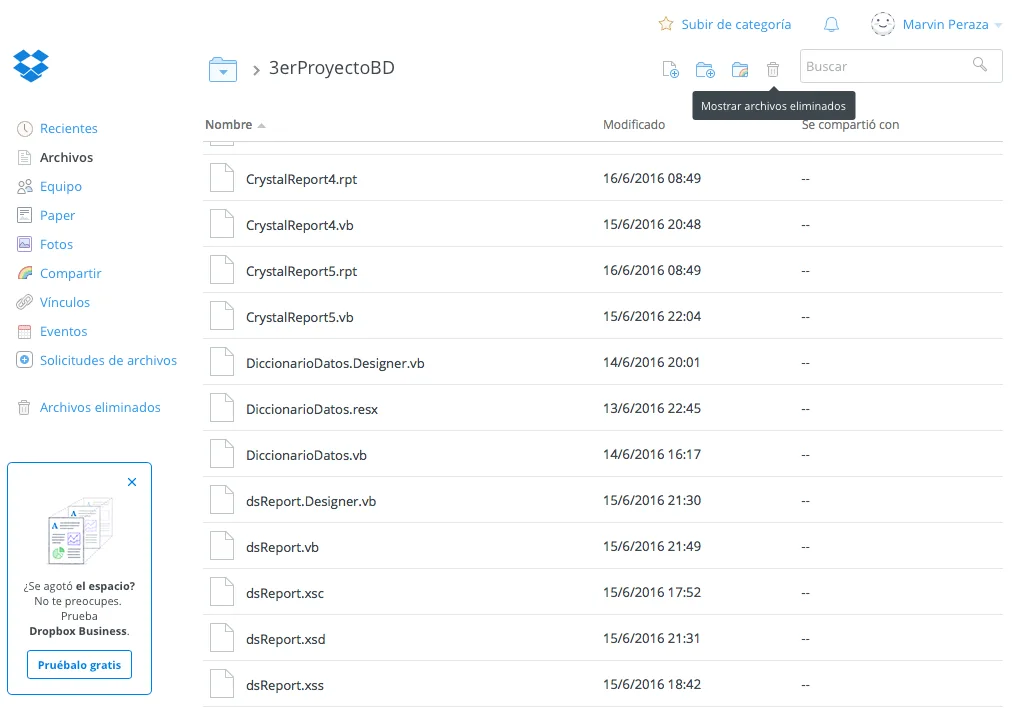
The source describes deleted-file retention of 30 days, or longer with Dropbox Business. Earlier file versions are also available by right-clicking a file on the website and choosing Previous Versions. Current retention depends on the plan and requires verification.
3. Remotely disconnect other devices
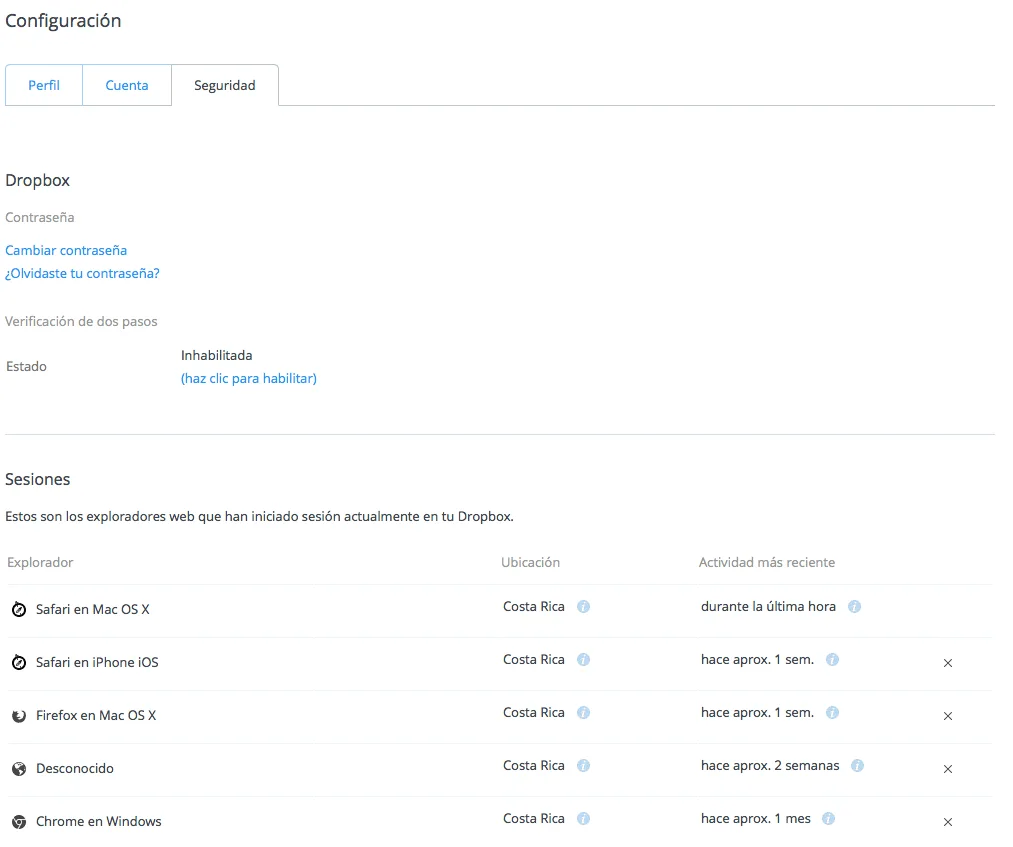
Use two-step verification and a strong password to help keep unauthorized people out of private files. If a computer or browser signs in automatically, the source recommends protecting that access with a PIN too.
Periodically review devices with Dropbox access in Security under web account settings. Click the x to revoke access for a device you do not recognize or no longer want linked.
4. Set shared links to expire
You may want to share a folder with accounting now, but what about weeks or a year later? Expiry dates can improve security by ending access to specific files or folders after a set time.
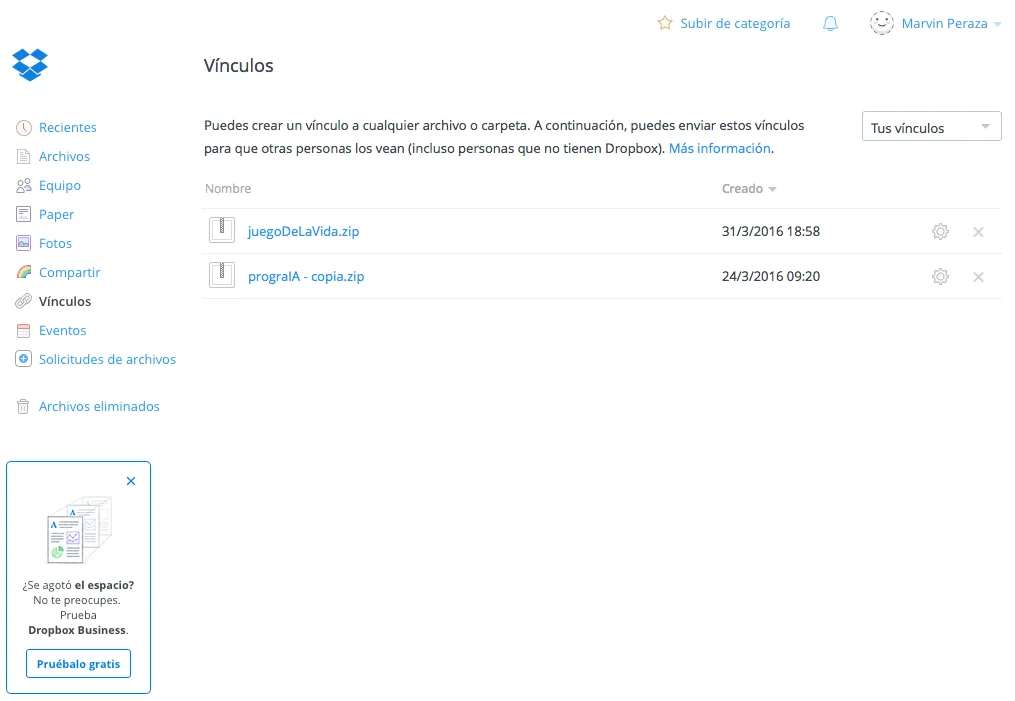
When creating a shared link on the website, open Link Settings and choose its expiry. The source also describes using Links in the left panel to revoke an active link or set an expiry date.
5. Request files from others
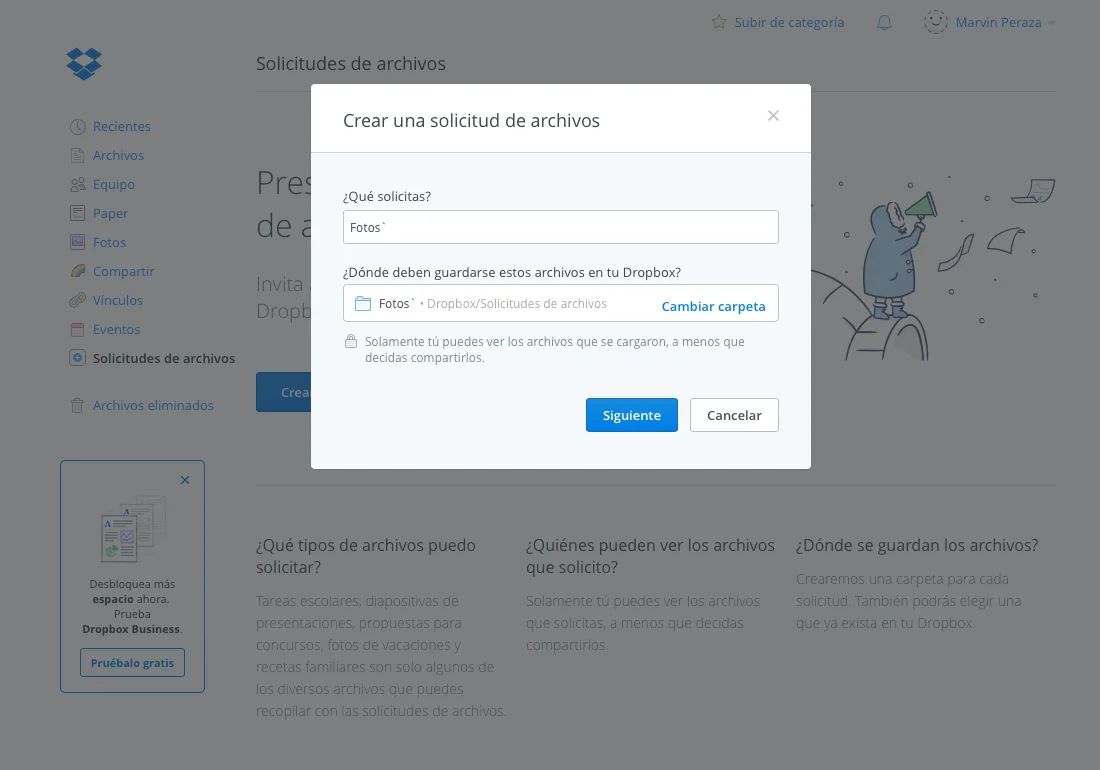
Sharing files in Dropbox is easy, but what about asking other people for files? In 2015 Dropbox launched file requests, a tool that lets anyone, with or without a Dropbox account, send files to your account without signing in.
Open www.dropbox.com/requests and create a request. Choose a receiving folder and optionally a deadline. Dropbox supplies a shareable link. The source says files arriving through that unique link are visible only to you.
6. Free space by removing local copies
Selective Sync lets you remove local copies from the computer while keeping cloud copies. Once a folder has uploaded, deselect it in Dropbox's Mac desktop app.
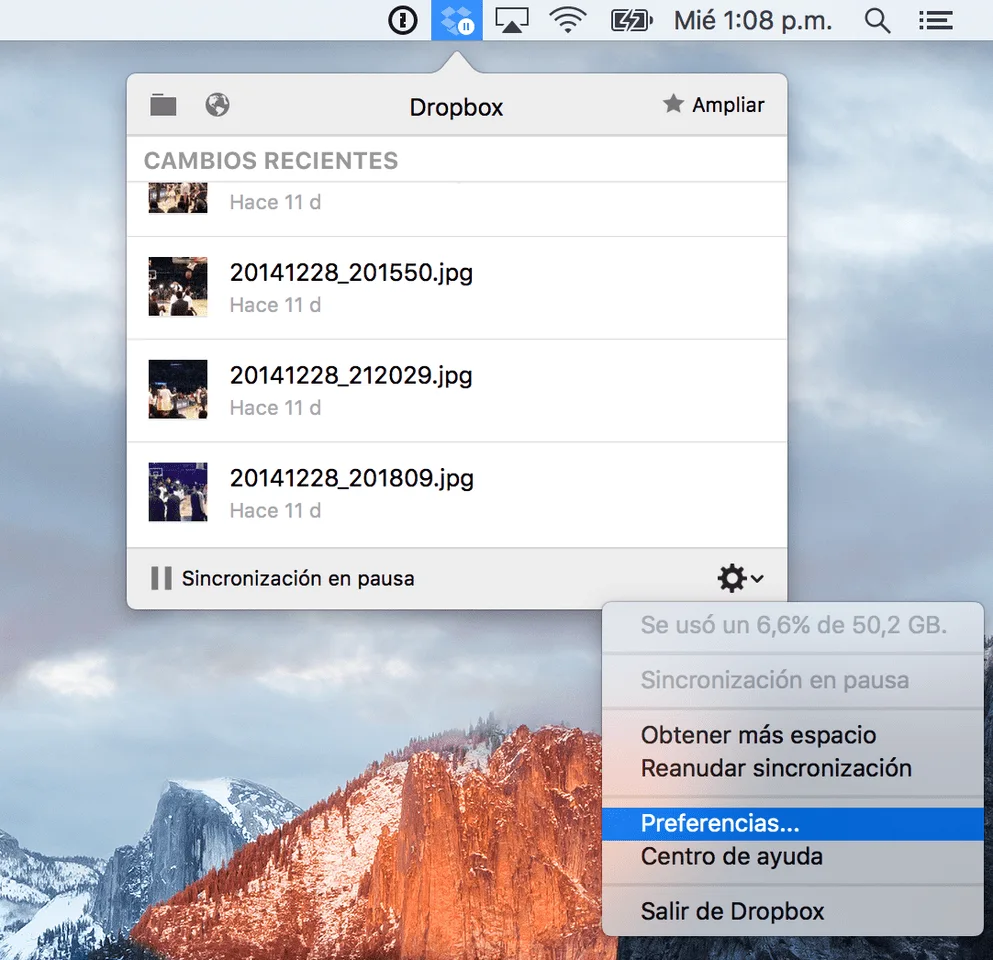
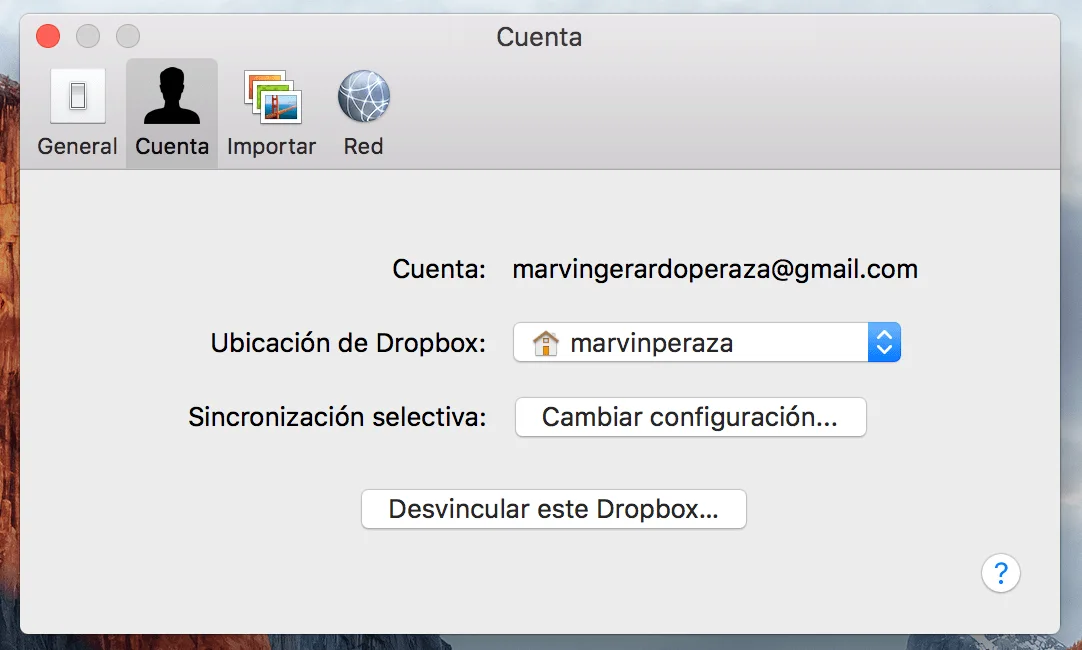
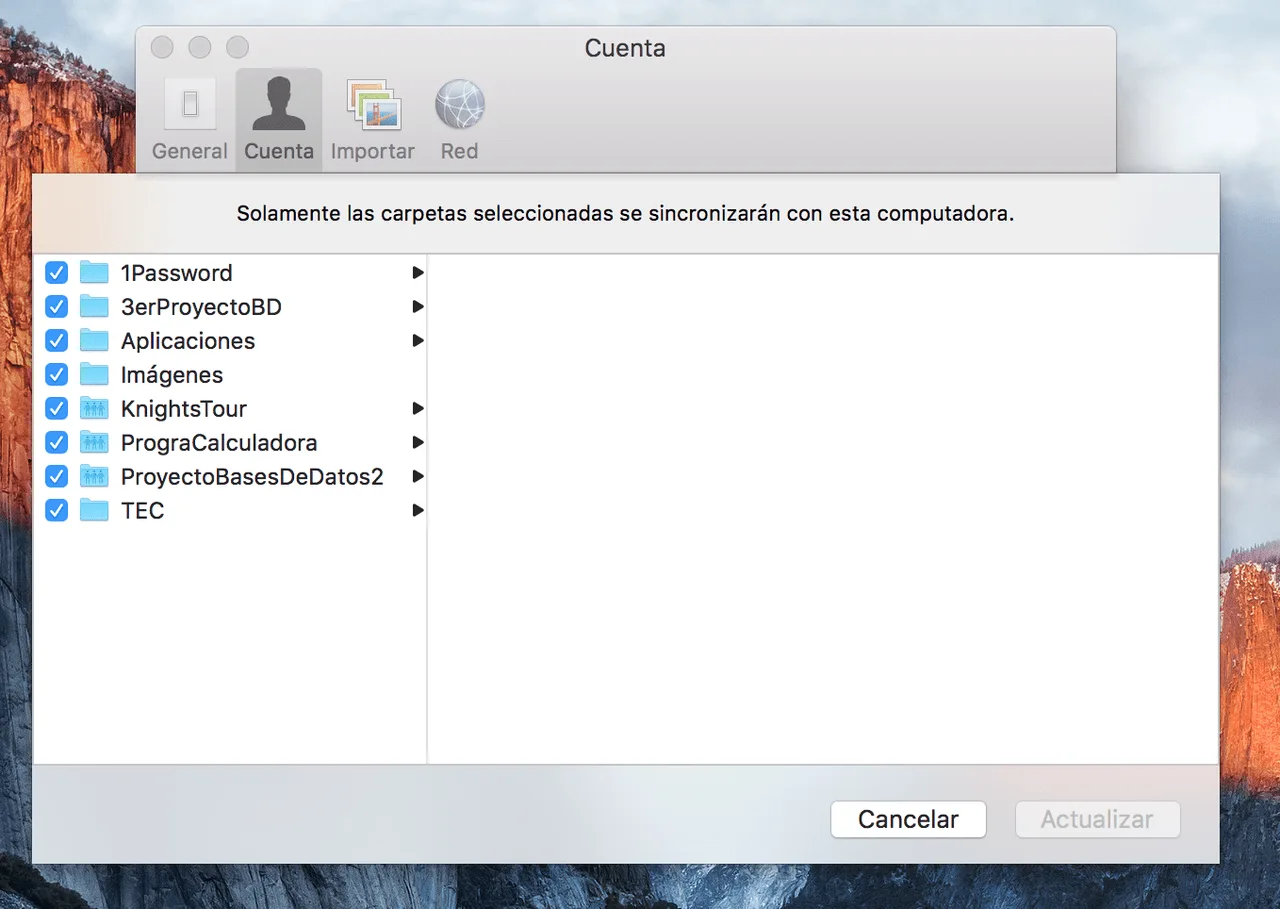
Do not simply delete a file from the synced drive, because that also deletes the cloud copy. Selective Sync is useful for files you want to keep but do not need locally all the time.
7. Protect the mobile app with a PIN
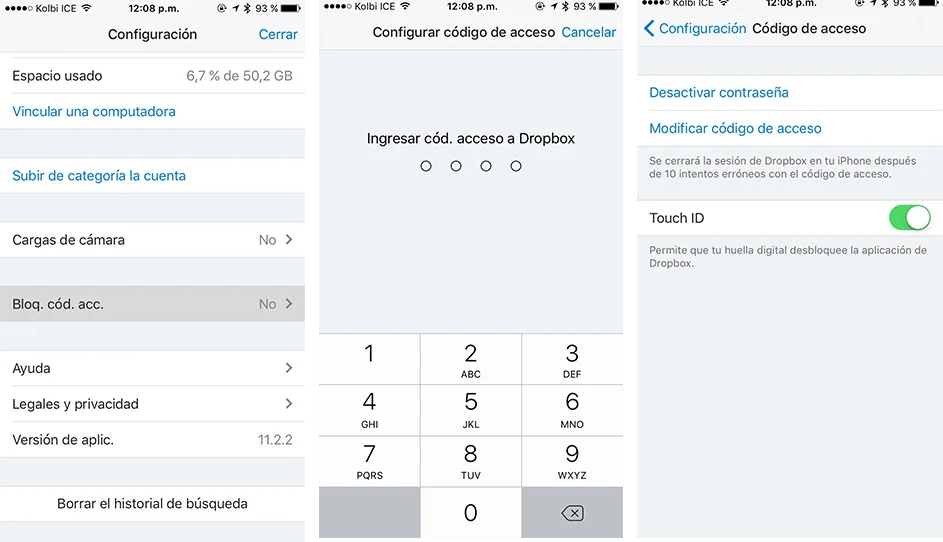
The original app supports a four-digit PIN requested when opening files, helping limit unauthorized access. It also offers optional deletion of locally stored mobile files after more than ten consecutive incorrect PIN attempts. An iPhone fingerprint sensor can be used instead of the PIN where supported.