
Use Finder to know where your documents live, sort them into folders and view them without opening them. A simple structure beats a crowded desktop.
Get to know your file map
Finder is the app you use to see and organize the files on your Mac. Open it with the blue face icon in the Dock, the row of icons on the screen.
Its sidebar offers shortcuts to places such as Desktop, Documents, Downloads, iCloud Drive and connected disks. Recents is a view of recently used files: it is not a folder holding additional copies.
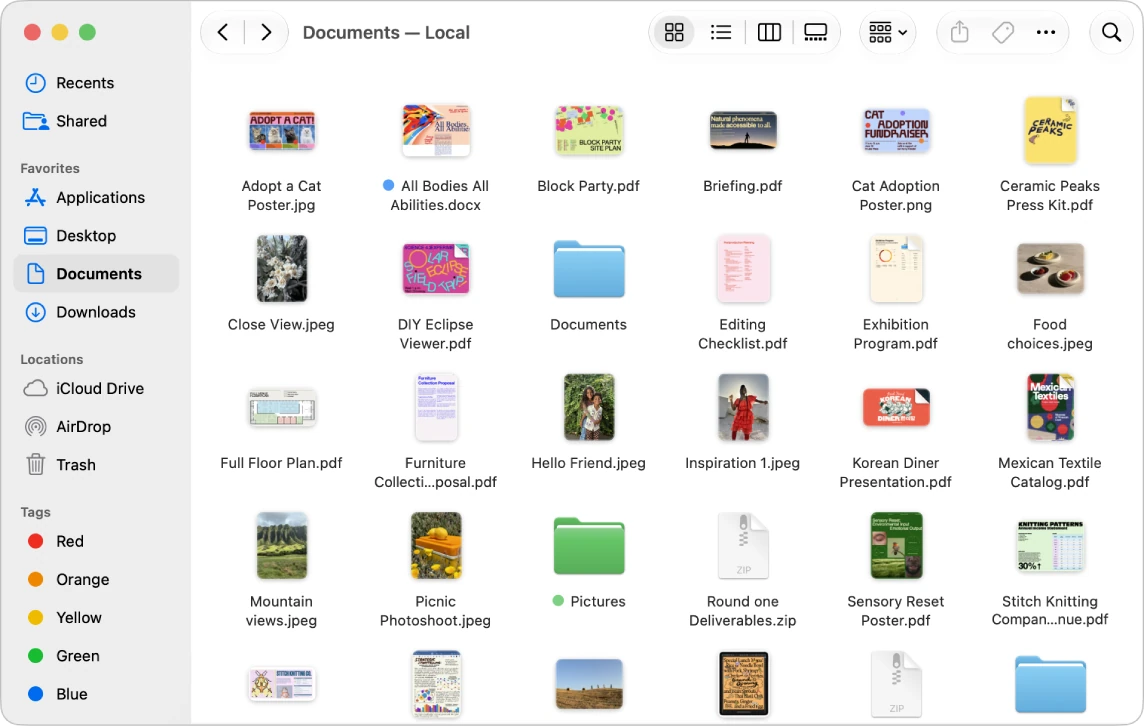
Create a folder and copy files into it
Practice with test files, not with important documents.
- Open Documents.
- In the File menu, choose New Folder, or press Shift + Command + N.
- Name the folder Mac Practice.
- Select a test file and copy it with Command + C.
- Open Mac Practice and paste it with Command + V.
- Repeat the copy with a second test file.
- Select one of the files and press Return to rename it. Keep its extension, such as .pdf or .jpg: changing it does not convert the format.
To move a file rather than copy it, drag it to the folder. With the keyboard, copy first and use Option + Command + V at the destination. Check carefully before doing this with important information.
You will find more Finder shortcuts in our guide Mac keyboard shortcuts.
View, check and compress without opening anything
- Views: in the View menu, try Icon, List, Column and Gallery. List view lets you sort by name, date or size.
- Quick Look: select a file and press the Space bar.
- Get Info: select a file and press Command + I, or choose Get Info in the File menu, to check its size, location and opening app.
- Compress: Control-click the folder and choose Compress in the menu that appears. This makes a ZIP file, useful for sharing several files together.
The ZIP does not remove the originals. It also does not necessarily shrink already compressed photos or videos much.
Use the Trash, shortcuts and disks calmly
The Trash is at the right end of the Dock. To send a file there, drag it to the Trash icon, or select it and press Command + Delete. Until you empty the Trash you can recover it: open the Trash, select the file and choose Put Back in the File menu.
To keep a folder within reach, drag it to the Favorites section of the sidebar: that creates a shortcut. To remove it, drag its icon out of the sidebar; the original folder is not moved or deleted. To disconnect a drive, use the eject button beside its name and wait until it disappears.
YOUR TURN
Try it now
You did it if the test file is back in the Mac Practice folder.
Your progress is saved only in this browser. No sign-up.