
Know which files are on your Mac and which are in iCloud, so you are never without a document offline and never delete something on all your devices.
Tell the two spaces apart
- Internal storage belongs to your Mac.
- iCloud is a service that belongs to your Apple Account, the account you use for Apple's services, and has its own capacity.
Free space in one does not mean free space in the other. iCloud Drive syncs files, meaning it keeps the same ones on your devices; iCloud Photos syncs your photo library when turned on. Neither is a complete backup of your Mac.
Review what syncs on your Mac
- Open System Settings.
- Click your name at the top of the sidebar. That is your Apple Account.
- Click iCloud and review which apps use it.
- Click Drive and check whether Desktop & Documents Folders is turned on.
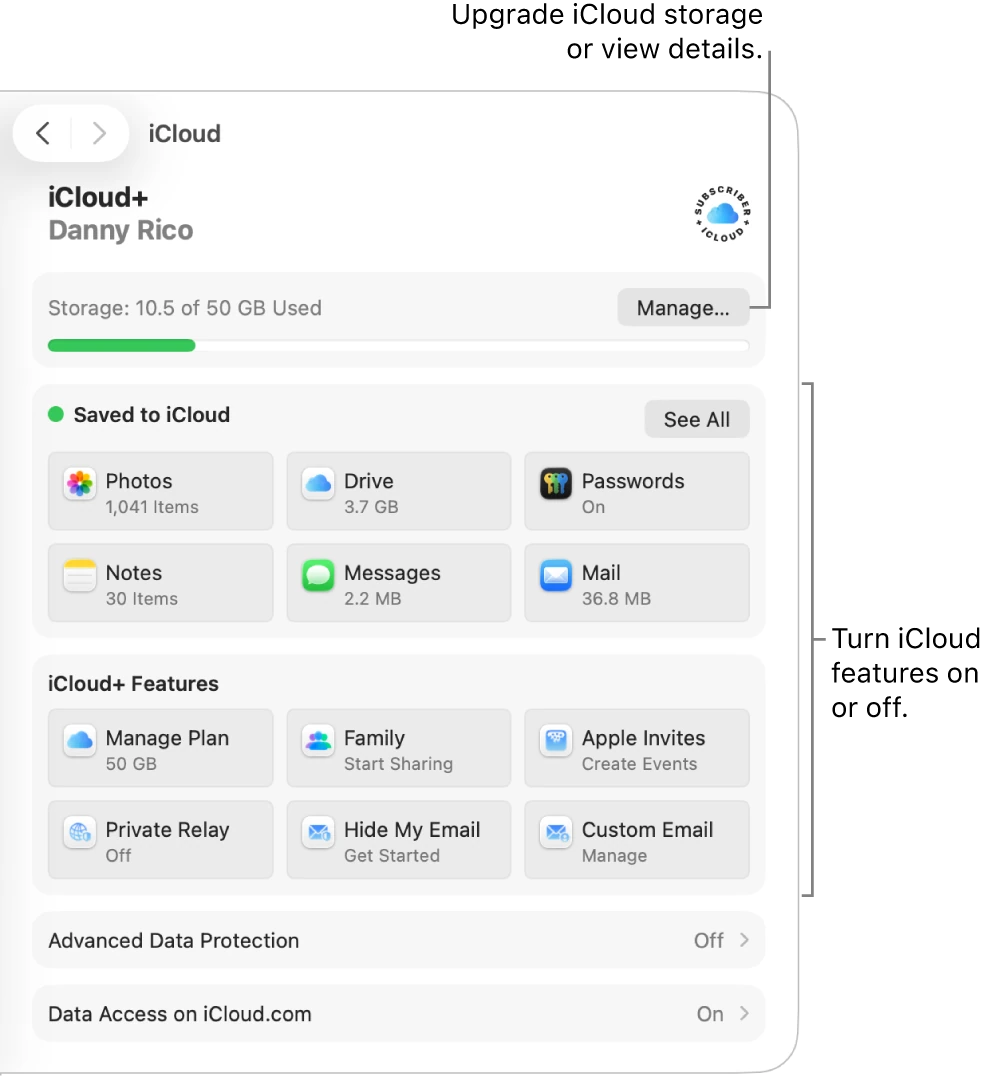
To see your iCloud space, click Manage inside iCloud. To see your internal space, click General in the System Settings sidebar, then Storage. Do not buy more capacity before identifying which of the two is full.
Keep what you need available offline
Optimization is the Optimize Mac Storage setting, found next to iCloud Drive, inside iCloud and then Drive. When it is on, older documents may stay only in iCloud when your Mac needs space, until you download them. Before traveling without internet or preparing a backup, check that the files you need are available locally.
- Open Finder and click iCloud Drive in the sidebar.
- Look at the status icons next to the names: they may show items waiting to upload or needing a download. The symbols differ between versions.
- Control-click an important file and choose Download Now. To keep it on your Mac even when space runs low, choose Keep Downloaded.
- Wait for it to finish.
- Open the file to check it.
Share and recover with care
Sharing is not the same as copying. When you share a document, check whether you are sending a copy or a collaboration link. A link may carry view or edit permissions and a list of authorized people; avoid open access for personal or work information.
If you need to recover a file deleted from iCloud Drive, go to icloud.com/iclouddrive, sign in with your Apple Account and click Recently Deleted in the sidebar. There you can recover what was deleted in the last 30 days. Recovery has limits; it does not replace keeping an independent backup.
YOUR TURN
Try it now
You did it if the file opens and you now know whether your Desktop and Documents are also stored in iCloud.
Your progress is saved only in this browser. No sign-up.