
Move photos and files between your Mac and iPhone without cables using AirDrop, and copy text on one device to paste it on the other.
What the devices need to connect
AirDrop sends files between nearby compatible Apple devices. Other features, such as Handoff, Universal Clipboard or using iPhone as a camera, depend on specific models, versions and settings. Many require the following:
- The same Apple Account, your personal account for Apple services, on both devices.
- Wi-Fi and Bluetooth turned on.
- The devices near each other.
Send a file with AirDrop
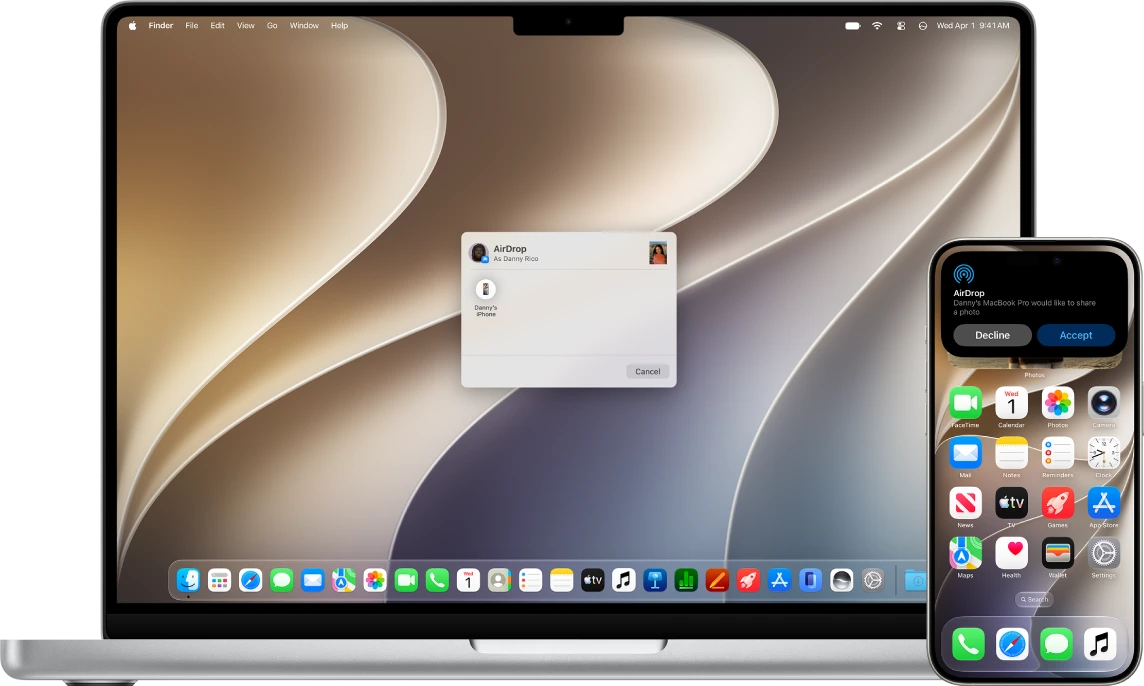
- Turn on Wi-Fi and Bluetooth on both devices.
- Check that the recipient has AirDrop available and their screen is awake.
- In Finder, the app where you see your files, click AirDrop in the sidebar.
- Drag a test file to the recipient shown in that window.
- Identify the correct device. If names are similar, confirm with the other person before sending.
- Wait for the recipient to accept. Between two of your own devices signed in to the same Apple Account, the file is accepted automatically.
- Check on the receiving device where it was saved: usually in the app it was sent from and, on a Mac, sometimes in the Downloads folder.
You decide who can send you files by AirDrop:
- On your Mac: click Control Center in the menu bar, then the arrow next to AirDrop, and choose Contacts Only or Everyone.
- On your iPhone: open Control Center, touch and hold the top-left group of controls and tap the AirDrop icon. Choose Contacts Only or Everyone for 10 Minutes.
Copy on one device and paste on the other
With Handoff you can start a task on one device and finish it on the other. Universal Clipboard lets you copy text or an image on one and paste it on the other, without sending anything to yourself.
- Check that both devices use the same Apple Account and have Wi-Fi and Bluetooth turned on.
- On your Mac, open System Settings, click General, then click AirDrop & Continuity.
- Turn on Allow Handoff between this Mac and your iCloud devices.
- On your iPhone, open Settings > General > AirPlay & Continuity and turn on Handoff.
- On your Mac, select a sentence with no private information and press Command + C.
- On your iPhone, tap where you want to paste and choose Paste. Do it soon: what you copied stays available for a short time.
Messages and FaceTime are set up with your account. Forwarding SMS and iPhone calls may need extra options on the phone, and camera or mirroring features also have requirements and regional availability. If an option is missing, check compatibility before assuming a fault.
What to check if they cannot find each other
- Bring the devices closer.
- Check who can send to you by AirDrop: Contacts Only or Everyone.
- Confirm that Wi-Fi and Bluetooth are on for both.
- Try a small file.
A VPN, a managed network or company restrictions may interfere. Do not turn off an organization's protections without asking its administrator.
YOUR TURN
Try it now
You did it if the test image appears on your iPhone and AirDrop receiving is left at the level you want.
Your progress is saved only in this browser. No sign-up.