The iPhone and iPad have several physical buttons. AssistiveTouch lets you perform their functions by touching the screen instead of pressing those buttons.
After extensive use, a Home button may stop working as it did before. This tutorial offers a partial workaround so you can keep using the device before bringing it to iGenius for repair. The source describes the technicians as Apple-certified; that historical claim requires independent verification.
How to enable AssistiveTouch
1. Open Settings on your iPhone or iPad.
2. Open General.
3. Tap Accessibility.
4. Scroll to Interaction and select AssistiveTouch.
5. Turn on AssistiveTouch. The following icon appears at the edge of the screen:

You can move the button along the screen's edge so it does not obstruct typing or opening an app.
Tapping the new button opens the following menu:
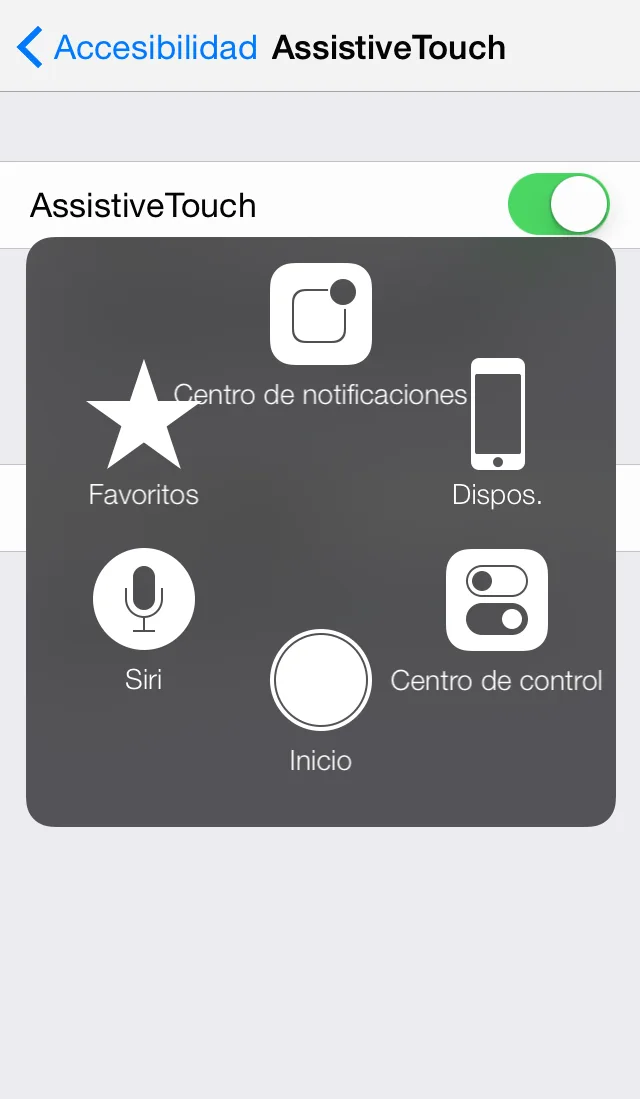
Home returns you to the Home screen, just like the physical Home button. Favorites lets you save gestures for particular tasks. Gestures lets you choose combinations of two, three, four or five fingers for a specific action.
The Device menu is particularly useful. Tap it to show these options:
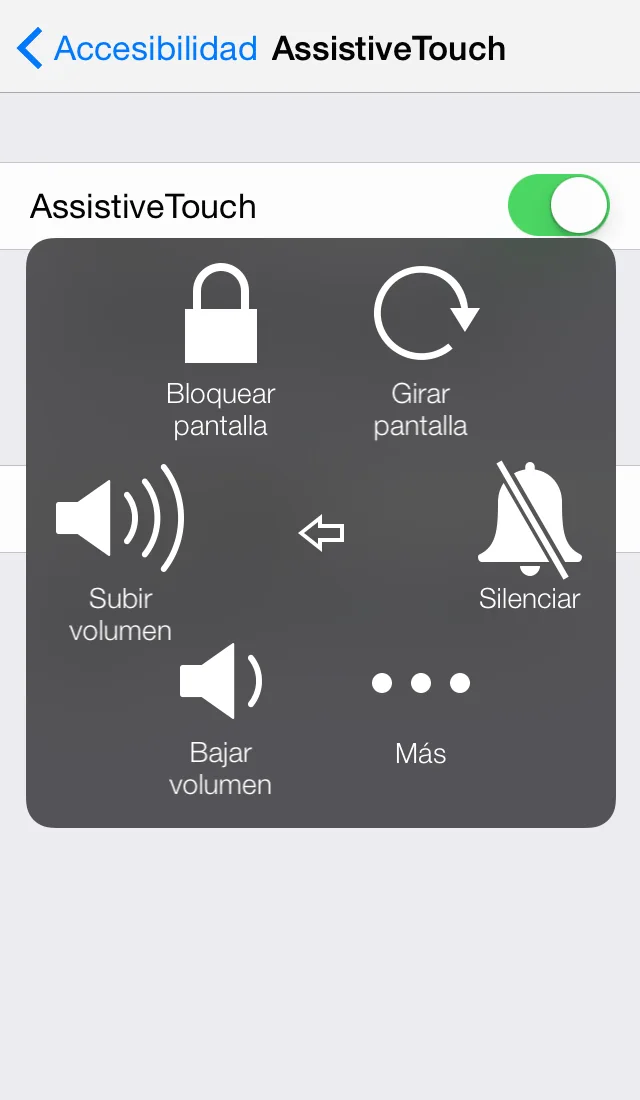
You can now use functions that would normally require physical iOS device buttons simply by touching the screen.