For years, shortcuts, tips and tricks have helped people use their iPhone and iPad. Enthusiasts may know some already, but this article can be useful for less experienced and new iOS users.
These tips were tested using iOS 9.

Typing and text
| What does it do? | How do I do it? |
| Quickly add a period at the end of a sentence | Double-tap the space bar, or press it with two fingers at the same time. |
| Turn on Caps Lock | Double-tap the keyboard's Shift key. |
| Use the magnifying glass | Hold your finger on the text you want to enlarge. |
| Quickly type .com, .net or .org | When entering a web or email address, hold the period key. A dialog offers .com, .net, .edu and other endings. Slide to one and lift your finger to select it. This works only when the period appears on the ABC keyboard immediately to the right of the space bar, not on the 123 keyboard. |
| Type alternative characters such as é or ñ | Hold a letter on the keyboard. A dialog shows variations. Slide to the desired character and lift your finger to select it. |
| Quickly type a character on the 123 numeric keyboard | Instead of tapping 123, selecting a number or punctuation mark, then tapping ABC, hold 123 to open the numeric keyboard. Slide to the desired character and lift your finger. It is entered and the main keyboard returns automatically. |
| Undo typing | Shake your iPhone, iPad or iPod touch and select Undo in the dialog. |
Safari
| What does it do? | How do I do it? |
| Go to the top of a page or expand the address bar | Tap the status/time bar at the top. The first tap expands Safari's address bar; another tap scrolls to the top of the page. |
| Open recently closed tabs, showing the last five | On iPhone, tap Tabs at the lower right, then hold the plus (+) button. On iPad, hold the plus (+) button. |
| Zoom in | Quickly double-tap, or place two fingers together and spread them apart without lifting them. |
| Zoom out | Quickly double-tap, or place two fingers apart and bring them together without lifting them. |
| Save images | Hold an image until options appear, then tap Save Image. Find it in Camera Roll in Photos. |
| Dial a phone number from Safari | Tap the number to dial it automatically. |
| What does it do? | How do I do it? |
| Delete an email | Swipe left across the email. If you lift your finger when the buttons appear, tap Archive. If you keep your finger at the far left, Archive is selected automatically and releasing your finger performs the action. The source describes this as deleting; the archive/delete distinction requires review. |
Phone calls
| What does it do? | How do I do it? |
| Silence an incoming call | Press the Sleep/Wake button used to lock and turn on the device. |
| Send an incoming call straight to voicemail | Press the Sleep/Wake button twice. |
| Redial the last number | In the Phone app's keypad, press the green call button. |
Music
| What does it do? | How do I do it? |
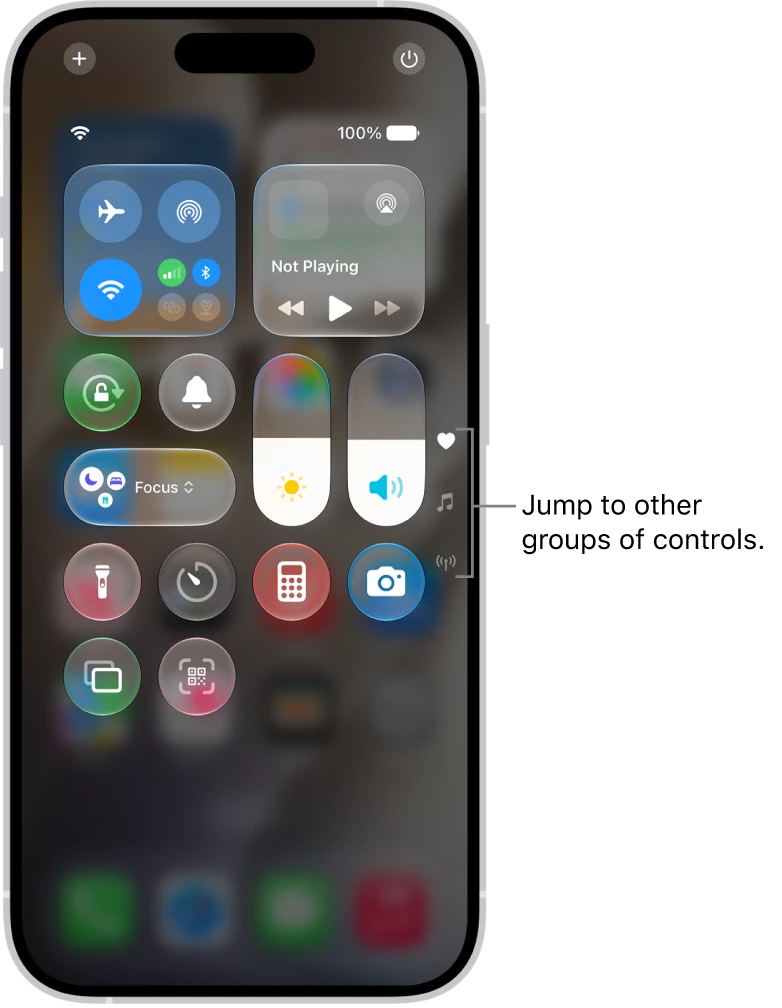
| Quickly access Pause, Previous, Next, Volume and other controls from another app | Swipe up from the bottom center of the screen to open Control Center. |
Screenshots
| What does it do? | How do I do it? |
| Take a screenshot on an iPhone, iPad or iPod touch | Quickly press and release Home and Sleep/Wake together. The screen flashes to confirm the capture. Find the image in Camera Roll in Photos. |
EarPods buttons
| What does it do? | How do I do it? |
| Fast-forward a song | Press the EarPods center button twice, holding the second press. |
| Rewind a song | Press the center button three times, holding the third press. |
| Pause or play a song | Press the center button once to pause and again to resume. |
| Play the next song | Press the center button twice. |
| Play the previous song or return to the start after listening for more than three seconds | Press the center button three times. If it returns to the beginning of the current song, repeat to reach the previous one. |
| Answer an incoming call | Press the center button once. |
| End the current call | Press the center button once. |
| Send an incoming call straight to voicemail | Hold the center button. |
Quitting, restarting and more
| What does it do? | How do I do it? |
| Force an application to close | Double-press Home and swipe the application's window upward. |
| Force restart an iPhone, iPad or iPod touch | Hold Home and Sleep/Wake for several seconds until the Apple logo appears. Use this only if the device is unresponsive and cannot be turned off normally. |
Miscellaneous
| What does it do? | How do I do it? |
| Open Spotlight for a system-wide search | On the unlocked Home screen, touch the middle of the screen and swipe down without lifting your finger. |
| Open Siri | Hold Home for a couple of seconds. You can dictate a command such as Call iGenius, and it will make the call. |
| Force the iOS App Store to restart | Open the App Store and tap one of the bottom tabs ten times: Featured, Top Charts, Explore, Search or Updates. |