
Move around your iPhone with confidence: go Home, switch apps and open Control Center, whether your model has Face ID or a Home button.
Recognize your starting point
Everything you do on the iPhone starts at the Home Screen. These three places let you find any app.
- The Home Screen: it holds apps and widgets, panels that show information from an app at a glance, such as the weather or your reminders.
- App Library: it contains the installed apps even when their icons are not on a Home Screen page.
- Search: it finds an app or a setting without you remembering where it is.
Learn the four basic movements
- Tap once: opens something.
- Swipe: moves through content.
- Touch and hold: shows options.
- Spread two fingers on a photo: zooms in. Pinching them together zooms out.
Use the gestures for your model
Gestures differ between Face ID models and models with a Home button, the round button below the screen. Find your column in the table.
| To | With Face ID | With a Home button |
|---|---|---|
| Go Home | Swipe up from the bottom edge of the screen. | Press the Home button. |
| Switch apps | Swipe up from the bottom edge, pause in the center of the screen, then lift your finger. Then tap the card of the app you need. | Double-click the Home button. Then tap the card of the app you need. |
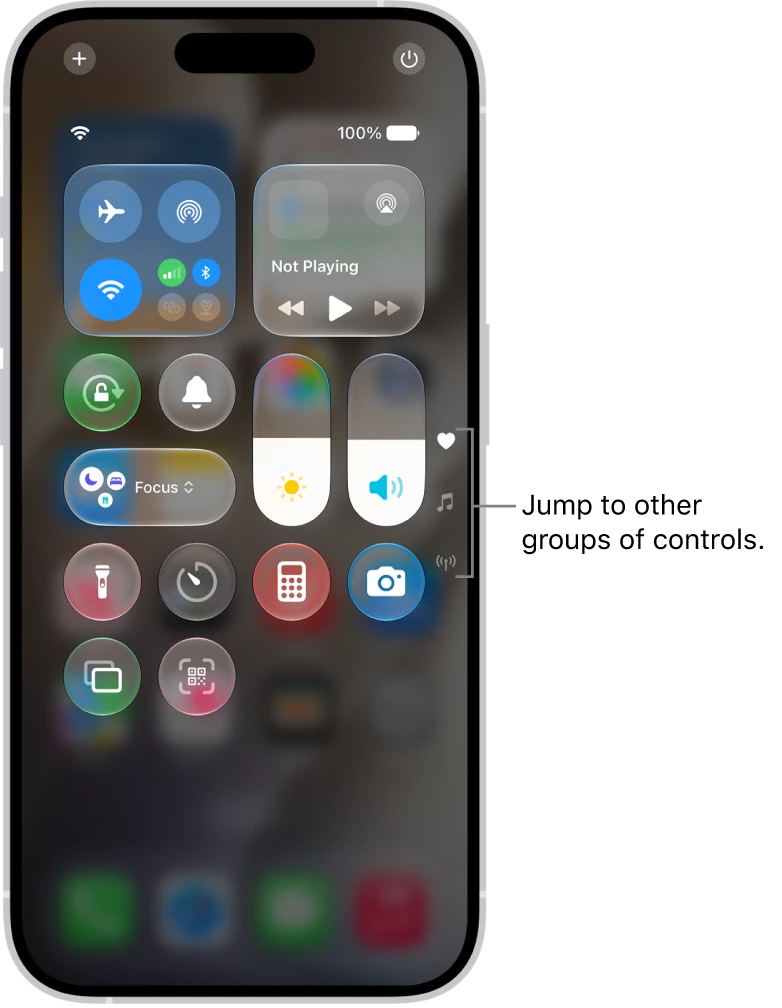
| Open Control Center | Swipe down from the top-right corner of the screen. | Swipe up from the bottom edge of the screen. |
The view of cards you see when switching apps is called the app switcher. You do not need to constantly close every app: use the switcher to return to your work. Force quitting is mainly useful when an app stops responding.
See your notifications and search for an app
- To see notifications, swipe down from the top-left corner of the screen.
- To search for an app, tap the Search button on the Home Screen, on Face ID models, or swipe down on the Home Screen.
The gestures are similar and easy to confuse. Notifications come from the top-left corner; Control Center from the top-right corner; Search from the middle of the page.
Adjust whatever feels uncomfortable
To make text larger, open Settings, tap Appearance, then Text Size, and drag the slider. Also review Display & Brightness and Accessibility: there you can adjust vision, hearing or interaction options.
The Ring/Silent switch, the Action button and Camera Control are not on every iPhone. Identify your buttons before following an instruction written for another model.
YOUR TURN
Try it now
You did it if you returned to the same app from the switcher and then saw the brightness and volume controls in Control Center.
Your progress is saved only in this browser. No sign-up.