How do I copy music from iTunes to an iPhone? This is a common question. The process is straightforward once you know how. If it seems confusing at first, this guide explains a simple way to select, drag and drop songs to transfer them.
This differs from traditional syncing: instead of creating iTunes playlists to sync to the iPhone, you manage music manually and copy specific songs or albums.
The original guide describes compatibility with essentially all iPhones and then-recent versions of iTunes.
1. Connect the iPhone to the computer with its USB cable and open iTunes if it does not open automatically.
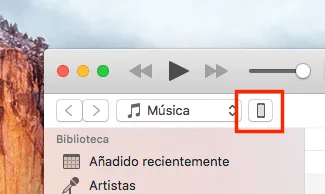
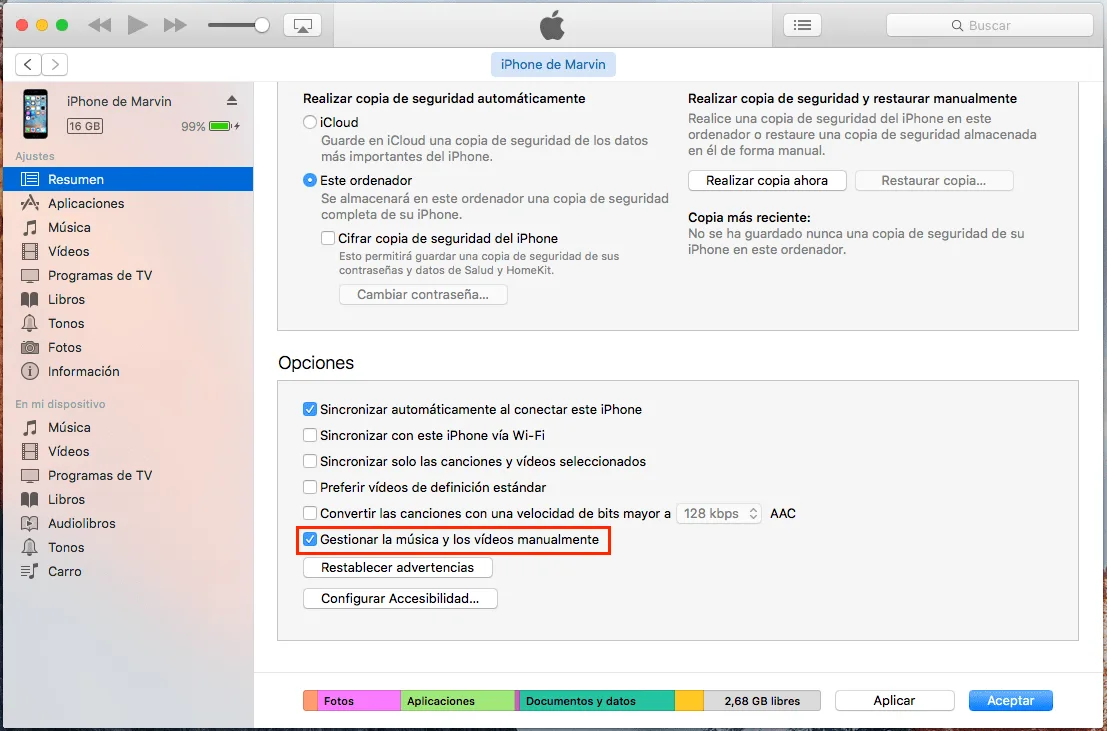
2. Select the iPhone in iTunes, click Summary and scroll to Options.
3. Select Manually Manage Music and Videos, then click Apply.
4. Return to the Music section in iTunes.
5. Select the songs to copy and drag them to the left sidebar, specifically the area labeled with the destination iPhone's name. Music can be synced from only one specific computer.
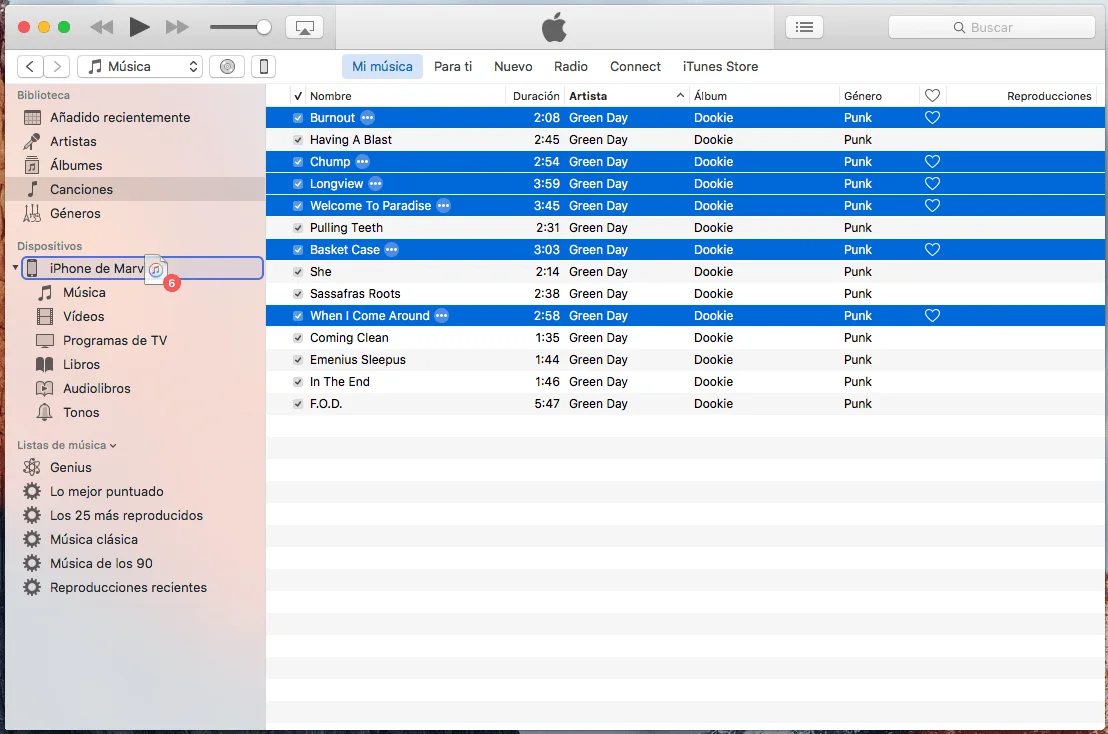
6. Repeat as needed for all the music you want on the iPhone.
You can now enjoy music on your iPhone, through headphones offered by iGenius, through speakers or even in a car.