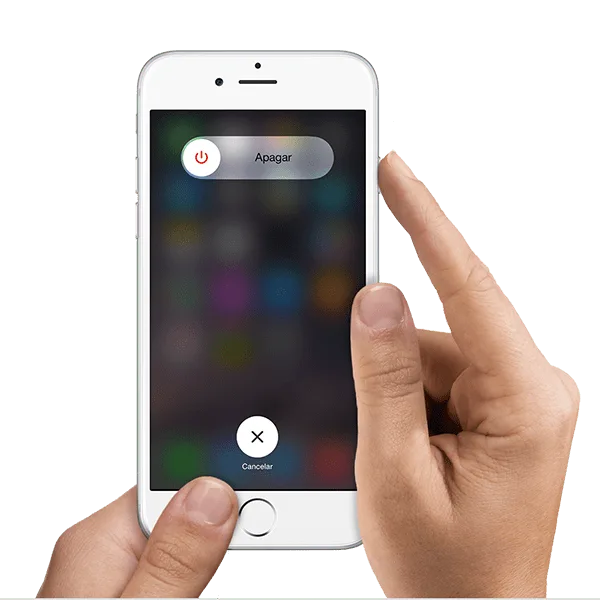
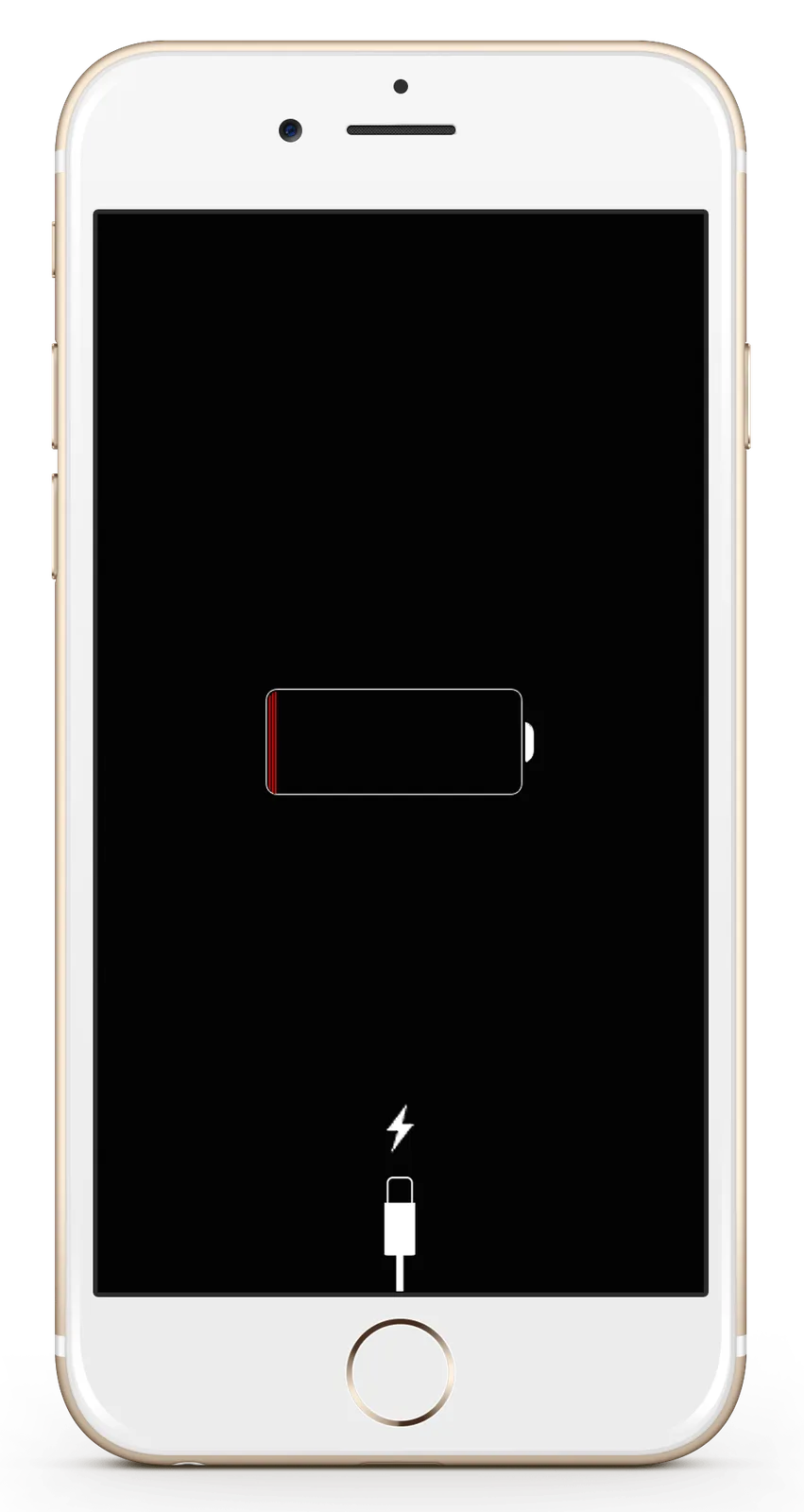
A force restart can help when an iPhone's system stops responding. The procedure depends on the model.
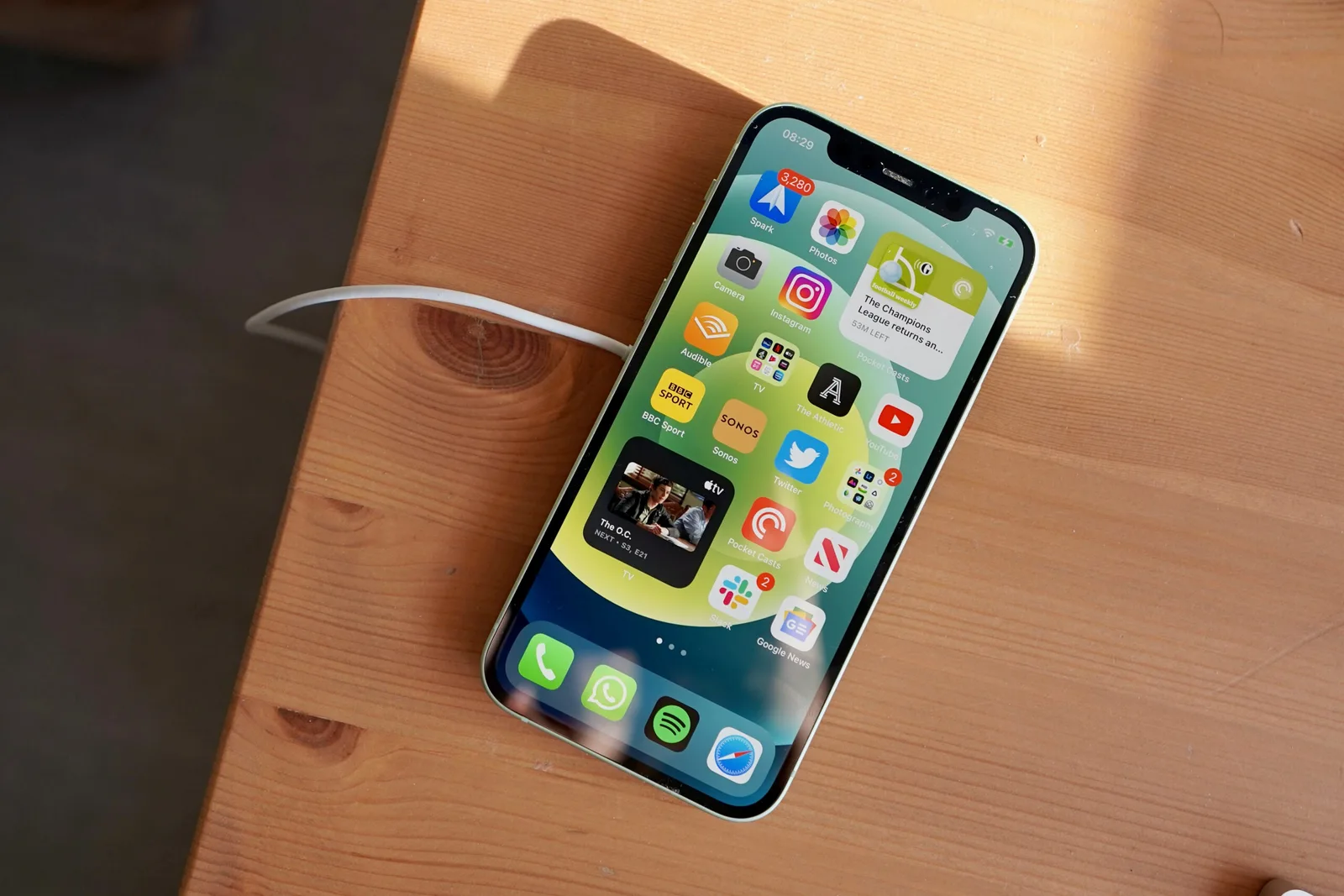
If the iPhone is unresponsive and cannot be turned on or off, try a force restart.
Note: The steps depend on the model. To identify yours, see Apple's Identify your iPhone model support article.
If it still will not restart, see Apple's If your iPhone will not turn on or is frozen. If it works incorrectly after restarting, consult iPhone Support.
Force restart an iPhone with Face ID
For iPhone X, XS, XR, 11, 12 or 13, the source gives these steps:
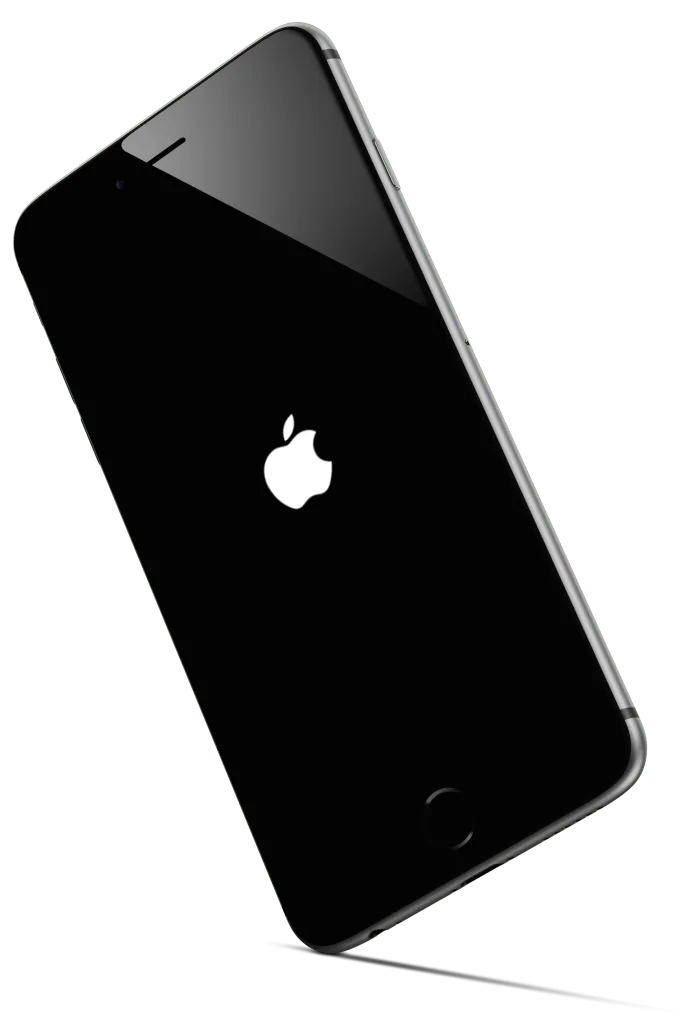
Quickly press and release Volume Up, quickly press and release Volume Down, then hold the side button. Release it when the Apple logo appears.
Force restart iPhone 8 or iPhone SE, second generation
Quickly press and release Volume Up, quickly press and release Volume Down, then hold the side button. Release it when the Apple logo appears.
Force restart iPhone 7
Hold Sleep/Wake and Volume Down together. Release both when the Apple logo appears.
Force restart iPhone 6s or iPhone SE, first generation
Hold Sleep/Wake and Home together. Release both when the Apple logo appears.
If faults persist after the force restart, contact us.