
Take your first sharp photo with Camera: prepare the lens, focus with a tap and check the result before you leave the spot.
Prepare the lens and open Camera
A fingerprint on the lens can create haze and glare even when the phone focuses correctly. That is why it is worth starting there.
- Gently clean the lenses with a clean, lint-free cloth.
- Check that the case, a finger or an accessory is not covering the camera.
- Open Camera from its icon or swipe left on the Lock Screen.
Shortcuts through the Action button or Camera Control depend on the model and on how they are configured.
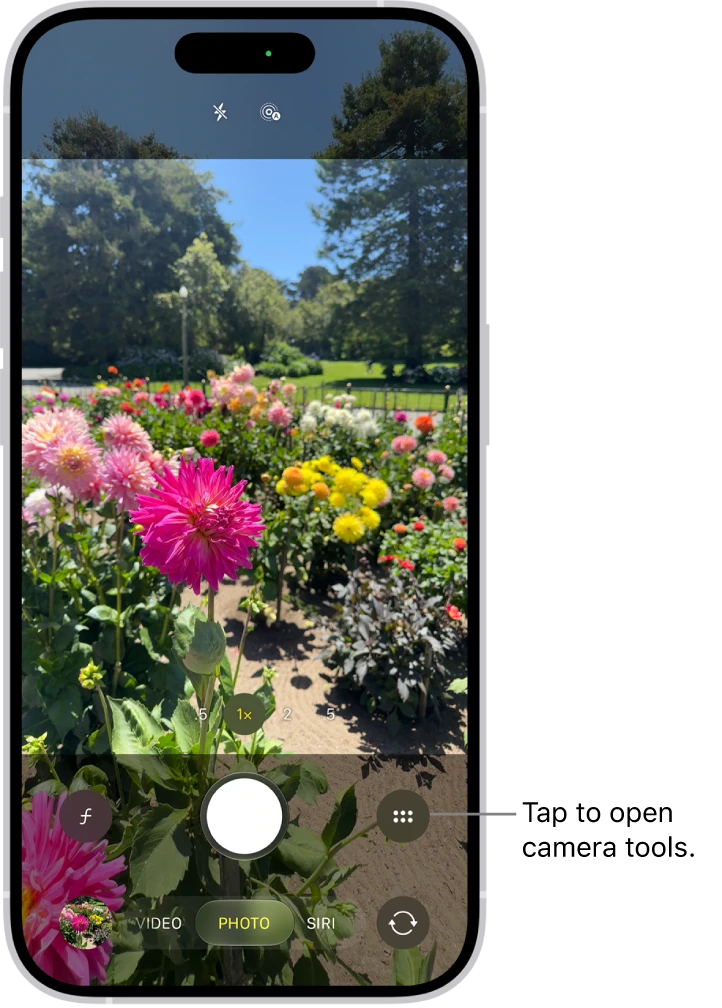
Take the photo step by step
- Check that you are in Photo mode, the one selected when Camera opens. To change modes, swipe left or right.
- Hold the phone with both hands and decide whether the picture works better vertically or horizontally.
- Start at 1x, the normal zoom with nothing magnified: tap it when it is available.
- Tap the important part of the scene on the screen and wait for the focus to settle.
- Review the background and the edges; remove distractions or shift position a little.
- Tap the shutter, which Apple calls the Shutter button, once and stay still for a moment while the capture finishes.
- Tap the thumbnail and zoom into the photo to check eyes, text or details.
You can also shoot with a volume button in the modes that support it. The thumbnail shows a recent image; from the Lock Screen you may need to unlock to reach the whole library.
Understand what the shutter does
Tapping the shutter takes a photo. Holding it in Photo can record a QuickTake video. For a burst, several photos in quick succession, drag the shutter to the left and lift your finger to stop.
Choose the tools you want to see
In iOS 27 you can customize Camera's visible tools, so that only the ones you use are at hand. If you change your mind, Reset to Essentials brings back the default tools.
- Open Camera and tap the Camera Controls button.
- Tap Edit to reveal the tools.
- Tap a tool in the menu to add it above the camera frame, or tap the button next to one already there to remove it.
- Tap Done and swipe down on the menu to close it.
Those onscreen controls are not the same as the physical Camera Control button, available only on certain iPhones. If you cannot find a zoom option, Portrait or a format shown in another guide, check your model's compatibility before assuming a fault.
YOUR TURN
Try it now
You did it if you have two photos of the same object and can say which one looks sharper.
Your progress is saved only in this browser. No sign-up.