
LEARN WITH iGENIUS
Your First iPhoneMore confidence. Better photos.
Get to know your iPhone with iOS 27, from first setup to photos worth keeping. Learn Camera and Photos through clear steps, practice and good habits.
30 short lessons. No sign-up. Follow the path or jump to a question.
0 of 30 lessons completed
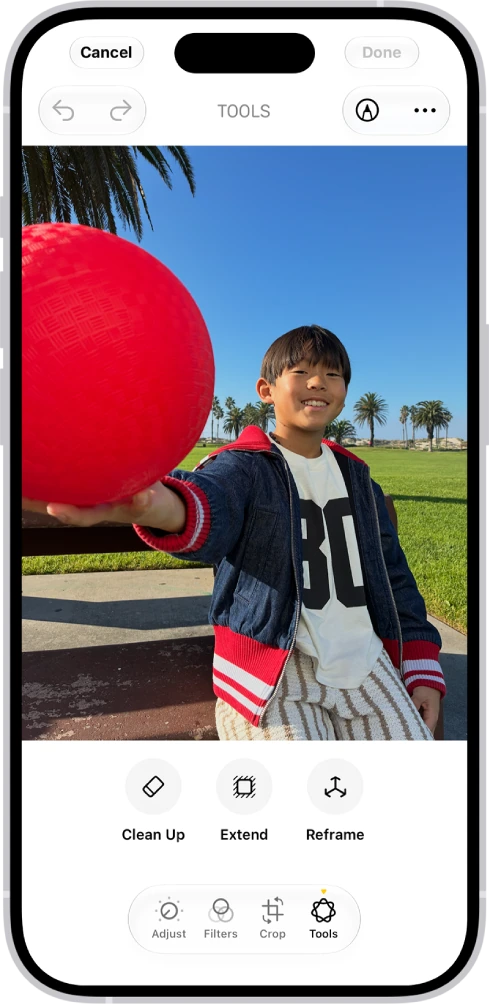
First, understand your iPhone. Then capture what matters and keep it safe.
Apple · illustrative Photos tools · English interface.YOUR LEARNING PATH
The right things, in order.
Start with the first six lessons. Then explore eight guides to taking better photos and seven to finding, editing, sharing and protecting your memories in Photos. Follow the path or choose what you need today.
STEP BY STEP
Start here
Set up, stay protected and learn the controls you will use every day.
- 3 min read
Set up your iPhone with iOS 27
Get your new iPhone ready without losing anything: prepare your account, move your information from the old phone and check what matters before retiring it.
- 3 min read
Learn gestures and controls
Move around your iPhone with confidence: go Home, switch apps and open Control Center, whether your model has Face ID or a Home button.
- 4 min read
Protect your iPhone and account
Protect your iPhone before you need to: passcode, account recovery and Find My, and which details you should never share by message or call.
- 4 min read
Prepare a backup and check what it includes
Make sure your information can be recovered: back up to iCloud, confirm it finished and understand why your photos need a separate copy.
- 4 min read
Connect and make your first call
Check that your iPhone has internet and a working line before leaving home, make a test call and tell which features need a connection.
- 3 min read
Manage apps and notifications
Install only what you need, decide which apps may interrupt you and remember that deleting an app does not cancel what you pay for it.
STEP BY STEP
Take better photos
Eight Camera lessons: focus, light, zoom, portraits, motion and video. Practice with the iPhone you already have.
- 4 min read
Start taking photos with Camera
Take your first sharp photo with Camera: prepare the lens, focus with a tap and check the result before you leave the spot.
- 4 min read
Control focus, light and framing
Decide what stays sharp and how bright your photo looks: tap to focus, adjust the brightness and turn on the grid to frame straight.
- 4 min read
Choose zoom, lenses and image quality
Learn what changes when you tap 0.5x or 1x and which format suits you, so your photos stay sharp, open on other devices and do not fill your iPhone.
- 4 min read
Take better portraits and selfies
Take flattering portraits and selfies by minding distance, light and background, and know when Portrait mode and Photographic Styles help.
- 4 min read
Take photos at night and in low light
Avoid blurry photos in low light: know when to hold still, when to look for more light and what Night mode on your iPhone does.
- 4 min read
Capture motion with Live Photos and Burst
Know when a Live Photo, a Burst or the timer is the right choice, so you do not miss the moment when someone moves or you want to be in the picture.
- 4 min read
Record clear, steady videos
Record videos that look and sound good: prepare the shot in ten seconds, choose the resolution sensibly and check the result before you leave.
- 4 min read
Practice with people, food and landscapes
Apply what you have learned to real scenes: people, food and landscapes. Improve light and position before adding effects or buying accessories.
STEP BY STEP
Your memories, in Photos
Seven lessons to find, organize, edit, share and protect your library.
- 4 min read
Find your memories in Photos
Find any photo with Library, Collections and Search in iOS 27, and know what to check before you assume a picture is lost.
- 4 min read
Organize with albums, keywords and star ratings
Build a simple system for finding any photo in seconds: albums, favorites, and the keywords and star ratings that arrive with iOS 27.
- 3 min read
Edit photos while preserving the original
Improve a photo in a few taps: crop, brighten and correct color calmly, knowing that inside Photos you can go back to the original.
- 4 min read
Edit Live Photos, portraits and videos
Get more from your Live Photos, portraits and videos: pick the best instant, soften the blur, trim a clip and save a frame as a photo.
- 4 min read
Share photos with quality and privacy
Send your photos knowing what travels with them: choose a copy, an original or a shared album, and check location and recipients before sharing.
- 4 min read
Understand iCloud Photos and your originals
Understand where your photos live: what the iPhone keeps, what iCloud keeps, and why syncing is not the same as having a separate backup.
- 3 min read
Clean up, recover and protect your library
Tidy your photo library without scares: learn how hiding, removing from an album and deleting differ, and how to recover a photo deleted by mistake.
STEP BY STEP
Everyday confidence
Communicate, browse, find documents and organize your time.
- 4 min read
Communicate with Messages and FaceTime
Message and call with peace of mind: pick the right recipient, send a photo and make a FaceTime call while watching what you share.
- 4 min read
Browse and use email confidently
Browse and check your email without falling into traps: verify a site's real address, find your downloads and recognize a suspicious message.
- 4 min read
Find files and scan documents
Know where your documents and downloads end up on the iPhone, and turn a sheet of paper into a readable PDF you can keep and share.
- 4 min read
Get around with maps and location
Prepare a route before you leave and decide which apps may know where you are, so you arrive without surprises and without sharing too much.
- 4 min read
Organize notes, tasks and dates
Keep ideas in Notes, to-dos in Reminders and set time aside in Calendar, so nothing important depends on your memory alone.
- 4 min read
Make the iPhone work comfortably for you
Enlarge the text, tidy your screen and control alerts so you can use the iPhone comfortably and focus on what you want to do.
STEP BY STEP
Care for it and keep learning
Battery, storage, common problems and simple automations to keep building confidence.
- 4 min read
Care for battery, storage and device
See what uses your battery and what takes up space before you change or delete anything, and care for your iPhone without risking your photos.
- 4 min read
Troubleshoot without losing information
Learn what to try first when something goes wrong on your iPhone and which steps are safe, so you can fix it without risking your photos and data.
- 3 min read
Explore Shortcuts and intelligent features
Save steps on a task you repeat with Shortcuts, and try the iPhone's intelligent features while checking the result before you rely on it.
KEEP WITHIN REACH
Before you take the photo
Five small checks that improve the result without buying anything.
Start with Camera- Lens
- Clean, without fingerprints
- Light
- Look for soft light
- Focus
- Tap what matters
- Framing
- Check edges and horizon
- Result
- Check sharpness before leaving
Something not working as expected?
Start with common troubleshooting steps or tell us what is happening.