GUIDES AND KNOWLEDGE

The historical Java virtual-keyboard problem with Banco Nacional on Mac

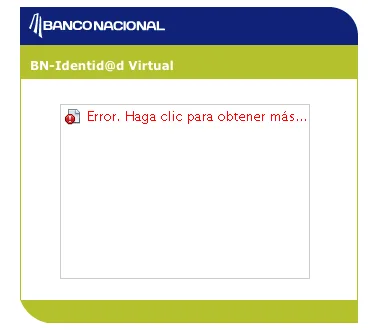
If you are trying to sign in to BN Internet Banking on your Mac and cannot see the virtual keyboard when you enter your password, you may need to change a Java setting. iGenius explains step by step how to fix this Banco Nacional virtual keyboard problem. This fix dates from 2015: current browsers no longer run Java, so these steps only apply to Macs and browsers from that time. If the virtual keyboard does not appear today, update your browser or contact Banco Nacional.
Original article image: The historical Java virtual-keyboard problem with Banco Nacional on Mac

1. Open System Preferences from the menu under the Apple logo at the upper left.

2. Double-click Java near the bottom.
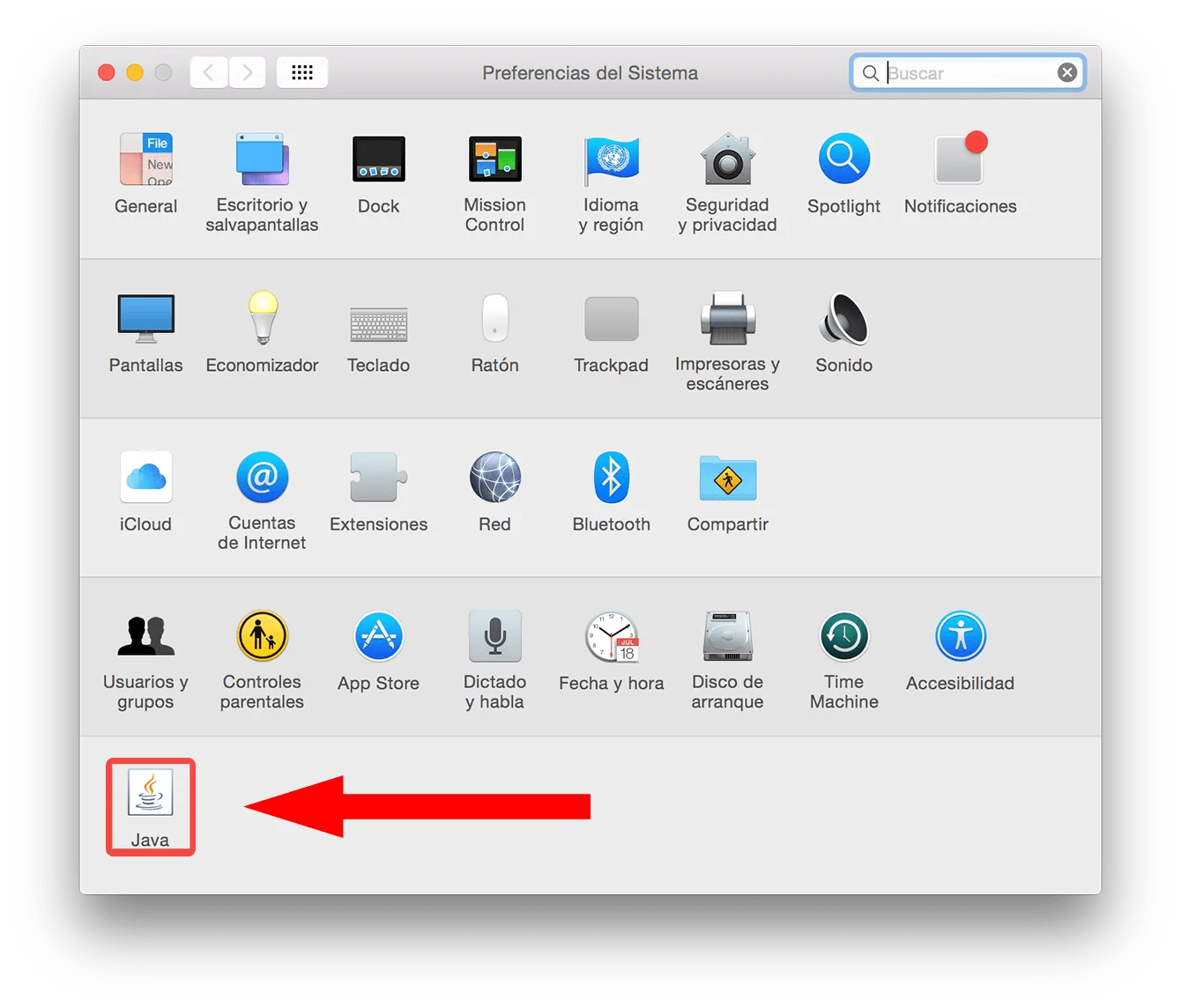
Original article image: The historical Java virtual-keyboard problem with Banco Nacional on Mac

3. In the Java Control Panel, open Security.

4. Make sure Enable Java Content in the Browser is checked.

5. Click Edit Site List.
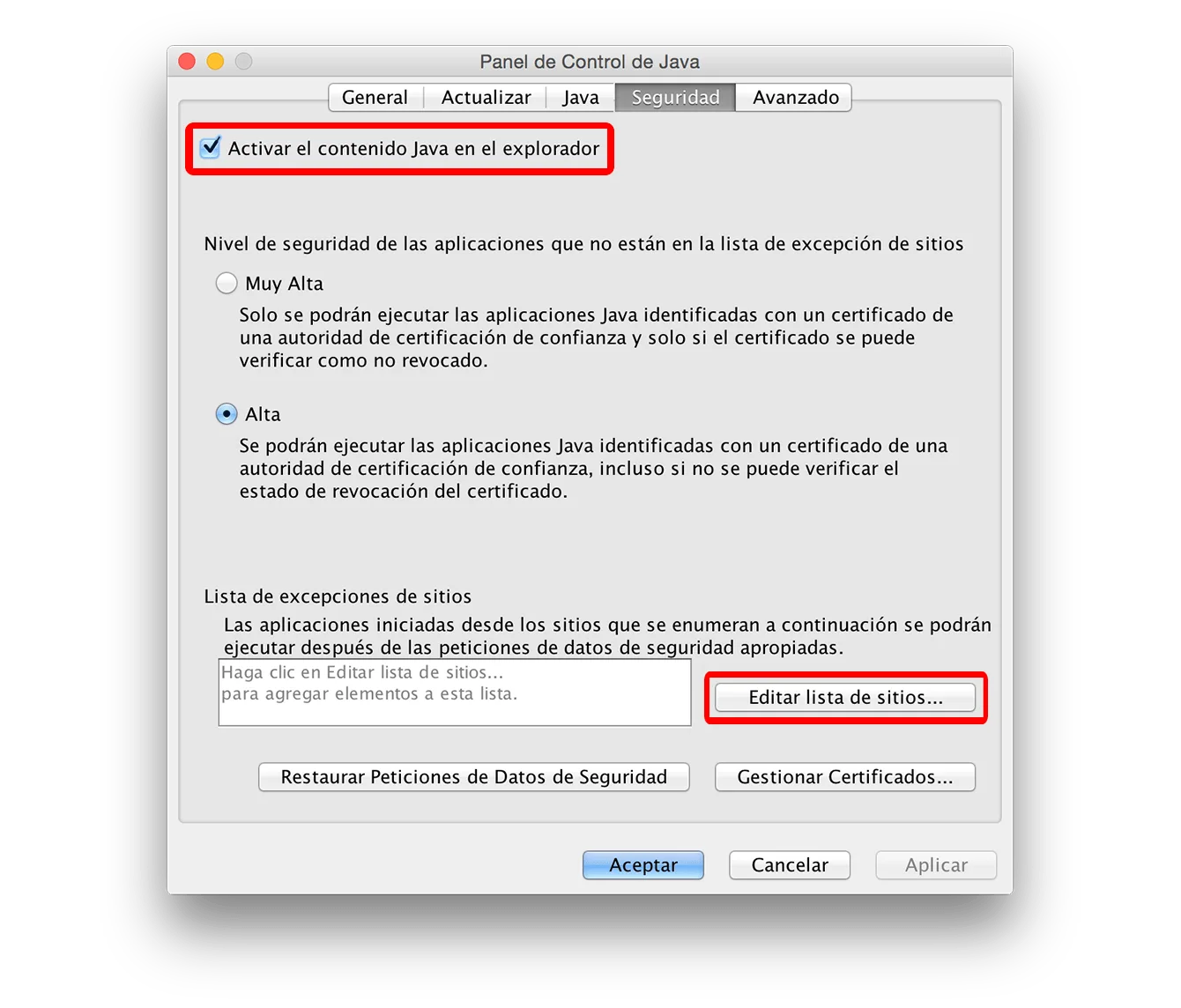
Original article image: The historical Java virtual-keyboard problem with Banco Nacional on Mac

6. Click Add.

7. Copy this address: https://www.bnonline.fi.cr

8. Paste it to the right of the white exclamation mark (!) inside the red circle.

9. Click Add.
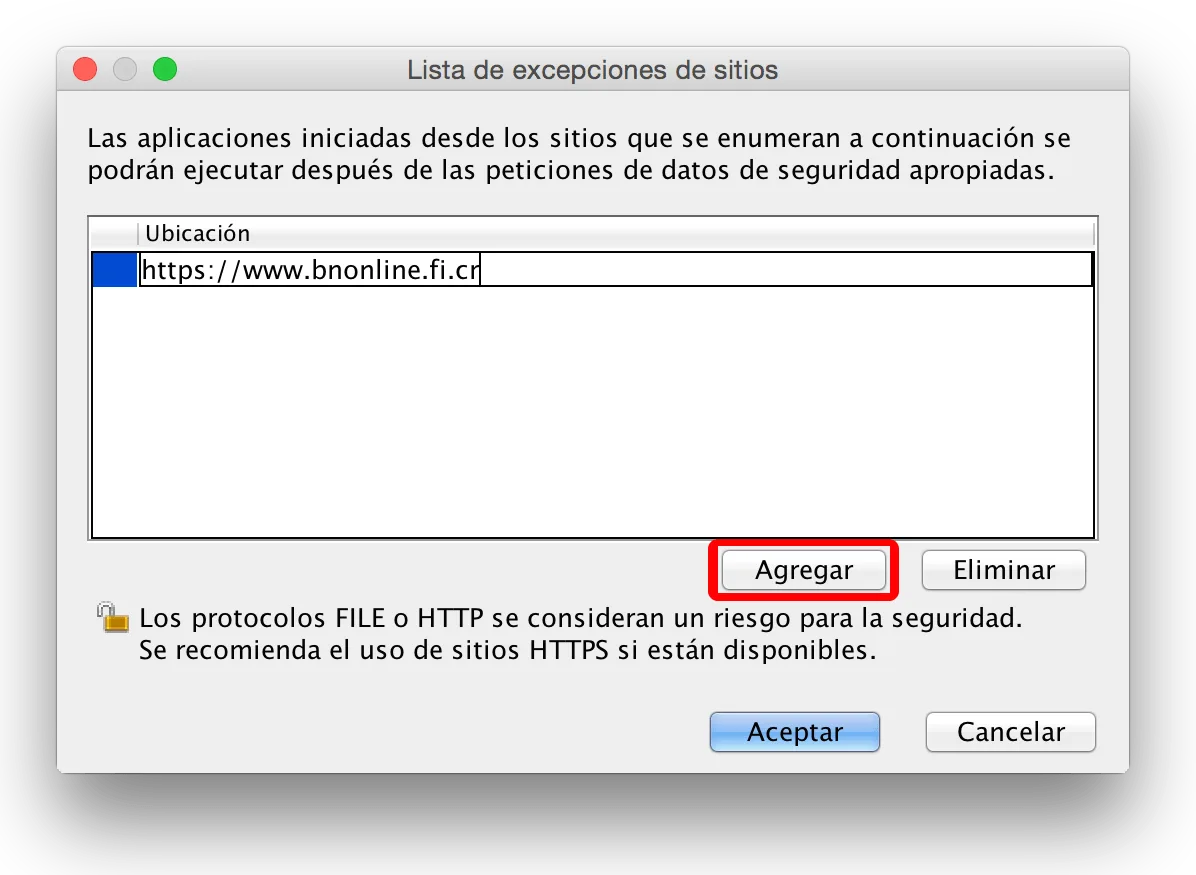
Original article image: The historical Java virtual-keyboard problem with Banco Nacional on Mac

10. Click OK twice to finish.

To check that it worked, refresh the page and sign in to BN Internet Banking again.

Keep reading

Let’s talk about your device.

Leave an available contact method, even if your phone isn’t working. You can send your inquiry from this site.

Mac repair at iGenius

Repair my device

Your privacy,
your choice.

You can allow optional Google Analytics measurement to help us improve this page. We don't send your inquiry content, passwords or device details. You can browse without this measurement.

Read privacy policy
STEP 1 OF 51 of 5

REPAIR REQUEST

Which device needs repair?

Choose one. Next we ask for the model and the fault.

Choose your device