
Browse in Safari without getting lost: open tabs, save the pages you care about, find what you download and spot a fake warning before you act on it.
Type an address or a search
Safari is your Mac's browser: the app you use to visit websites. In the bar at the top, type a complete address or the words you want to search for.
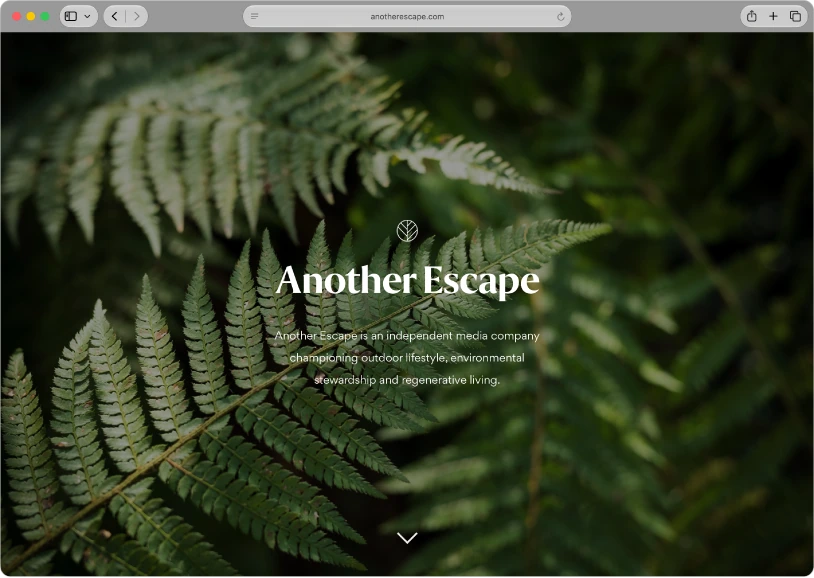
Before signing in to a bank or an important service, check the domain. The domain is the name of the site as it appears in the address.
Keep your tabs and bookmarks in order
A tab lets you keep several pages open in the same window. A bookmark saves a page so you can return to it without searching again.
- Press Command + T to open a tab.
- Press Command + D to bookmark the page you have open.
- In the Add this page to menu, choose a folder (the default is Favorites), type a short name and click Add.
- To see your bookmarks, click the Sidebar button in the toolbar, then click Bookmarks.
Reading List, in the same sidebar, keeps material you want to look at later. Keep each task in a few tabs so it stays easy to find. If you have several windows open, open the Window menu and check Merge All Windows, when available.
Read comfortably and find your downloads
- Search for a word on the current page: press Command + F.
- Enlarge or reduce text: try Command + plus sign and Command + minus sign.
- Focus on the text: click the Page menu button, in the bar where you type addresses, and choose Show Reader. The button appears only if the page has an article; press Esc to leave.
- Locate a download: click the Show Downloads button near the top-right corner of Safari, or open Finder's Downloads folder. The button is shown only when there are downloads.
Download a file only when you recognize the website, and read the extension before opening it. The extension is the letters after the dot at the end of the name.
To share a page, click the Share button and check the link before sending it. To keep a reading copy as a PDF, open the File menu, choose Print, open the PDF pop-up menu and choose Save as PDF.
Protect your privacy and distrust urgency
A private window stops Safari from keeping certain history for that session on your Mac; to open one, open the File menu and choose New Private Window. It does not make you invisible to the website, the network or your internet provider. Grant camera, location or notification access only when you need it.
Extensions add features, but they may also request access to webpages. Install a few, from trusted places, and review what information they can read. If a page insists that you install an extension to view ordinary content, stop and check why.
YOUR TURN
Try it now
You did it if this lesson opened again from your bookmark and you found a file you recognize in Downloads.
Your progress is saved only in this browser. No sign-up.