
Protect your Mac with a screen lock, unique passwords and a way to recover access, and learn to recognize the most common fake warnings.
Look after your two keys
Your login password protects your local user account, meaning your space on this Mac. Your Apple Account controls services such as iCloud and Find My. Keep both safe and keep your trusted phone number and recovery options current.
Touch ID, the fingerprint reader, makes access convenient. Even so, your password is still required in situations such as after a restart.
Lock the screen when you step away
An unlocked Mac leaves your mail, photos and accounts in view of anyone who walks by.
- Open the Apple menu and choose System Settings.
- Click Lock Screen in the sidebar.
- In the option Require password after screen saver begins or display is turned off, choose a short time.
- When you step away, press Control + Command + Q to lock it.
Prepare before you need it
These three protections only help if they are ready before a problem. You review all three in System Settings.
- Apple Account: click your name at the top of the sidebar, then Sign-In & Security. There you find Two-Factor Authentication, which shows your trusted phone numbers, and Recovery Contacts.
- Find My Mac: click your name, then iCloud, then See All, then Find My Mac. It helps locate or protect a lost Mac, only if it was already turned on.
- FileVault: click Privacy & Security in the sidebar, then FileVault. Read and keep the recovery method before turning it on or changing it.
Two-factor authentication asks, besides your password, for a code sent to a device or phone of yours. FileVault encrypts the disk: that encryption protects the data stored on it. It does not replace a backup or protect a session you left unlocked.
Review your saved passwords
Passwords is the app that organizes your saved credentials, meaning your usernames and passwords. It also tells you which ones are worth changing.
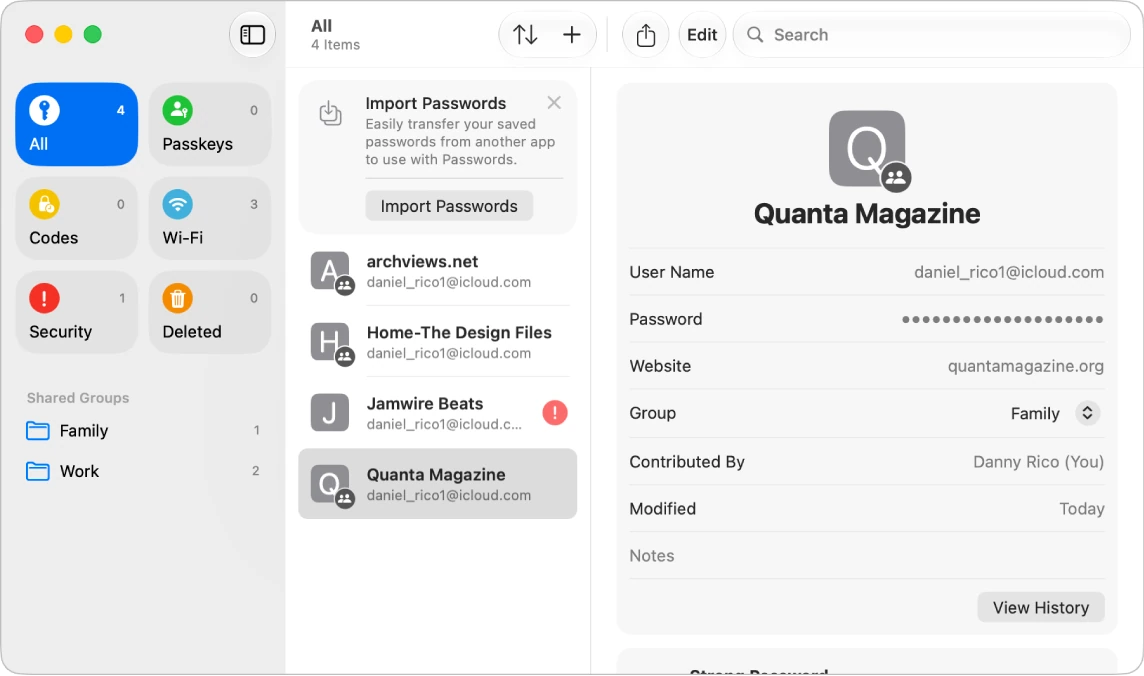
- Open the Passwords app.
- Click Security in the sidebar: it lists the accounts whose passwords are worth changing.
- Click an account, then click Change Password. The change is made on the service's genuine website.
- Use a passkey when the service and your device support it. It is a way to sign in without a password, using your fingerprint or your device passcode.
Control permissions and distrust fake warnings
In System Settings, Privacy & Security lets you review which apps use your camera, microphone, location or screen recording. Grant access only when it makes sense for the task. A video-call app may need the microphone; a calculator usually does not.
A warning inside a web page saying your Mac is infected is not a system diagnosis. Close the page. Do not call the number it shows or install the tool it offers.
YOUR TURN
Try it now
You did it if your Mac asked for the password when you came back, you saw the Security section in Passwords and you found your trusted phone number.
Your progress is saved only in this browser. No sign-up.