
When something fails on your Mac, start with steps that preserve your work: tell a frozen app apart from a bigger problem and know when to ask for help.
Note what stopped working
A clear description of the fault saves time for you and for whoever helps you. Before changing anything, note three things:
- What you were doing.
- The exact message that appeared.
- Whether the problem affects one app or the whole Mac.
Save anything that still responds and check your backup, the safety copy of your files, before making major changes. A screenshot without private information can help describe the fault.
Close an app that is not responding
- Wait a moment if the app is opening a large file, syncing or updating.
- Check whether other apps respond.
- Try quitting normally from the app's menu or with Command + Q.
- If it is still frozen, press Option + Command + Esc.
- Select only the affected app and choose Force Quit.
- Reopen it and check for updates and the file that triggered the problem.
If the problem repeats, try a working copy and keep the original.
Find the cause of slowness
Open Activity Monitor with Spotlight, the Mac's search: press Command + Space bar, type Activity Monitor and press Return. There you can observe CPU, Memory and Energy. Sorting by usage helps identify a demanding app.
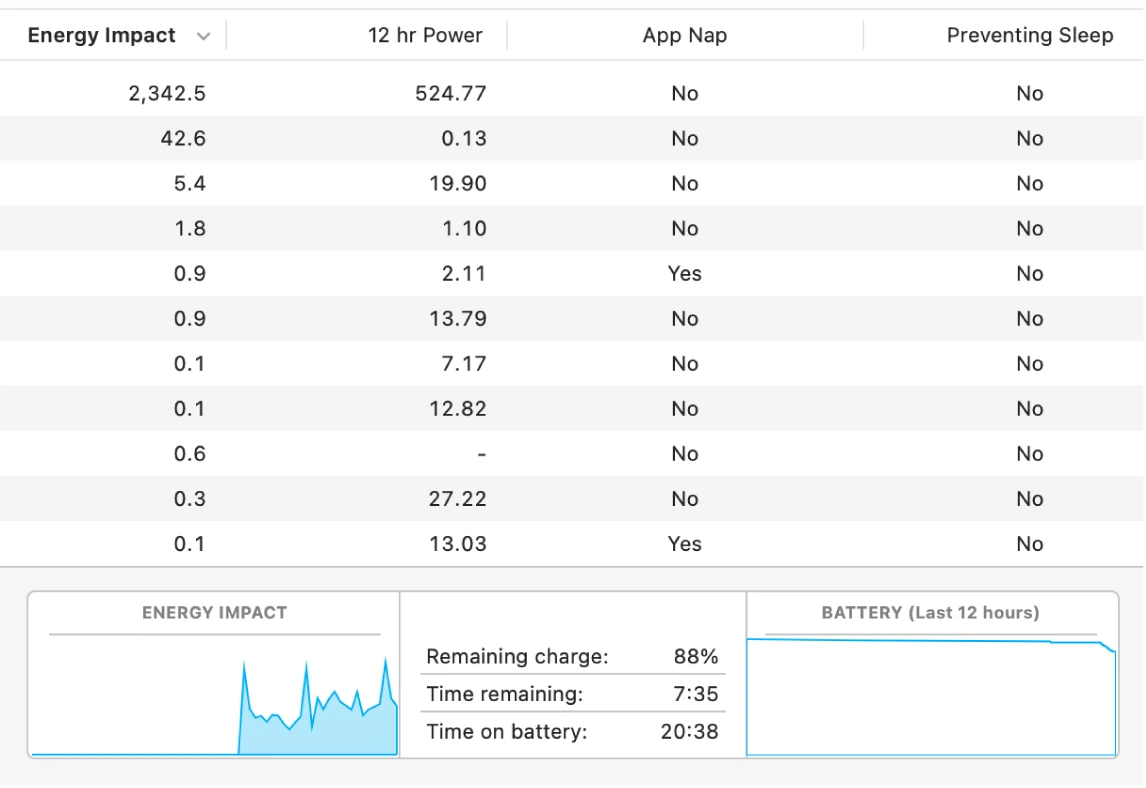
Memory pressure provides context; one high number on its own does not prove a fault. Do not end system processes you do not recognize. Do not assume either that your model allows an upgrade of its RAM, the memory your Mac works with while it is on.
Check the internet connection
- Check that Wi-Fi is connected to the correct network.
- Try another website.
- If you can, try another device.
If only one service fails, the problem may be outside your Mac. Restart normally when appropriate and once you have saved your work.
Recognize when to stop
Disk Utility includes First Aid for checking certain file-system problems. Before using it, secure your backup and follow the instructions for the correct disk. It may require macOS Recovery, the recovery system built into your Mac: on a Mac with Apple silicon you start it by shutting the Mac down and holding the power button until the Options button appears.
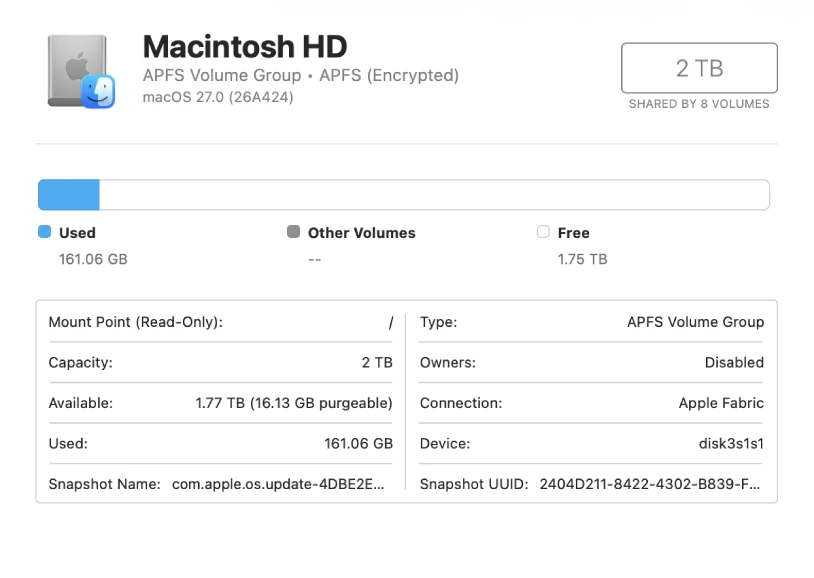
If a drive disappears, makes unusual noises or holds the only copy of important information, reduce its use and seek advice before attempting a repair. A spill, a swollen battery or a failure to power on needs a different assessment from closing an app.
YOUR TURN
Try it now
You did it if you saw the three tabs without ending any process and have a written description with the four details.
Your progress is saved only in this browser. No sign-up.