
Keyboard shortcuts save you a few seconds on every task, and those seconds add up to a lot of time by the end of the day. With them you reach for the mouse less and work faster on your Mac. The shortcuts in this guide are for current versions of macOS, on Macs with Apple silicon and with Intel processors; we recommend learning the ones you use most first.
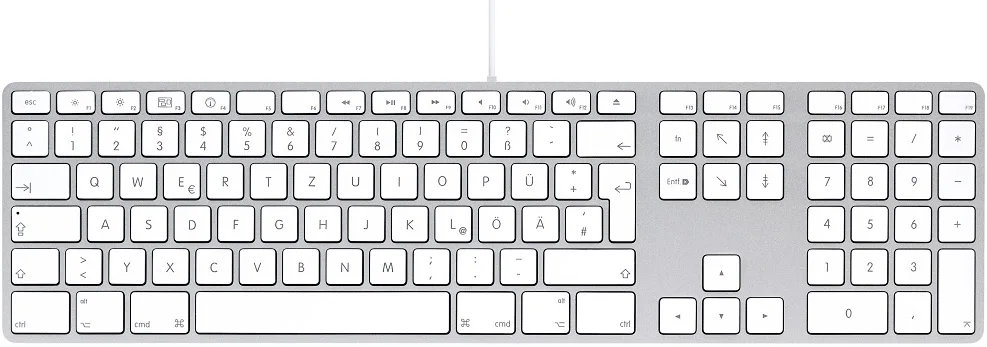
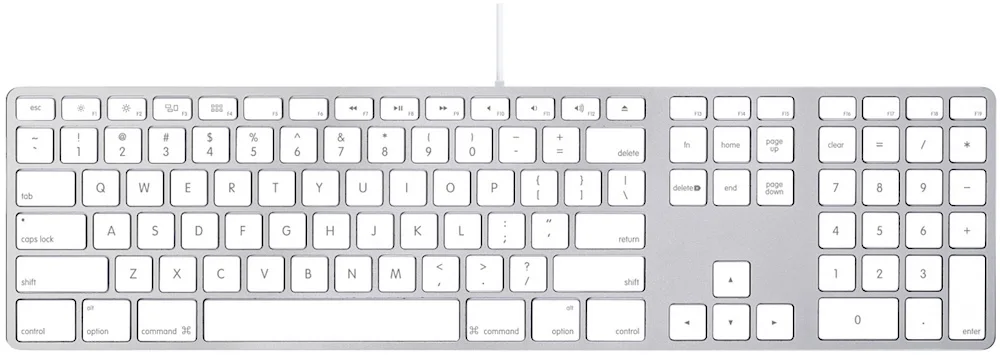
Menu symbols

Mac menus show shortcuts with these symbols.
| Symbol | Key |
|---|---|
| ⌘ | Command (or Cmd). Does the job of the Control key in Windows |
| ⌥ | Option (or Alt). Same as Alt in Windows |
| ⇧ | Shift |
| ⇪ | Caps Lock |
| ⌃ | Control (or Ctrl). Control-click works like a right-click |
| 🌐︎ | fn or Globe. With the keys in the top row, it gives you F1, F2 and the other function keys |
| ⇥ | Tab |
| ↩ | Return |
| ⌤ | Enter (on the numeric keypad) |
| ⏏ | Eject (on older keyboards) |
| ⎋ | Esc (Escape) |
| ⇞ | Page Up |
| ⇟ | Page Down |
| ↖ | Home |
| ↘ | End |
| ← ↑ ↓ → | Arrow keys |
| ⌫ | Delete. Deletes to the left of the cursor, like Backspace in Windows |
| ⌦ | Forward Delete. Deletes to the right of the cursor; on keyboards without this key, press fn + Delete |
Finder

| What it does | Key combination |
|---|---|
| Open a folder in a new tab or window | Command + double-click the folder |
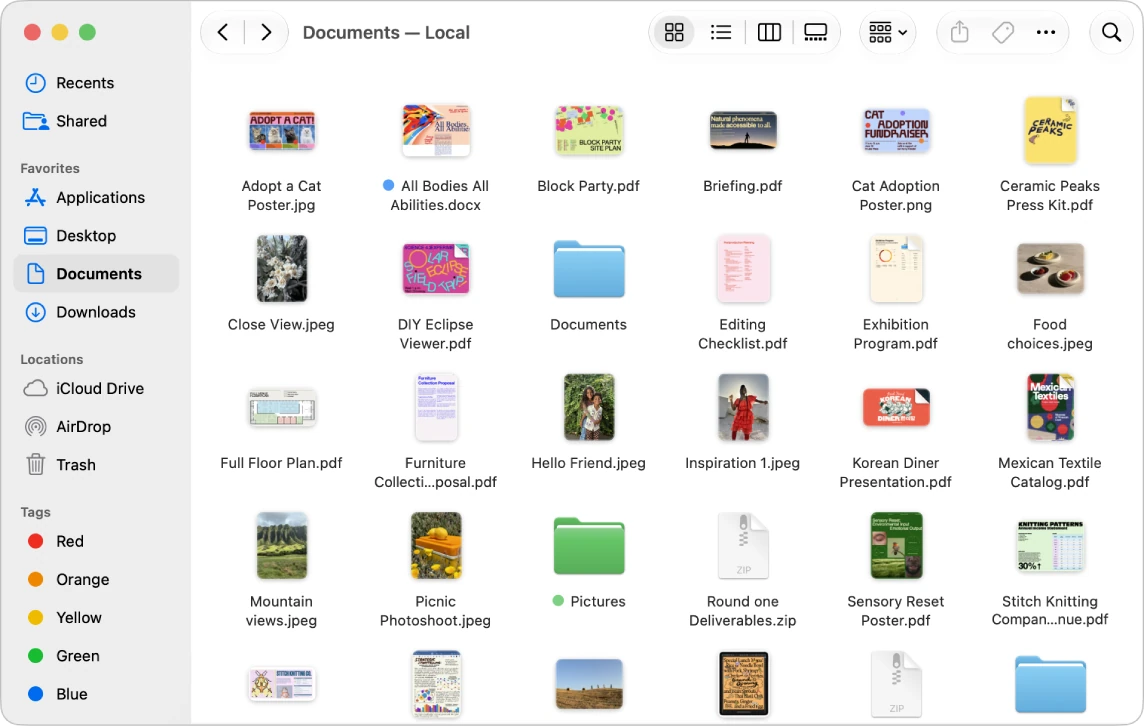
| Change the Finder view: icons, list, columns or gallery | Command + 1, Command + 2, Command + 3 or Command + 4 |
| In list view, expand the selected folder | Right Arrow |
| In list view, collapse the selected folder | Left Arrow |
| Rename the selected file or folder | Return |
| Open the selected file or folder | Command + Down Arrow |
| Go to the folder that contains the current folder | Command + Up Arrow |
| Back (previous folder) | Command + [ |
| Forward (next folder) | Command + ] |
| Select the next item in alphabetical order (icon and list views) | Tab (Shift + Tab goes the other way) |
| Resize a column to fit the longest file name (column view) | Double-click the column divider |
| Resize all columns to fit the longest file name (column view) | Option + double-click the column divider |
| Copy and paste files or folders | Command + C to copy and Command + V to paste |
| Move files or folders (cut and paste) | Command + C to copy, then Option + Command + V in the destination folder |
| Create a new folder | Shift + Command + N |
| Duplicate the selected files | Command + D |
| Preview a file with Quick Look | Space bar |
| Move the selected items to the Trash | Command + Delete |
| Empty the Trash | Shift + Command + Delete |
App Switcher

| What it does | Key combination |
|---|---|
| Switch quickly between two apps (for example, Safari and the Finder) | Command + Tab switches to the last app you used; press Command + Tab again to go back |
| Choose from all open apps | Hold Command and press Tab several times (Shift + Tab goes back), or use the Left and Right Arrow keys. Release Command on the app you want |
| Quit an app from the App Switcher | With Command held and the app selected, press Q |
| Hide an app from the App Switcher | With Command held and the app selected, press H |
| Close the App Switcher without switching apps | With Command held, press Esc or the period key (.) |
Windows and dialogs

| What it does | Key combination |
|---|---|
| Switch to the app's next window | Command + ` (the key above Tab; it can vary by keyboard) |
| Switch to the app's previous window | Shift + Command + ` |
| See which folder the file is in (a menu with the folder path). Works in the Finder and in most apps | Command + click the window title |
| Move a background window without bringing it to the front | Command + drag the window's title bar |
| Choose “Don't Save” in a dialog | Command + Delete (in Open and Save dialogs, Command + D chooses the Desktop folder) |
| Minimize the window to the Dock (with Option, all of the app's windows) | Command + M or Option + Command + M |
| Close the window (with Option, all of the app's windows) | Command + W or Option + Command + W |
| Hide the active app (with Option, hide all the others) | Command + H or Option + Command + H |
| Enter or leave full screen | Control + Command + F |
| Make the window fill the desktop (with R, return to the previous size) | fn + Control + F (fn + Control + R) |
| Move the window to the left or right half of the desktop | fn + Control + Left or Right Arrow |
Dock

| What it does | Key combination |
|---|---|
| Switch to an app and hide all the others | Option + Command + click the app's icon in the Dock |
| Switch to the previous app and hide the current one | Option + click the current app's icon |
| Show a Dock item's location in the Finder | Command + click the icon |
| Force an app to open a file | Option + Command while you drag the file onto the app's icon in the Dock |
| In an app's Dock menu, change Quit to Force Quit | Control + click the icon to open the menu, then press Option |
| Turn Dock magnification on or off for a moment | Hold Control + Shift with the pointer over the Dock |
| Show or hide the Dock | Option + Command + D |
| Resize the Dock | Drag the Dock's separator line up or down |
Working with text

They work in most apps where you type (Safari, Mail, TextEdit and others); they can vary by app.
| What it does | Key combination |
|---|---|
| Go to the end of the line | Command + Right Arrow |
| Go to the start of the line | Command + Left Arrow |
| Go to the end of the document | Command + Down Arrow |
| Go to the start of the document | Command + Up Arrow |
| Go to the end of the next word | Option + Right Arrow |
| Go to the start of the previous word | Option + Left Arrow |
| Select the text up to that point | Add Shift to any of the six combinations above |
| Delete the character to the right of the cursor (on keyboards without the ⌦ key) | fn + Delete |
| Delete the word to the left of the cursor | Option + Delete |
| Select several separate pieces of text | Command + drag |
| Select a rectangular block of text | Option + drag |
| Undo or redo | Command + Z or Shift + Command + Z |
| Paste and match the style of the surrounding text | Option + Shift + Command + V |
| Look up the definition of a word | Select the word and press Control + Command + D, or tap the word with three fingers on the trackpad |
| Show emoji and symbols (Character Viewer) | Control + Command + Space bar or fn + E |
| Type letters with accents or other characters | Press and hold the letter key (for example, a) and choose á, à, â… with the number shown below it, or with the arrow keys and the Space bar |
| Complete a word | Type the start of the word and press Esc to see the list of suggestions |
Screenshots

By default, screenshots are saved to the desktop.
| What it does | Key combination |
|---|---|
| Capture the whole screen | Shift + Command + 3 |
| Capture part of the screen | Shift + Command + 4 and drag over the area. While dragging, hold the Space bar to move the area without resizing it; Esc cancels |
| Capture a window or a menu | Shift + Command + 4, then the Space bar, and click the window or menu. Hold Option as you click to leave out the window's shadow |
| Open the Screenshot app: screenshots, screen recording, timer and where to save | Shift + Command + 5 |
| Copy the screenshot to the clipboard instead of saving a file | Add Control to any of the combinations above, for example Control + Shift + Command + 3 |
Spotlight

| What it does | Key combination |
|---|---|
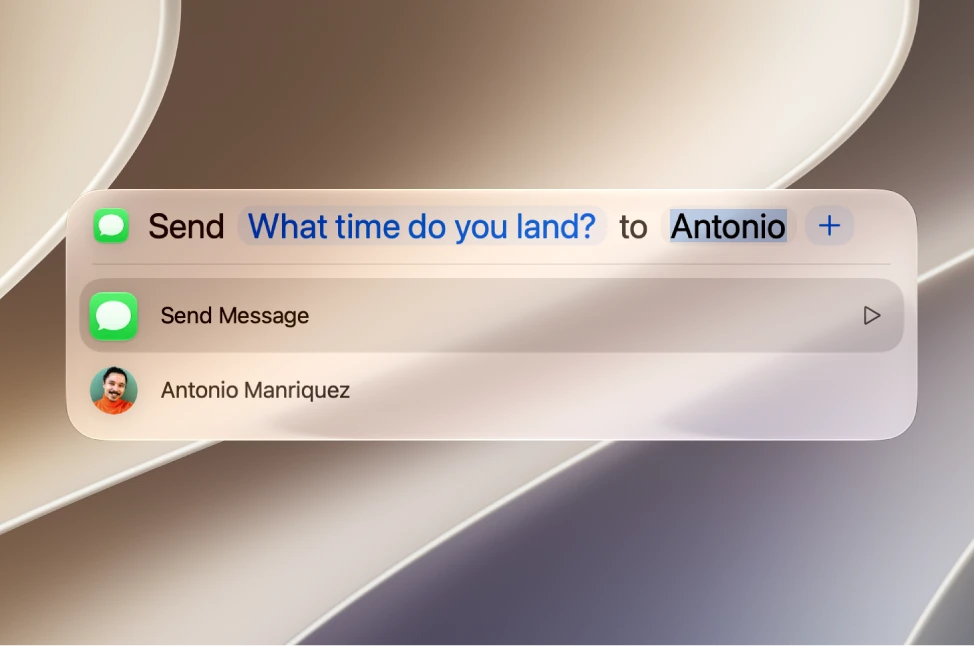
| Open or close Spotlight | Command + Space bar |
| Open a Finder window with the search field ready | Option + Command + Space bar |
| Open the selected result | Return |
| Show the result in the Finder or in its app | Command + R or Command + double-click |
| See the result's path (for example, a file's folder) | Hold Command |
| Preview the result with Quick Look | Space bar |
| Search only apps, files, actions or the clipboard | Command + 1, Command + 2, Command + 3 or Command + 4 |
Mission Control

| What it does | Key combination |
|---|---|
| Open Mission Control | Control + Up Arrow or the Mission Control key |
| Move to the neighbouring space (another desktop or a full-screen app) | Control + Left or Right Arrow |
| See all windows of the current app | Control + Down Arrow |
| Show the desktop | Command + Mission Control key, fn + H or fn + F11 |
| Open Mission Control settings | Option + Mission Control key |
Startup, restart, shut down and sleep

On a Mac with Apple silicon, startup options open with the power button; startup keys only work on a Mac with an Intel processor.
| What it does | Key combination |
|---|---|
| See the startup options: choose another disk, safe mode or macOS Recovery (Mac with Apple silicon) | Hold the power button as you turn on the Mac, until the startup options screen appears |
| Choose the startup disk (Intel Mac) | Option at startup |
| Start up in safe mode (Intel Mac) | Shift at startup |
| Start up from macOS Recovery (Intel Mac) | Command + R at startup |
| Start up in target disk mode (Intel Mac) | T at startup |
| Start up in verbose mode (Intel Mac) | Command + V at startup |
| Reset NVRAM (Intel Mac) | Option + Command + P + R at startup |
| Eject a disc at startup (Intel Mac) | Eject, F12, or the mouse or trackpad button at startup |
| Lock the screen | Control + Command + Q (on keyboards with Touch ID, also by pressing Touch ID) |
| Log out (with Option, without confirmation) | Shift + Command + Q or Option + Shift + Command + Q |
| Put the Mac to sleep (built-in keyboards without Touch ID) | Hold the power button for a second and a half, or press Option + Command + power button |
| Show the dialog to restart, sleep or shut down (built-in keyboards without Touch ID) | Control + power button |
| Put the displays to sleep (built-in keyboards without Touch ID) | Control + Shift + power button |
| Quit all apps and shut down the Mac; it asks whether to save changes (built-in keyboards without Touch ID) | Control + Option + Command + power button |
| Force a restart without saving open documents; use it only when you must (built-in keyboards without Touch ID) | Control + Command + power button |
| Force shut down when the Mac doesn't respond | Hold the power button |
| Shut down, restart or log out without the confirmation dialog | Option while choosing Shut Down, Restart or Log Out in the Apple menu |
Safari

| What it does | Key combination |
|---|---|
| Go to the Smart Search field (address or search) | Command + L |
| Go to the next tab | Control + Tab or Shift + Command + ] |
| Go to the previous tab | Control + Shift + Tab or Shift + Command + [ |
| Go to one of the first eight tabs (Command + 9: the last one) | Command + 1 to Command + 8 |
| Find on the page and move between results | Command + F; then Command + G for the next one and Shift + Command + G for the previous one |
| Scroll down or up one screen | Space bar or Shift + Space bar (also Option + Down or Up Arrow) |
| Open a link in a new tab, in the background | Command + click the link |
| Open a link in a new tab and switch to it | Shift + Command + click the link |
| Add a link to the Reading List | Shift + click the link |
| Close the tab | Command + W |
| Reopen the last tab you closed | Shift + Command + T |

| What it does | Key combination |
|---|---|
| Send the email | Shift + Command + D |
| Reply | Command + R |
| Reply All | Shift + Command + R |
| Forward | Shift + Command + F |
| Go to the mailboxes in the Favorites bar, in order | Command + 1, Command + 2, Command + 3… |
| Check for new email | Shift + Command + N |
| Mark as read or unread | Shift + Command + U |
| Archive the selected emails | Control + Command + A |
| Undo sending an email | Command + Z |
Preview

| What it does | Key combination |
|---|---|
| Zoom in or out | Command + plus sign (+) or Command + minus sign (-) |
| View at actual size | Command + 0 |
| Zoom to fit the window | Command + 9 |
| Go to the next or previous page | Option + Down Arrow or Option + Up Arrow |
| Remove the background from an image | Shift + Command + K |
Miscellaneous

| What it does | Key combination |
|---|---|
| Force quit an app (shows the list of open apps) | Option + Command + Esc |
| Scroll with the trackpad (like a mouse wheel) | Slide two fingers up or down |
| Right-click on the trackpad | Click or tap with two fingers |
| Find a command in the app's menus | Shift + Command + ? opens the Help menu; type part of the command's name, move down with the arrow keys and press Return |
| Open the active app's settings | Command + comma (,) |
| Open an app without the windows it had open last time | Hold Shift while you open the app |
| Show or hide Notification Center | fn + N |
| Show or hide Control Center | fn + C |
| Change the volume in smaller steps | Option + Shift + volume up or volume down key |
| Open Sound settings | Option + any volume key |
| Open Displays settings | Option + any brightness key |
| Customize a window's toolbar (Finder, Mail, Preview and other apps) | Control + click the toolbar and choose Customize Toolbar |
| Terminal: move the cursor with the mouse | Hold Option and click where you want the cursor |
| Terminal: enter the full path of a file or folder | Drag the file or folder from the Finder into the Terminal window |
Keep reading
 Guide seriesYour First Mac
 Your First Mac · Lesson 8Get comfortable with shortcuts, gestures and windows
 Your First Mac · Lesson 5Find and organize your files
 Your First Mac · Lesson 6Find what you need with Spotlight
 Your First Mac · Lesson 15Take screenshots and screen recordings
 iGenius guideHow to force quit applications on a Mac