
Open apps and find documents in seconds with Spotlight, without browsing folders, and check where a file is before you change it.
Meet Spotlight, the search that is always within reach
Spotlight is your Mac's search tool: it searches apps, files and other content available on your Mac. It saves you from browsing folders when you already know what you need.
Some features and results depend on your macOS version, your settings and internet access. You do not need to turn on AI features to start finding files or opening apps.
Open an app and find a file
- Press Command + Space bar.
- Type Preview or the name of another app.
- Select the right result with the arrow keys.
- Press Return to open it.
- Go back to Spotlight and type part of the name of a file you know.
- Select the file with the arrow keys and press the Space bar to preview it without opening it.
- With the file selected, hold the Command key to locate it and see where it is stored.
Adding a word from the name is often more useful than a very broad search. You can also reveal the file in Finder, the Mac's file app, using the result's options.
Do calculations and conversions
Spotlight also handles quick calculations. Try a calculation such as 125*3 or a conversion such as 10 cm in inches. For currencies and other changing information, check freshness and connectivity before making an important decision.
Narrow the results
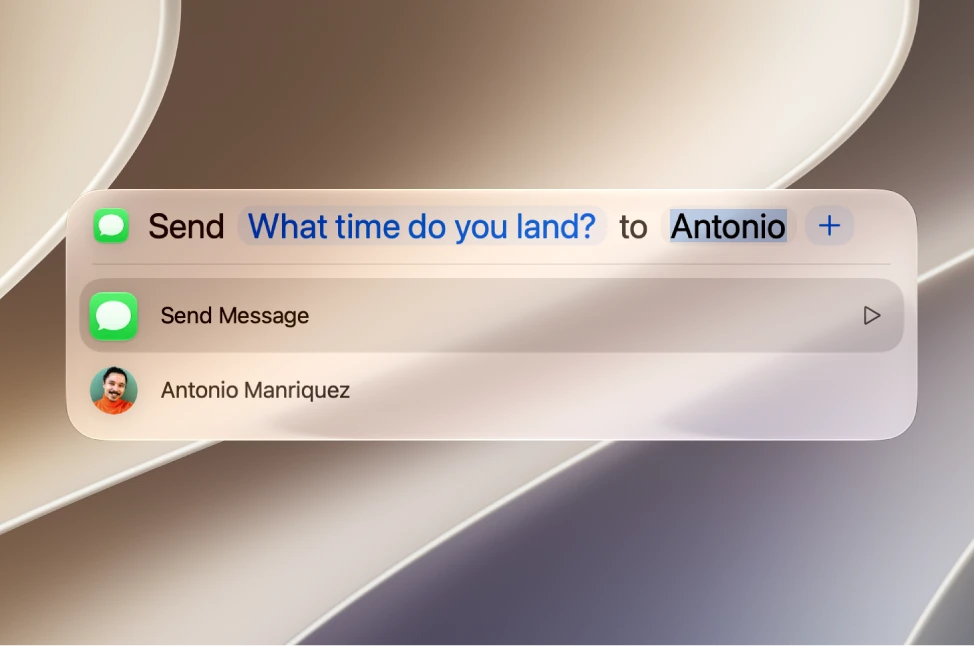
Spotlight has four modes: Applications with Command + 1, Files with Command + 2, Actions with Command + 3 and Clipboard with Command + 4. While you type, you can also click one of the categories that appear below the search field to filter the results.
Finder also lets you search inside a folder and add filters by type or date. That helps when you remember the context but not the exact filename.
You will find more Spotlight shortcuts in our guide Mac keyboard shortcuts.
What to check if results are missing
- Check the file's name in Finder.
- Review the excluded locations: in System Settings, click Spotlight, then click Search Privacy in the lower right.
- Think about where the file is: a disconnected drive or a file that has not downloaded yet may be unavailable.
- Give a newly set up or updated Mac some time: it may need a while to index its information, meaning to build the catalog that makes searching possible. Keep it connected to power.
YOUR TURN
Try it now
You did it if Preview opened, you saw your file's location and Spotlight showed you 375 without opening Calculator.
Your progress is saved only in this browser. No sign-up.