
LEARN WITH iGENIUS
Your First MacA good beginning.
Learn to use, protect and enjoy your Mac, one step at a time. A path from first setup to the small habits that make everyday tasks easier.
24 short lessons. No sign-up. Follow the path or jump to a question.
0 of 24 lessons completed
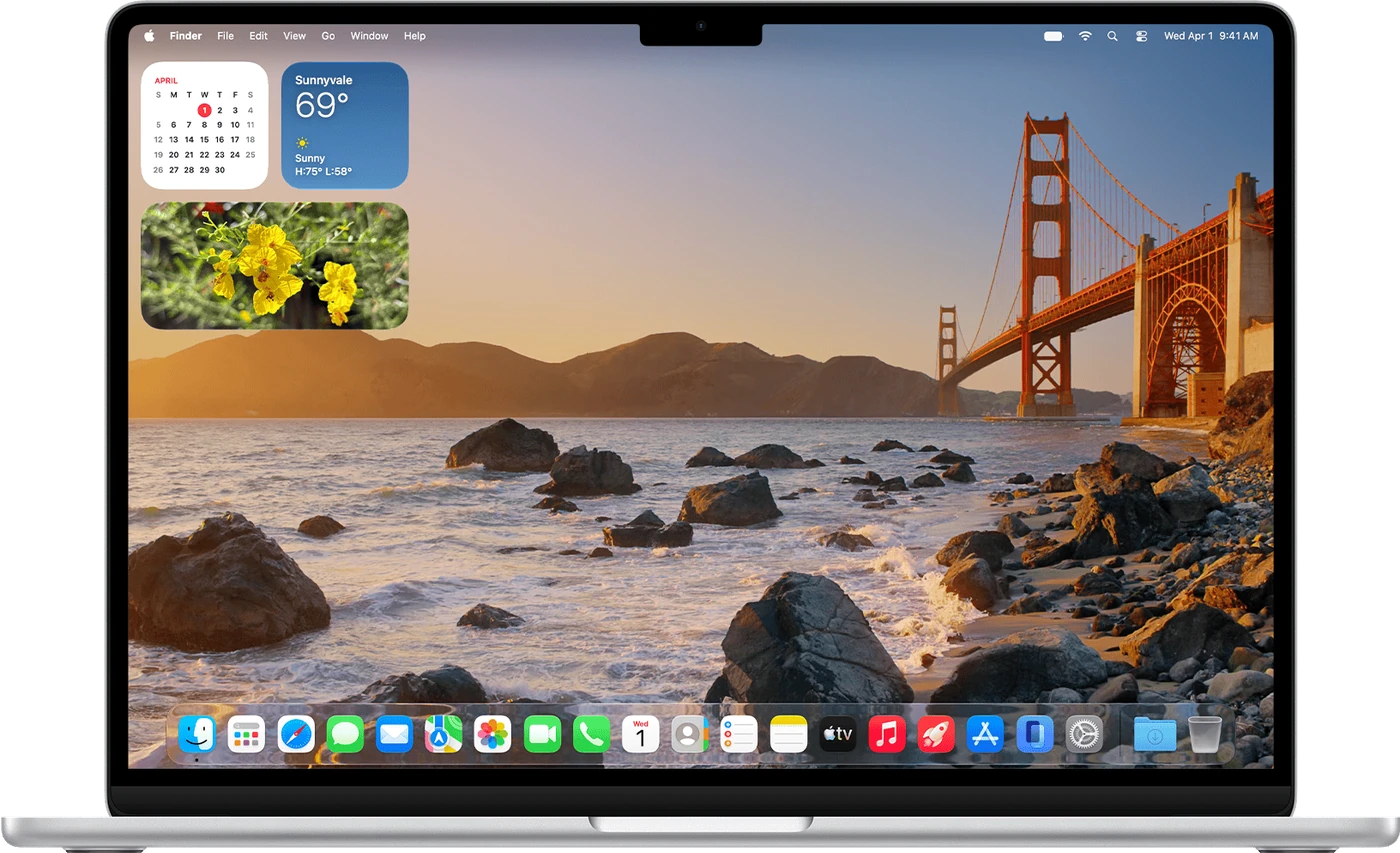
Your desktop, your apps, and the confidence to know what to do.
Apple · macOS 27. English interface; menus may vary.YOUR LEARNING PATH
The right things, in order.
Start with the first six lessons. Then continue according to how you use your Mac. Every guide ends with a small task to practice.
STEP BY STEP
Start here
The essentials for day one: get comfortable, protect your information and find what you need.
- 4 min read
Set up your new Mac
Get your Mac ready on day one: connection, account and essential settings, and the difference between your Mac password and your Apple Account password.
- 4 min read
Meet the desktop, Dock and menus
Find your way around the Mac screen: what the desktop is, what the Dock is for, and why the menus at the top change with the app you are using.
- 4 min read
Protect your Mac and accounts
Protect your Mac with a screen lock, unique passwords and a way to recover access, and learn to recognize the most common fake warnings.
- 4 min read
Make your first Time Machine backup
Make your first Time Machine backup: prepare a disk, check that the backup finished and practice recovering a file so you know it works.
- 4 min read
Find and organize your files
Use Finder to know where your documents live, sort them into folders and view them without opening them. A simple structure beats a crowded desktop.
- 4 min read
Find what you need with Spotlight
Open apps and find documents in seconds with Spotlight, without browsing folders, and check where a file is before you change it.
STEP BY STEP
Everyday confidence
Apps, documents and tools to work and communicate comfortably.
- 4 min read
Install and manage your apps
Install apps from trusted places, grant only the permissions they need and remove what you do not use, so your Mac stays tidy and safe.
- 4 min read
Get comfortable with shortcuts, gestures and windows
Work more comfortably with a few everyday shortcuts: copy and paste, switch apps, arrange your windows and find the characters on your keyboard.
- 4 min read
Browse confidently with Safari
Browse in Safari without getting lost: open tabs, save the pages you care about, find what you download and spot a fake warning before you act on it.
- 4 min read
Use Mail and attachments
Bring your email accounts together in Mail, send a message with a file attached and learn to spot a suspicious email before you reply to it.
- 4 min read
Organize contacts and calendars
Keep your people in Contacts and your appointments in Calendar, and learn to choose the right account so nothing ends up somewhere unexpected.
- 4 min read
Stay organized with Notes and Reminders
Keep what you want to remember in Notes and let Reminders alert you to what you need to do, so you no longer depend on memory or loose scraps of paper.
- 4 min read
Create, save and share documents
Write your first document, save it where you can find it and share it in a format the other person can open, without losing your editable copy.
- 4 min read
Work with images and PDFs in Preview
Crop a photo, write on a PDF and fill in a form with Preview, the app that already comes with your Mac, without harming the original file.
- 3 min read
Take screenshots and screen recordings
Save what you see on your Mac's screen as an image or a video, to ask for help or keep a detail, and check what is visible before you share it.
STEP BY STEP
Connected and cared for
Understand iCloud, connect your devices and learn to care for your Mac and solve common problems.
- 4 min read
Understand iCloud and where your files live
Know which files are on your Mac and which are in iCloud, so you are never without a document offline and never delete something on all your devices.
- 4 min read
Enjoy photos, music and video
Sort your photos into albums, make copies when you need them, and know which music and video is yours and which depends on a subscription.
- 4 min read
Use your Mac with your iPhone
Move photos and files between your Mac and iPhone without cables using AirDrop, and copy text on one device to paste it on the other.
- 4 min read
Connect accessories, printers and drives
Connect a Bluetooth accessory, a display, a printer or an external drive without guessing, and unplug drives without putting your files at risk.
- 4 min read
Care for your Mac, battery and storage
Look after your Mac with simple habits: charge it well, clean it without damage, keep it up to date and know what takes up space before deleting.
- 3 min read
Handle common problems calmly
When something fails on your Mac, start with steps that preserve your work: tell a frozen app apart from a bigger problem and know when to ask for help.
OPTIONAL · AT YOUR PACE
When you want to go further
Optional lessons for choosing apps, organizing files and automating tasks.
- 3 min read
Choose apps you actually need
Before installing anything, see whether your Mac already does the job. Learn to compare apps by task, cost, permissions and compatibility.
- 4 min read
Organize and protect files in more detail
Find your files faster with tags and Smart Folders, and learn how to keep a group of documents in a password-protected container.
- 4 min read
Explore Shortcuts, Siri and Apple Intelligence
Let your Mac handle a repeated task for you with Shortcuts, and try Siri and Apple Intelligence knowing what data you share and what to check.
KEEP WITHIN REACH
Coming from Windows?
Some names change. The tasks will feel familiar.
See all keyboard shortcuts- File Explorer
- Finder
- Settings
- System Settings
- Task Manager
- Activity Monitor
- Control + C / V
- Command + C / V
- Recycle Bin
- Trash
Something not working as expected?
Start with common troubleshooting steps or tell us what is happening.