
Starting with iOS 7, Apple introduced a feature called Activation Lock, designed to stop anyone else from using your iPhone, iPad or iPod touch if it is lost or stolen. Activation Lock turns on automatically when you set up iCloud on your new iPhone or turn on Find My on one of these devices.
How does Activation Lock work?
When Find My is enabled, the Apple ID is securely stored on Apple's activation servers and linked to the device. The account email and password are then required to turn off Find My, erase the device or reactivate it for use from scratch.
Turn off Find My before selling the device, then complete this erasing guide if selling or giving away an iPhone, iPad or iPod touch. Before buying a used device, make sure it is not linked to an iCloud account. The source also says this is needed if iGenius must restore software, otherwise activation requests the account credentials, and for an out-of-warranty replacement. The workshop's present replacement policy requires confirmation.

To turn off Find My, follow these historical instructions:
Using your computer's browser
1. Sign in at www.icloud.com/#find with the Apple ID used for iCloud on the device.
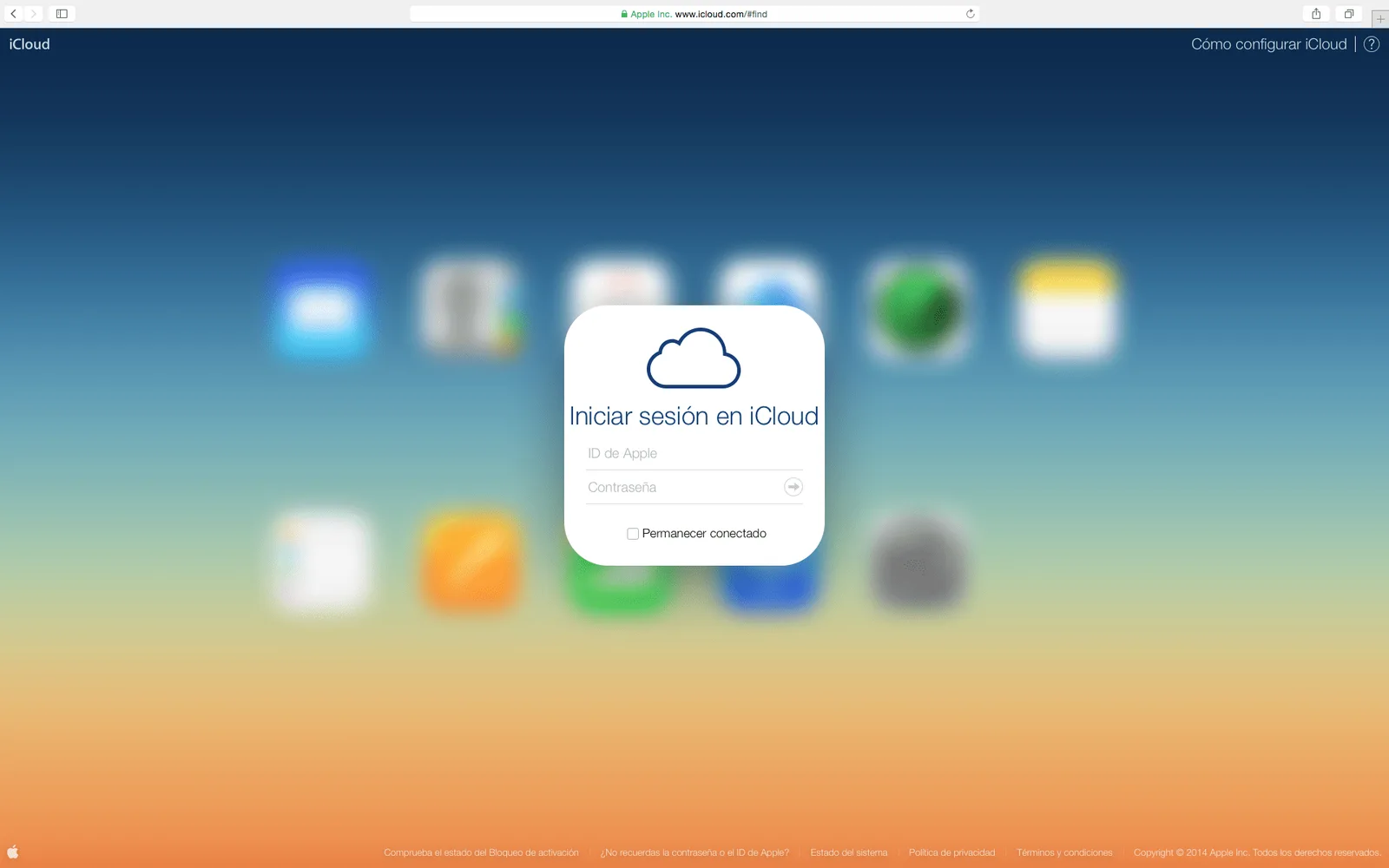
Note: If you do not remember the Apple ID, the source links to www.iforgot.apple.com/appleid. For a forgotten password, it links to www.iforgot.apple.com/password/verify/appleid.
2. After signing in, wait about 20–30 seconds for iCloud to find the devices linked to your account.

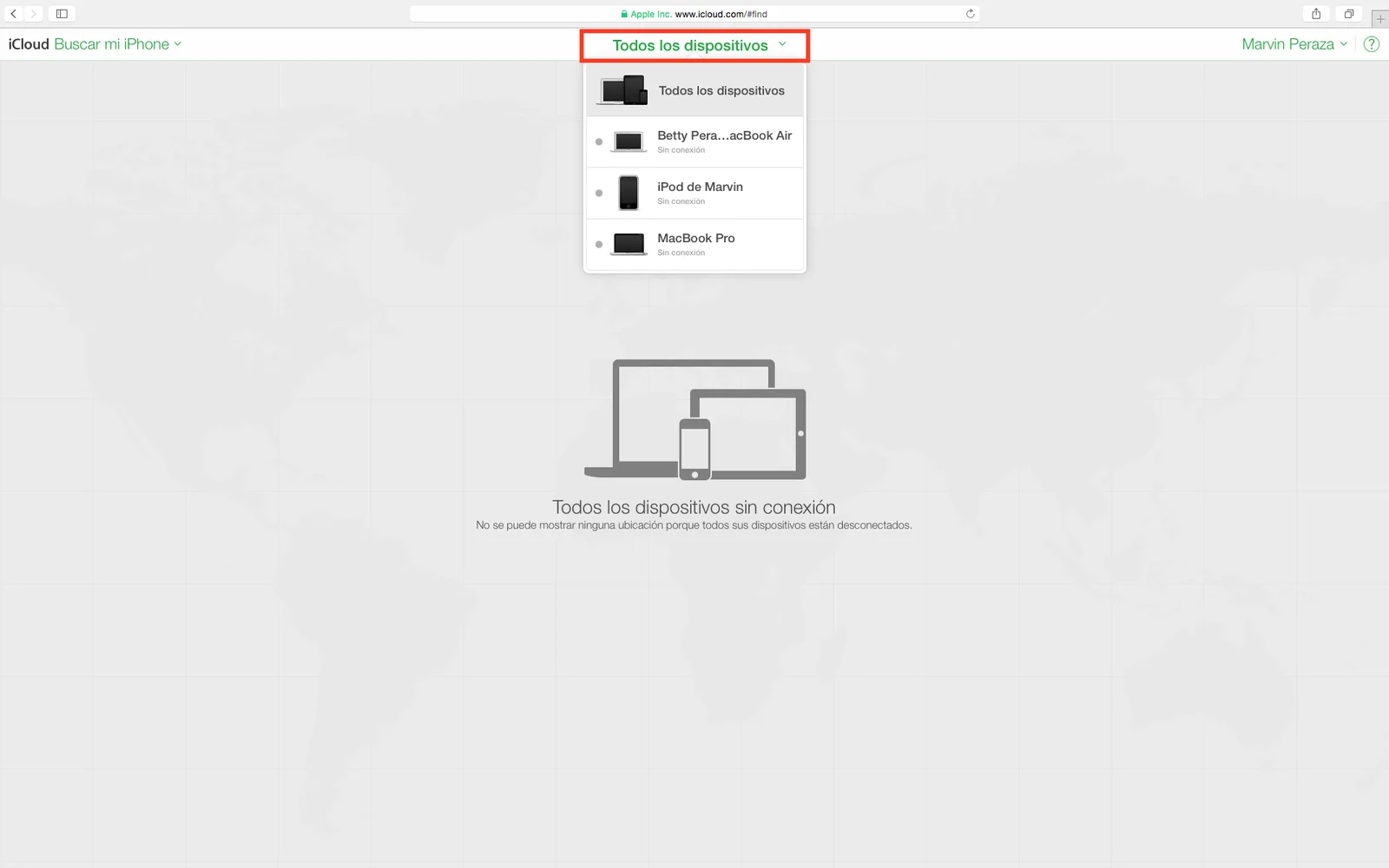
3. Click All Devices and choose the device to remove. If several are listed, the original instructions select the one without a green dot, indicating that it is off or offline.
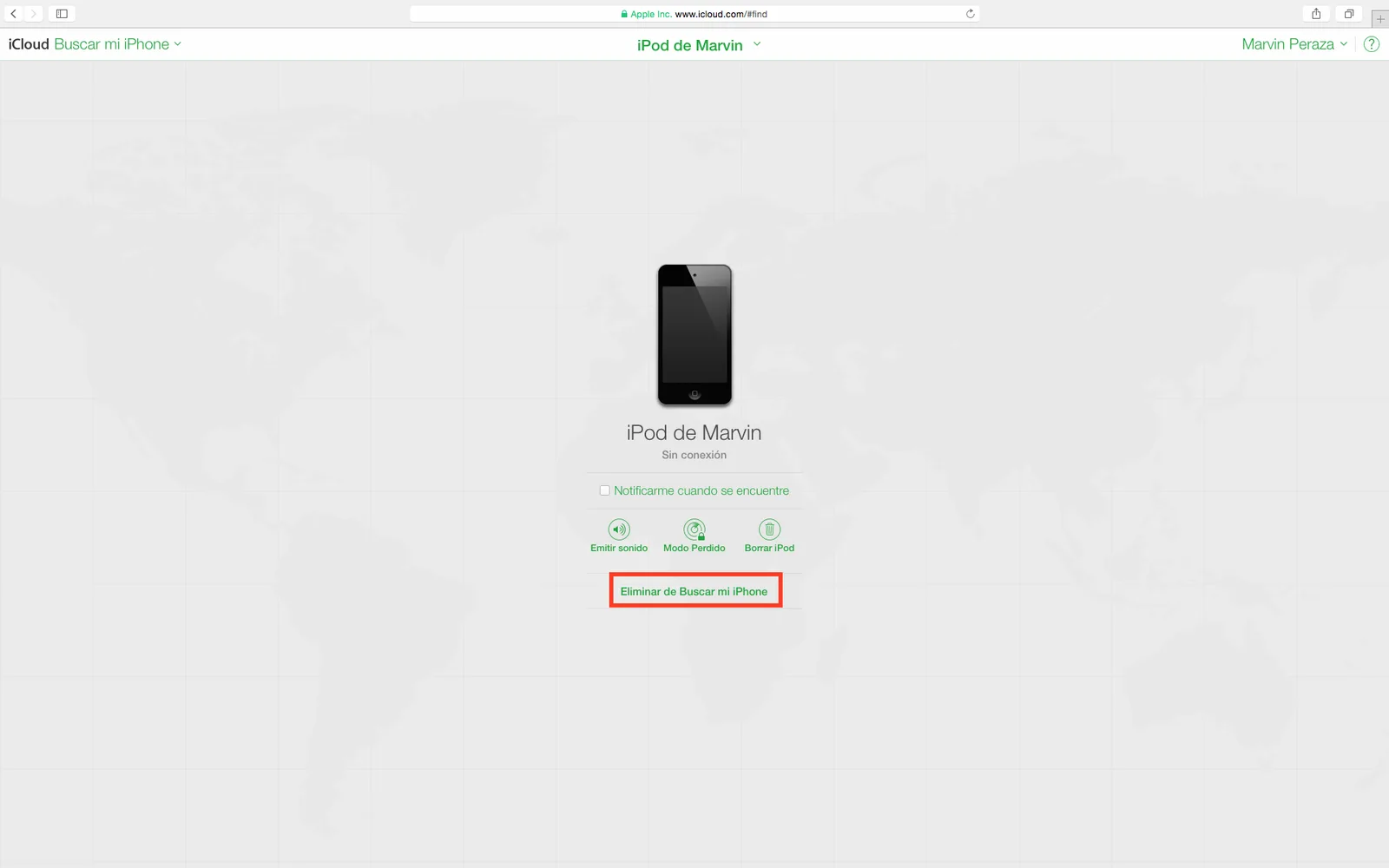
4. Click Remove from Find My iPhone.
Using Settings on iPhone, iPad or iPod touch
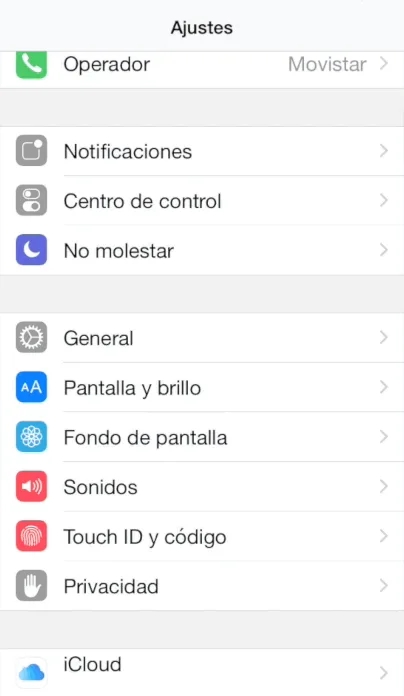
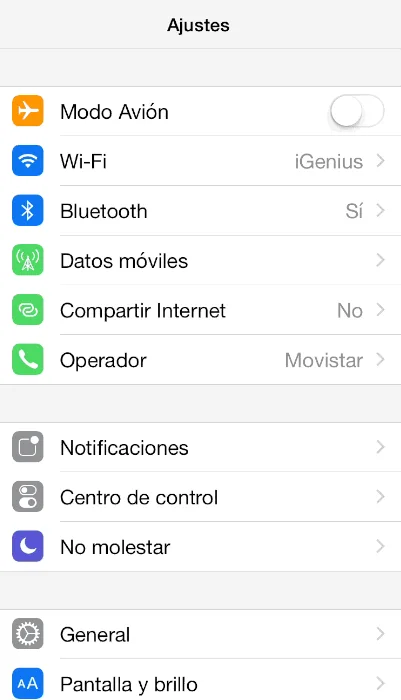
1. Open Settings.
2. Tap [

](https://www.igeniuscr.com/wp-content/uploads/2014/12/hero_icloud.png) iCloud.
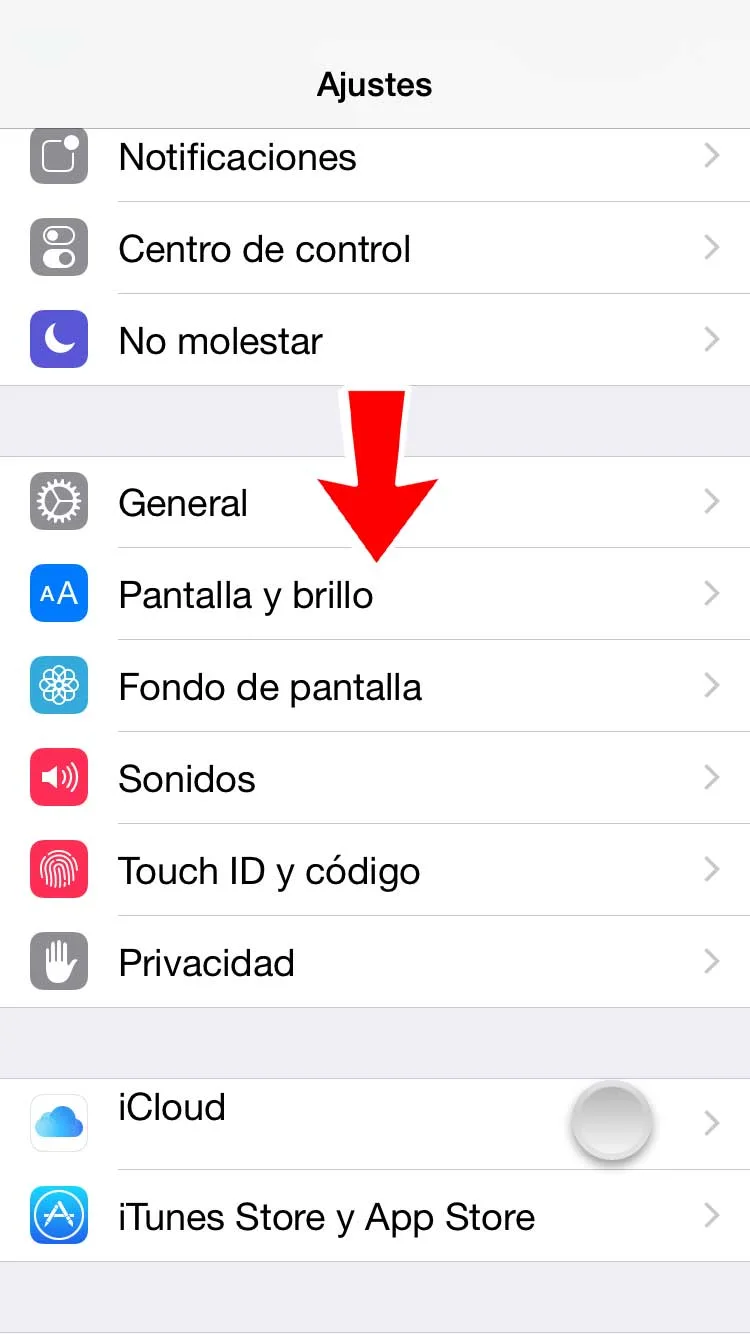
3. Scroll down and select

Find My.
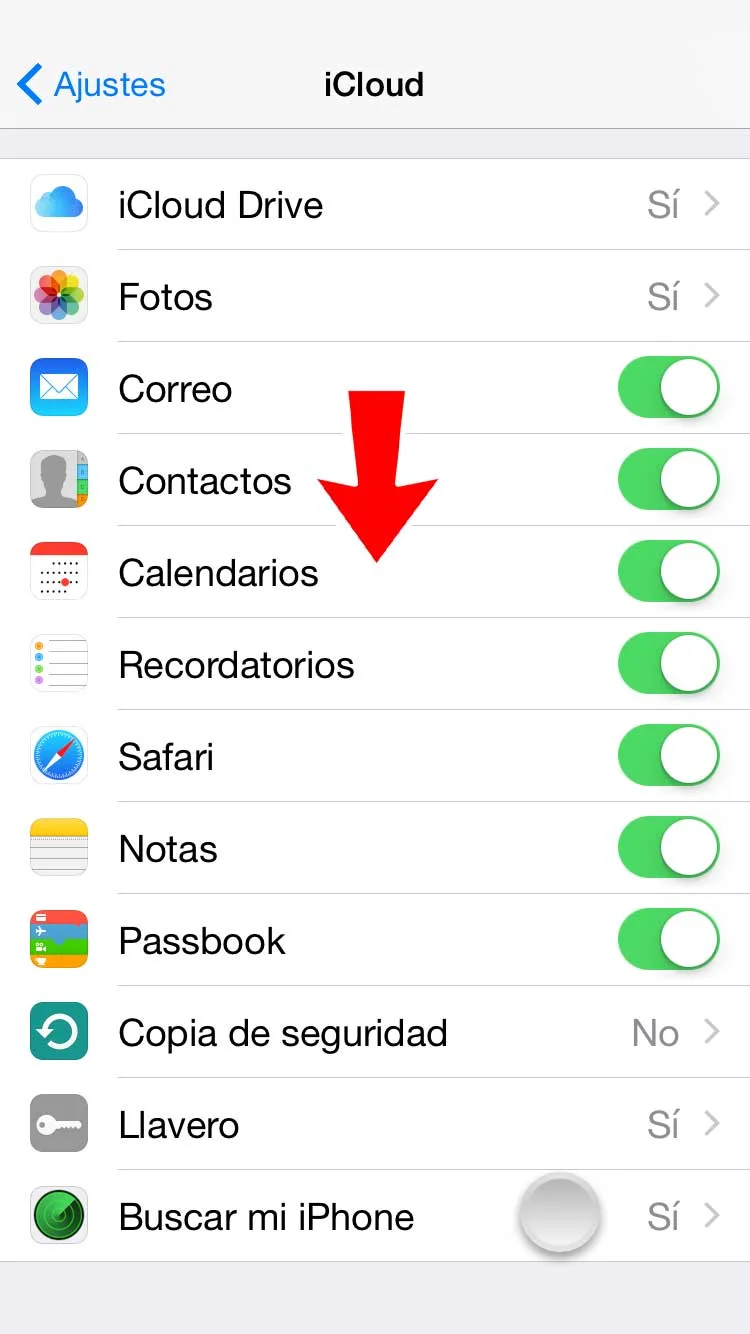
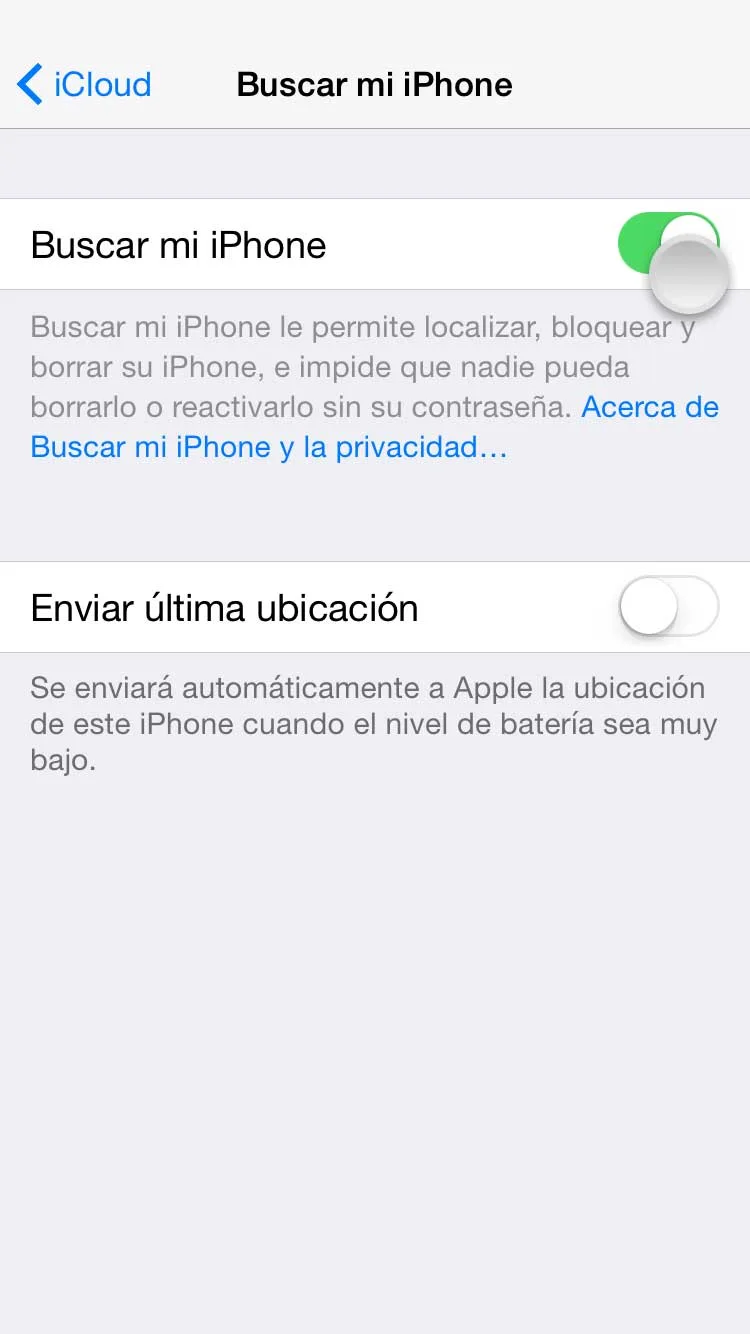
4. Turn Find My off.
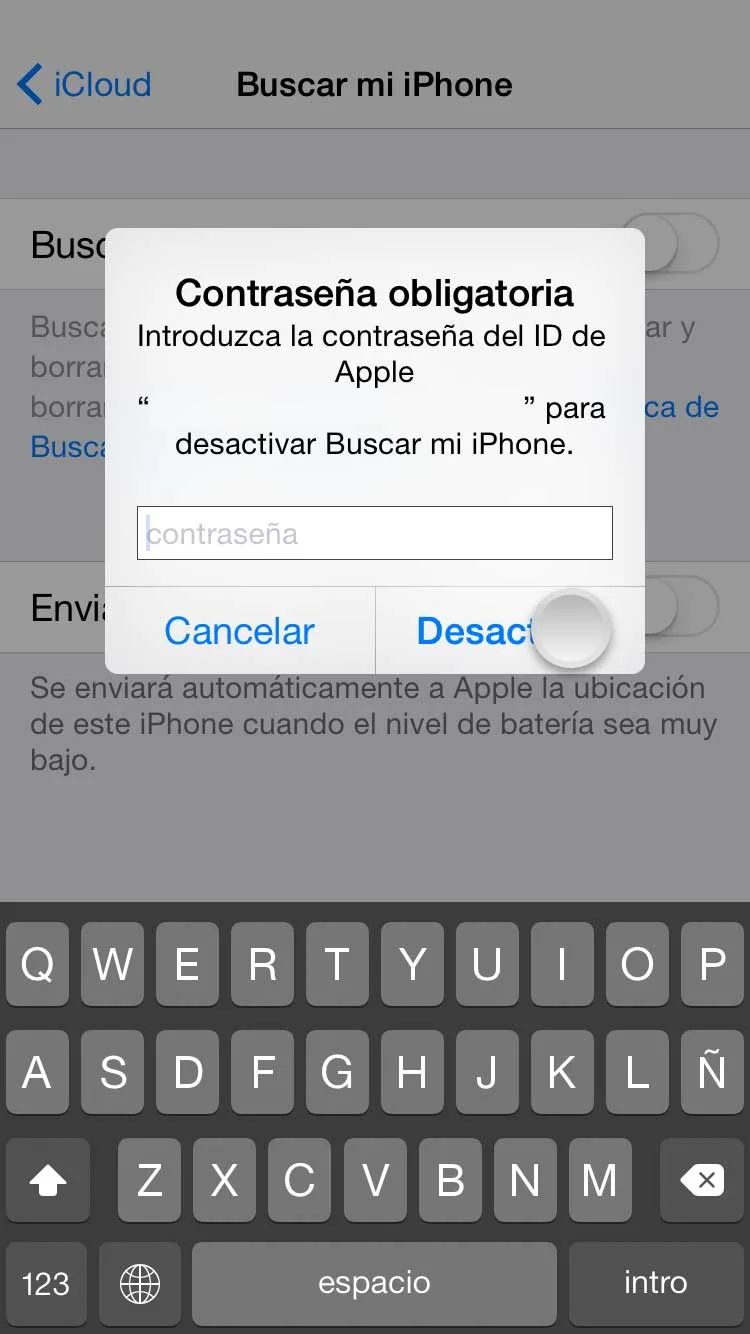
5. Enter the iCloud account password when prompted and tap Turn Off to finish.
If you have questions, leave a comment or contact iGenius.
Keep reading
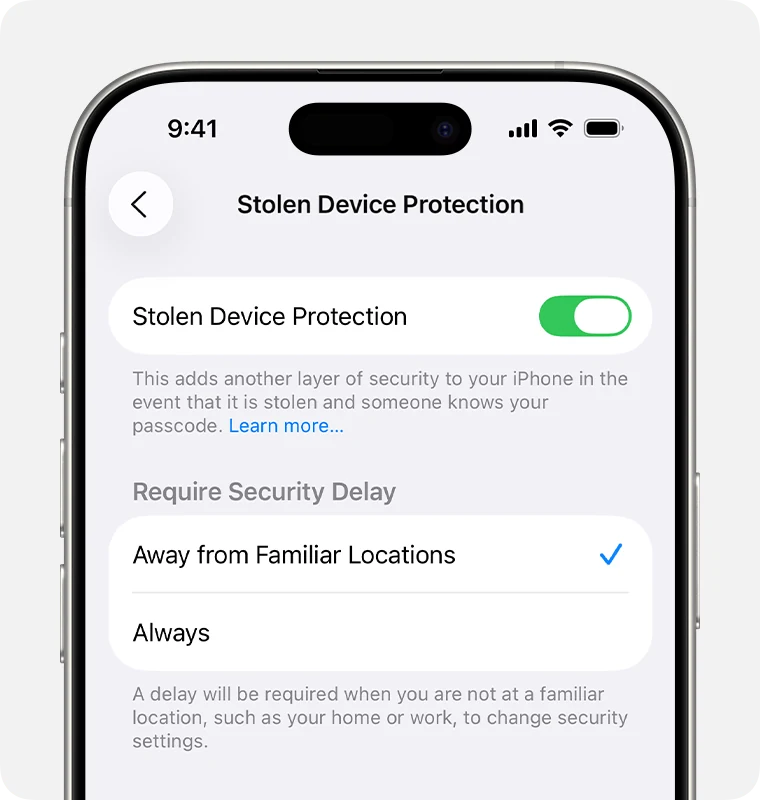 iGenius guideiPhone Stolen Device Protection: what it is and why to turn it off before a repair
 iGenius guideErase all content and settings on iPhone, iPad or iPod touch
 iGenius guideWhat to do before selling or giving away your iPhone, iPad or iPod touch
 iGenius guideHow to check Activation Lock before buying a used device