
If you are bringing your iPhone to iGenius for data rescue or backup, a Face ID repair, a transfer of your information to another device or a storage clean-up, we will ask you to turn off Stolen Device Protection first. It is a setting on the iPhone itself: you can turn it off in a minute at home, it erases nothing and you can turn it back on when you collect your device.
This guide explains what it is, how it differs from iCloud and Activation Lock, why we need it off and how to do it step by step.
What Stolen Device Protection is
Apple built it for one specific case: someone steals the iPhone and also knows its passcode. It is available on iPhone with iOS 17.3 or later and, according to Apple, might be turned on by default.
With the protection on, when the iPhone is away from familiar locations such as your home or work, the passcode is no longer enough:
- Face ID or Touch ID only, with no passcode alternative: using saved passwords, erasing all content and settings, turning off Lost Mode, opening a locked app, using the iPhone to set up a new device (Quick Start) and setting up or transferring an eSIM.
- A one-hour Security Delay: changing the iPhone passcode, adding or removing Face ID or Touch ID, signing out of the Apple Account or changing its password, resetting all settings and turning off the protection itself. The iPhone asks for Face ID or Touch ID, waits an hour and asks again.
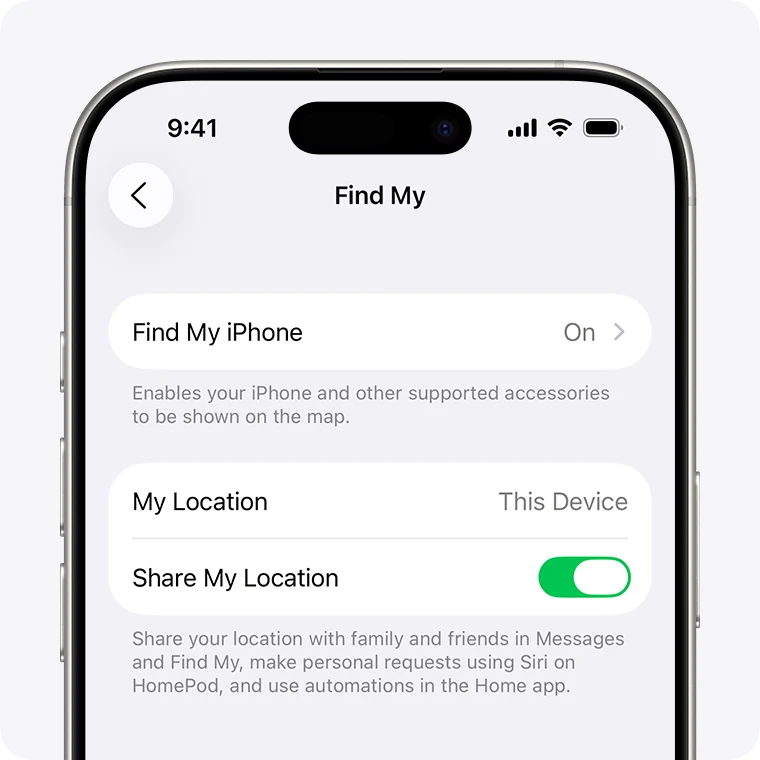
- While the protection is on, Find My iPhone cannot be turned off.
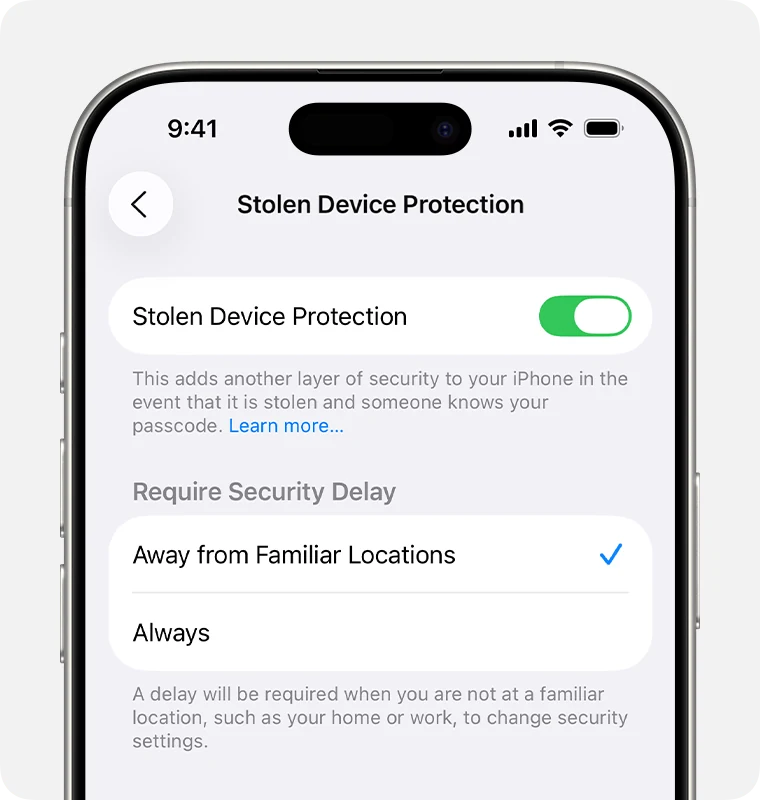
If you choose Always under Require Security Delay, these requirements also apply at home and at work.
How it differs from iCloud, Find My and Activation Lock
These are four different things that are often confused:
Apple Account and iCloud
Your account and the cloud storage where photos, contacts and backups sync. Protected by your Apple Account password and two-factor authentication. Turn it off for the workshop? Only if we ask you to for your case.
Find My (Find My iPhone)
Locates the iPhone on a map, marks it as lost or erases it remotely. It depends on your Apple Account password. Turn it off for the workshop? Only if we ask you to for your case.
Activation Lock
Turns on automatically when you turn on Find My iPhone. It links the iPhone to your account: nobody can erase and reactivate it without your Apple Account password. Turn it off for the workshop? Only if we ask you to; it turns off when Find My iPhone is turned off.
Stolen Device Protection
An iPhone setting that requires your face or fingerprint (Face ID or Touch ID) and a one-hour delay for sensitive changes away from familiar locations. Turn it off for the workshop? Yes, before the services in this guide.
In short: Activation Lock protects your iPhone from someone who does not know your Apple Account password. Stolen Device Protection protects it from someone who does know the iPhone passcode. Turning it off does not erase your data, does not sign you out of iCloud and does not remove Find My iPhone or Activation Lock.
Why we ask you to turn it off before bringing the iPhone
Our workshop is not a familiar location for your iPhone, so the protection applies there in its strictest form. The technician works with the passcode you entrust to us, but not with your face or fingerprint, and several tasks are blocked or must wait an hour each time.
- Face ID repair: checking the repair means enrolling a face again, and adding or removing Face ID requires authenticating with Face ID before and after the one-hour delay. If Face ID is damaged, the iPhone cannot complete that check.
- Data rescue and backup: the process may require changing the passcode, resetting settings or signing out. Each of those steps requires your face or fingerprint and a one-hour wait.
- Transferring information to another device: Quick Start and eSIM transfer work only with Face ID or Touch ID, with no passcode alternative. The same applies to erasing the old device once the transfer is finished.
- Storage clean-up: to help you move photos, videos and files to a USB flash drive or an external hard drive, we work inside the iPhone with your passcode. If a locked app must be opened or a protected setting changed, the iPhone asks for your face or the one-hour wait.
- Repairs that require turning off Find My iPhone: this is not possible while the protection is on.
If the iPhone arrives with the protection on, the work stops until we can coordinate with you. That is why it is best to sort it out beforehand, at home.
How to turn it off before bringing your iPhone
Do it at home or at work: in a familiar location the iPhone normally does not require the one-hour delay.
- Open Settings and tap Face ID & Passcode. On models with Touch ID, the option is called Touch ID & Passcode.
- Enter your iPhone passcode.
- Scroll down and tap Stolen Device Protection.
- Turn off the switch and confirm with Face ID or Touch ID if the iPhone asks.
- Check that the switch is off.
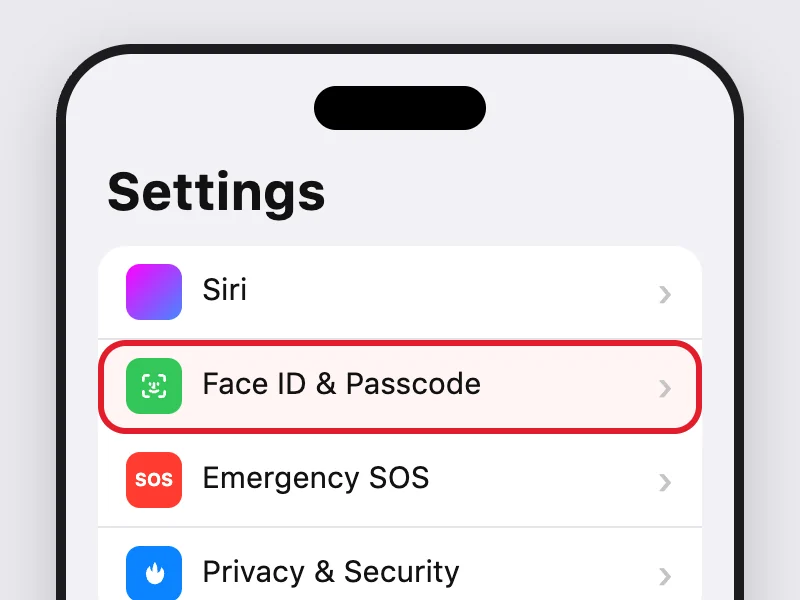
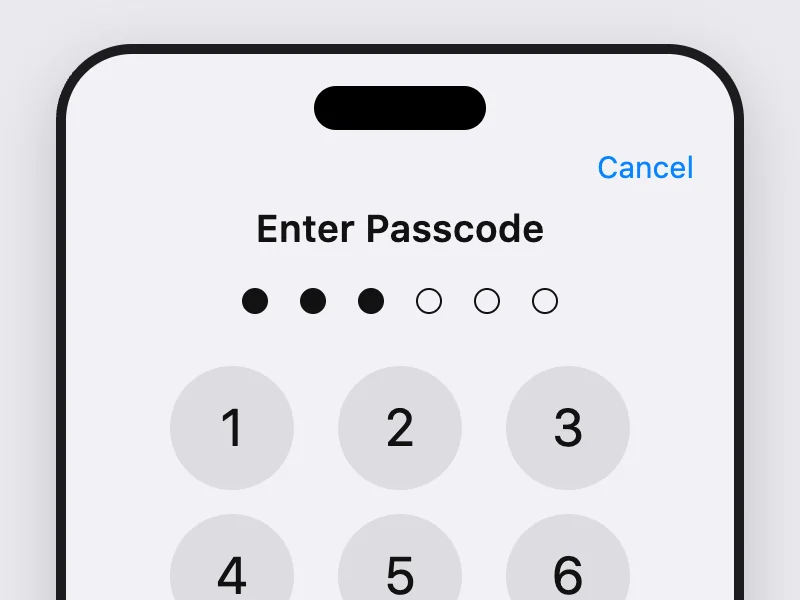
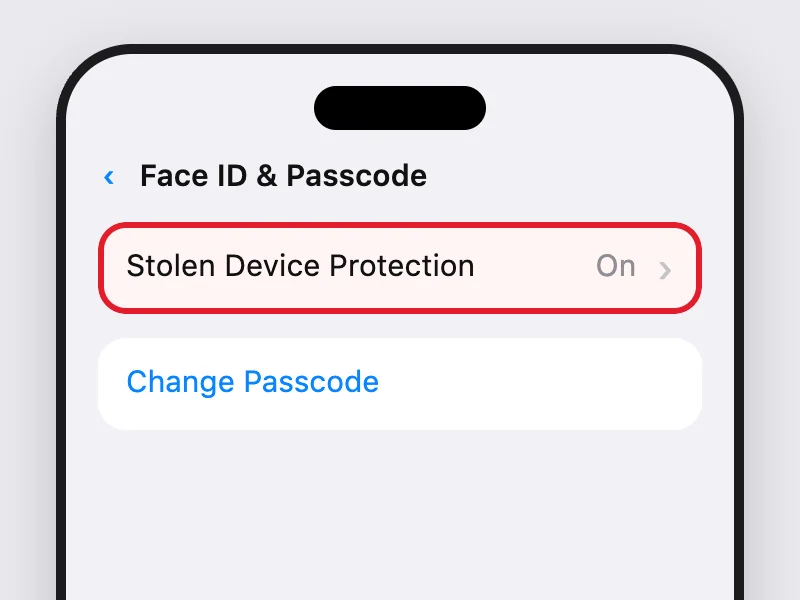
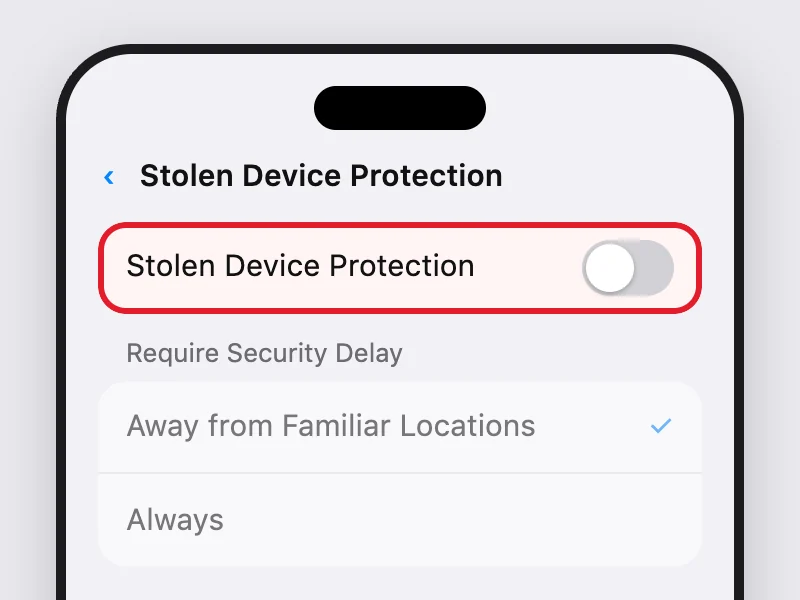
The four step images are iGenius illustrations; your iPhone screen may look different depending on the model and iOS version.
If the iPhone asks for a Security Delay
This happens when you are away from a familiar location or have chosen Always. Tap Start Security Delay, confirm with Face ID or Touch ID, wait an hour and confirm again to finish turning it off. That is why we recommend doing it the day before your visit rather than at the counter.
If Face ID or Touch ID no longer works
Apple offers no passcode alternative when the protection requires your face or fingerprint. Try it at home or at work, where by default the iPhone does not apply these additional measures. If you still cannot turn it off, contact us before bringing the device and we will review your case.
Quick checklist before your visit
- Stolen Device Protection is turned off.
- You know the iPhone passcode and your Apple Account password. Do not send them by message or through the website form.
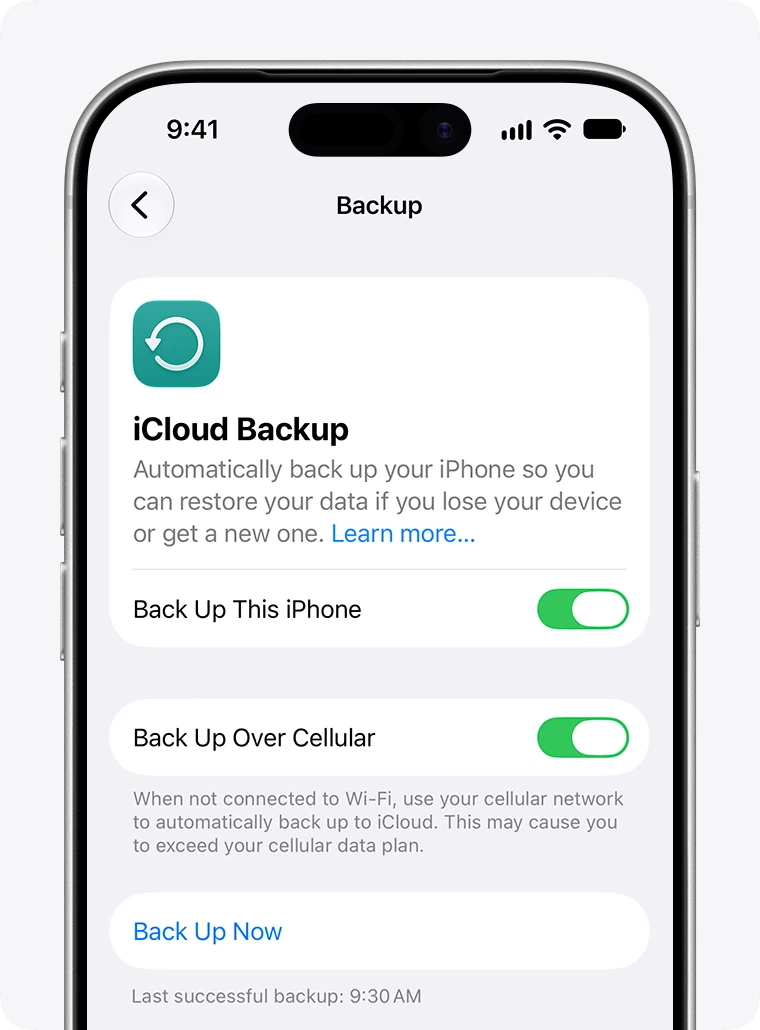
- If the iPhone turns on, you have a recent backup.
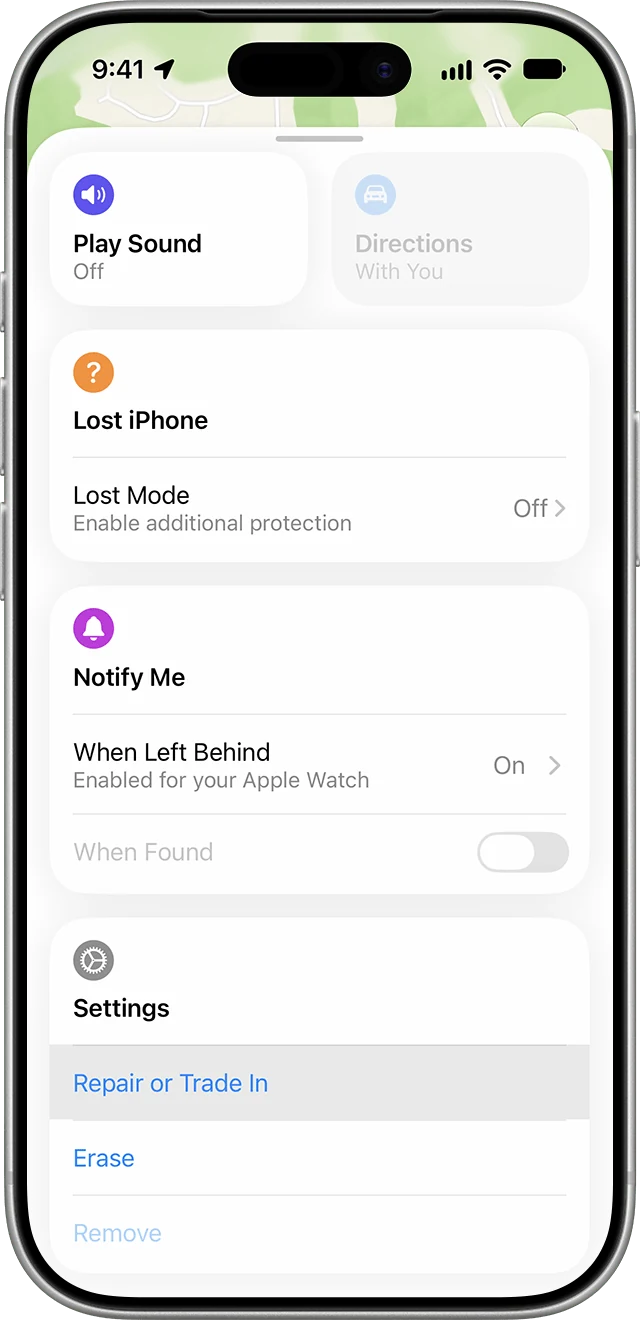
- If we ask you to turn off Find My iPhone: in iOS 26 or earlier go to Settings > your name > Find My > Find My iPhone. In iOS 27, Apple also offers the Repair or Trade In option in the Find My app, which keeps Find My on during the repair; we will tell you which one applies to your service.
You can follow our guide to prepare a backup and check what it includes.
After the repair: turn it back on
When you collect your iPhone, go back to Settings > Face ID & Passcode > Stolen Device Protection and turn it on. The iPhone will require two-factor authentication on your Apple Account, a passcode, Face ID or Touch ID set up, and Significant Locations and Find My iPhone turned on. If we repaired Face ID, enroll your face first.
Frequently asked questions
Does turning it off erase my data?
No. It is only a security setting. Your photos, apps, Apple Account and iCloud stay the same.
Is my iPhone unprotected in the meantime?
The passcode, Find My iPhone and Activation Lock keep working. What changes is that the passcode is again enough for sensitive changes, which is why you should turn the protection back on when you collect the device.
Can I turn it off when I arrive at the workshop?
Yes, but because the workshop is not a familiar location, the iPhone will make you wait an hour and ask for your face or fingerprint twice. At home it takes a minute.
Does it also apply to iPad or Mac?
Apple’s documentation describes this protection for iPhone only. For iPad and Mac we will tell you whether your service requires turning off Find My.
Questions about your case? Message us on WhatsApp before your visit and we will tell you what to prepare.
Keep reading
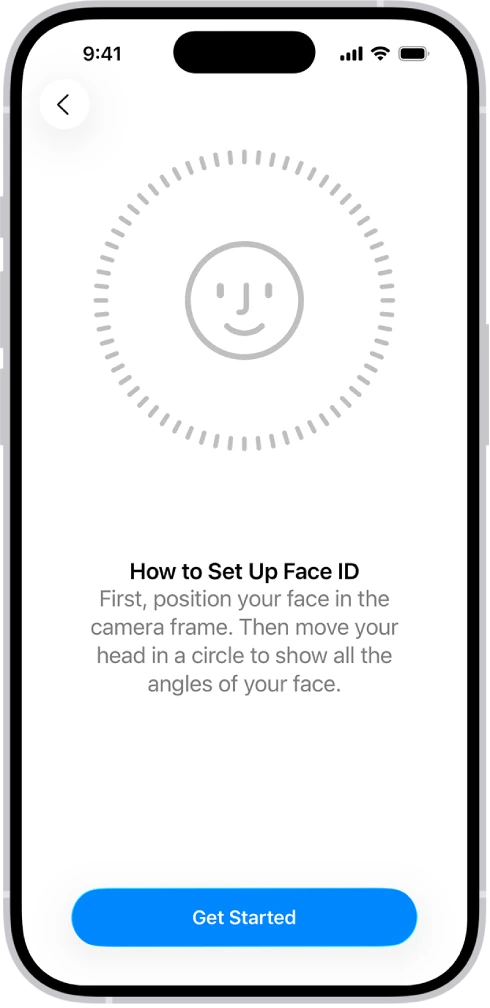 Your First iPhone · Lesson 3Protect your iPhone and account
 Your First iPhone · Lesson 4Prepare a backup and check what it includes
 iGenius guideRemove an iOS device from Find My in iCloud
 iGenius guideWhat to do before selling or giving away your iPhone, iPad or iPod touch
Guide reviewed on November 10, 2026 against Apple’s documentation: Stolen Device Protection, Activation Lock, preparing your device for service and Ready for Repair or Trade In.