
Protect your iPhone before you need to: passcode, account recovery and Find My, and which details you should never share by message or call.
Know the three protections
Your iPhone holds photos, messages and access to your accounts. These three protections work together so that only you get in.
- The passcode: it unlocks your iPhone and authorizes important actions. To type it, swipe up from the bottom of the Lock Screen, or press the Home button if your model has one.
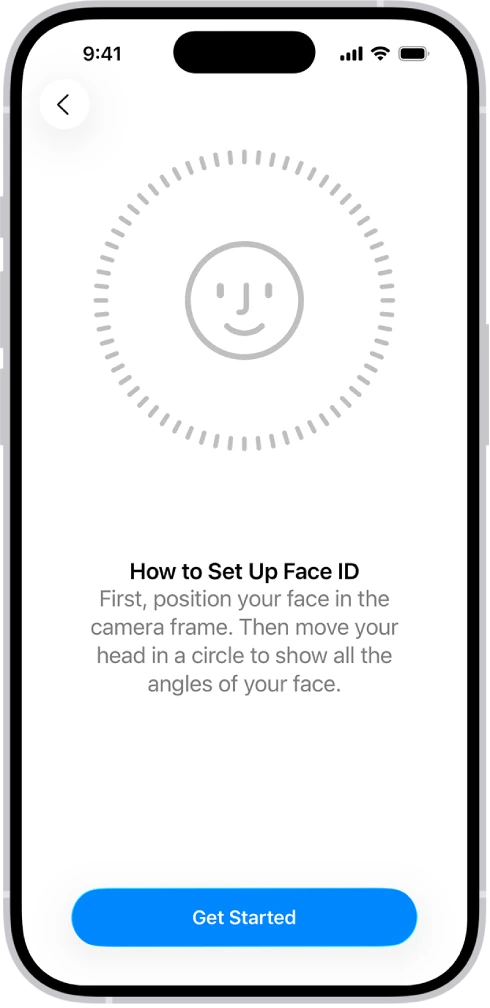
- Face ID or Touch ID: they make access easier but do not replace knowing that passcode.
- The password for your Apple Account, the account you use for Apple services: it protects your services and recovery options.
Review the essential settings
- Open Settings and tap Face ID & Passcode, or Touch ID & Passcode, depending on your model. Type your passcode when the iPhone asks for it.
- If your passcode is easy to guess, tap Change Passcode, then Passcode Options: the most secure are Custom Alphanumeric Code and Custom Numeric Code.
- Below Allow Access When Locked, review what can be used without unlocking.
- On that same screen, scroll down and tap Stolen Device Protection. Read its requirements before turning it on or changing it. If you are bringing the iPhone in for repair, see when and how to turn it off.
- Go back to Settings, tap your name, then tap Sign-In & Security. Under Two-Factor Authentication, check that your trusted phone numbers, the ones that receive verification codes, and your recovery options are still current.
- Go back to the screen with your name, tap Find My, then Find My iPhone, and check that it is turned on.
- Open Passwords and review the recommendations.
Find My is the Apple feature that locates your devices on a map. Prepare it before a loss: on the Find My iPhone screen, also turn on Find My network, which locates the phone even when it is offline. Stolen Device Protection can apply security delays to sensitive changes.
Use unique passwords and passkeys where they are offered. A passkey lets you sign in with Face ID, Touch ID or the iPhone passcode, with no password. When you need to change a password, do it through the genuine service.
If you are taking your iPhone in for repair, read our guide iPhone Stolen Device Protection to know when to turn it off.
Decide what your apps can see
In Settings, tap Privacy & Security, then a category such as Photos, Camera or Microphone, to see which apps asked for access and turn it on or off. For an app that needs only one image, consider limited access or the photo picker iOS offers instead of your entire library.
A link, a configuration profile or a request to share your screen deserves particular attention when you were not expecting it.
Stay calm if you lose the phone
- Use Find My from another Apple device of yours, or sign in to iCloud.com with your Apple Account and open Find Devices.
- Do not remove the phone from your account because a stranger's message asks you to.
- If it is a work phone, tell your administrator.
YOUR TURN
Try it now
You did it if you saw the list of apps with access to your photos and got into the passcode settings by typing your passcode, without anyone's help.
Your progress is saved only in this browser. No sign-up.