Regular backups of your iPhone, iPad or iPod touch give you a copy of your information to use if you replace the device, lose it or it is damaged.
1. Open iTunes on your computer and connect the iOS device to a USB port.
2. If Trust This Computer appears, answer yes. If the computer asks you to enter the unlock passcode on the iOS device, do so.
3. Select your iPhone, iPad or iPod when it appears in iTunes, using the image below as a guide.

4. Make sure you are on the Summary tab and select This Computer.
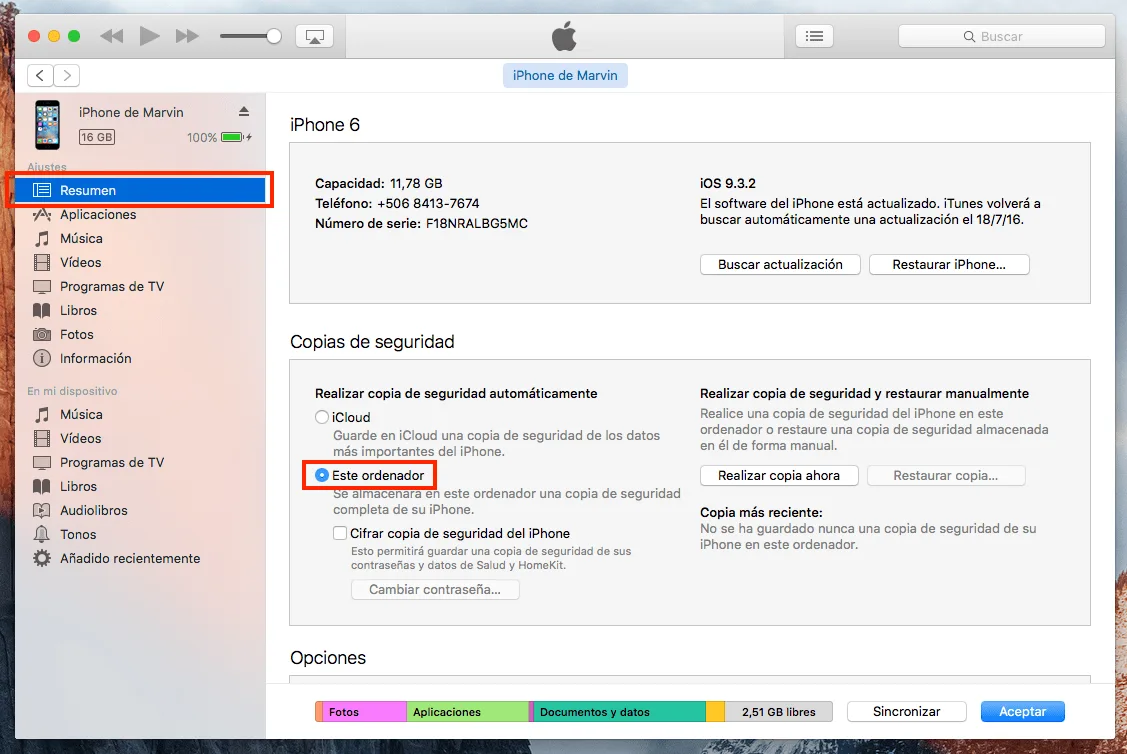
5. To save Health and Activity data from your iOS device or Apple Watch, encrypt the backup by selecting Encrypt Backup
[of the device] and setting a password you can remember. Write it down, because
without this password, the iTunes backup cannot be recovered
.
If you do not need or want to save Health and Activity data, make an unencrypted backup using step 6. Otherwise, go directly to step 7.
6. Click Back Up Now.
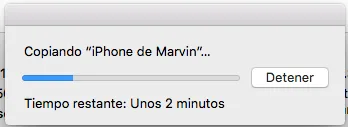
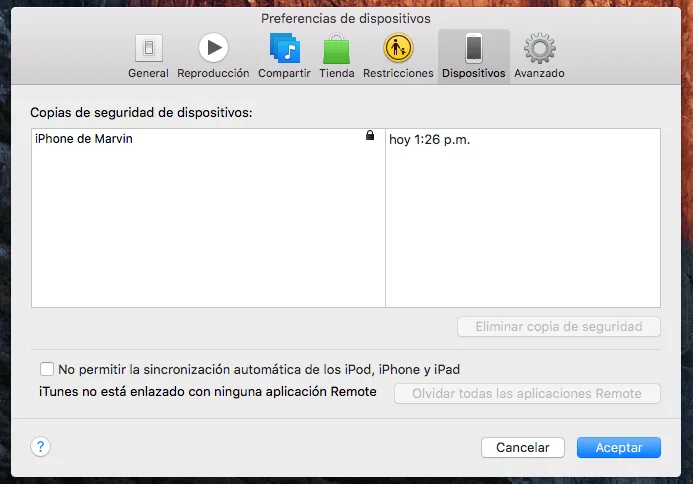
7. When the process finishes, check that the backup completed successfully under iTunes Preferences, on the Devices tab. You should see the device name and the date and time iTunes created the backup. An encrypted backup should also have a padlock next to the device name.