
Keep your people in Contacts and your appointments in Calendar, and learn to choose the right account so nothing ends up somewhere unexpected.
Look at the account first
Contacts keeps people's details and Calendar keeps your appointments. Both apps can combine information from iCloud, Google and other supported services. iCloud is the service that belongs to your Apple Account.
That is why a list you see on your Mac may belong to a personal account or to a company. Before creating or deleting anything, check which account it belongs to.
Create a useful contact
- Open Contacts with Spotlight, your Mac's search.
- Click the Add button at the top of the window and choose New Contact.
- Click the gray text next to each label and enter the name, email address and phone number. For an international number, enter the plus sign, the country code and the number; Costa Rica uses +506.
- Click Done to save the card.
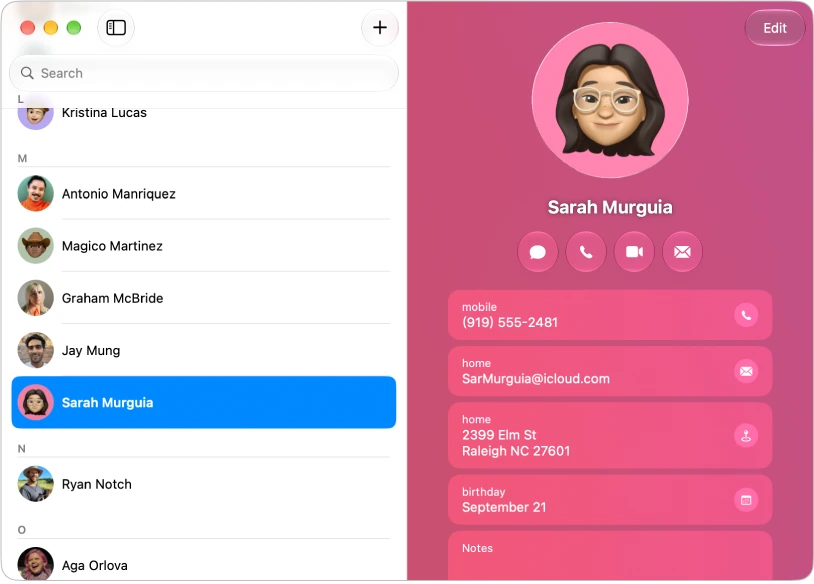
If you use more than one account, new contacts are saved in the default account. To see or change it, open the Contacts menu, choose Settings, click General and check the Default Account menu, which is shown only when there is more than one account. To add an account, open the Contacts menu, choose Add Account and complete the provider's sign-in process.
Lists such as Family or Work help you find contacts. They do not by themselves change who can see them.
Create a clear event
Open Calendar and check in the list on the left which calendars are turned on; if you do not see it, open the View menu and choose Show Calendar List. You can have calendars in different colors for different areas of your life. Hiding a calendar by deselecting it does not delete its events.
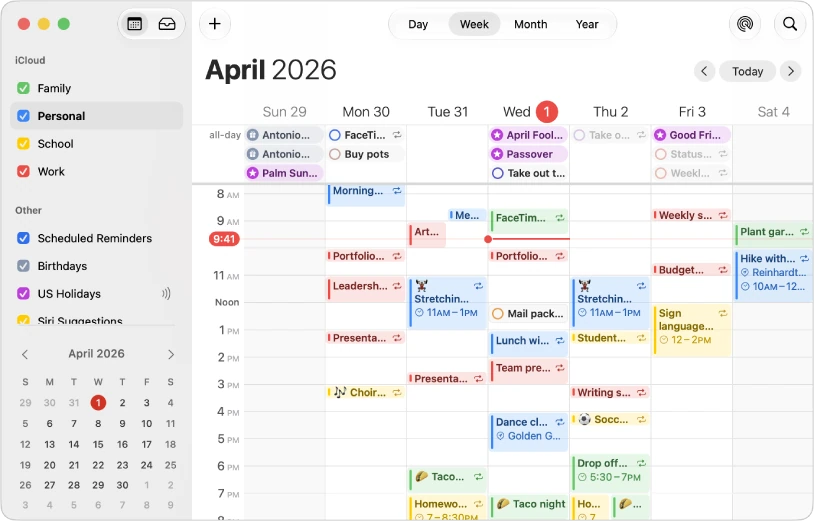
- In Month view, double-click the right day. In Day or Week view, double-click next to the time.
- Give it a specific title.
- Double-click the event to open it and check the start, end and time zone, especially for meetings with people in other countries. Costa Rica uses UTC−6 all year; other places may change their clocks.
- Choose the right calendar from the color-coded pop-up menu in the top-right corner of the event. A shared calendar may show the event to other people.
- To get an alert, click the event's time and choose an option from the Alert pop-up menu. When it applies, click Add Location or add a meeting link.
If something is missing on another device
Check that both devices use the same account and that Contacts or Calendar is enabled for it.
YOUR TURN
Try it now
You did it if the Practice event appears tomorrow in the color of your personal calendar and you know which account your new contacts are saved in, or confirmed that you use only one.
Your progress is saved only in this browser. No sign-up.