
Crop a photo, write on a PDF and fill in a form with Preview, the app that already comes with your Mac, without harming the original file.
Always start with a copy
Preview opens many PDFs and images without installing another app. If you practice on a copy, the original stays intact even when something goes wrong.
- In Finder, secondary-click the file. On a trackpad, that is a click with two fingers.
- If another app opens it by default, go to Open With and choose Preview.
- Before experimenting, open the File menu and choose Duplicate.
You can also make the copy directly in Finder.
Crop and adjust an image
- Open a copy of the image.
- Click the Show Markup Toolbar button if the Markup toolbar is not showing.
- Click the Rectangular Selection button.
- Drag over the part you want to keep.
- Click the Crop button in the Markup toolbar, or open the Tools menu and choose Crop.
- Check the result before saving: content outside the selection is left out of the cropped copy. If you made a mistake, open the Edit menu and choose Undo Crop.
To change the dimensions, open the Tools menu and choose Adjust Size. Keep the proportions to avoid distortion. Enlarging a small image does not recover detail it never had.
If you need another copy or a different format, open the File menu and choose Export. JPEG is often useful for photographs; PNG can preserve transparency. Check size and quality when you export.
Annotate, sign and organize a PDF
With a test PDF open, Preview lets you do four common things.
- See the pages: open the View menu, choose Thumbnails and select a page to reach it quickly.
- Reorder: drag thumbnails in a document that allows editing. Duplicate before changing or deleting anything.
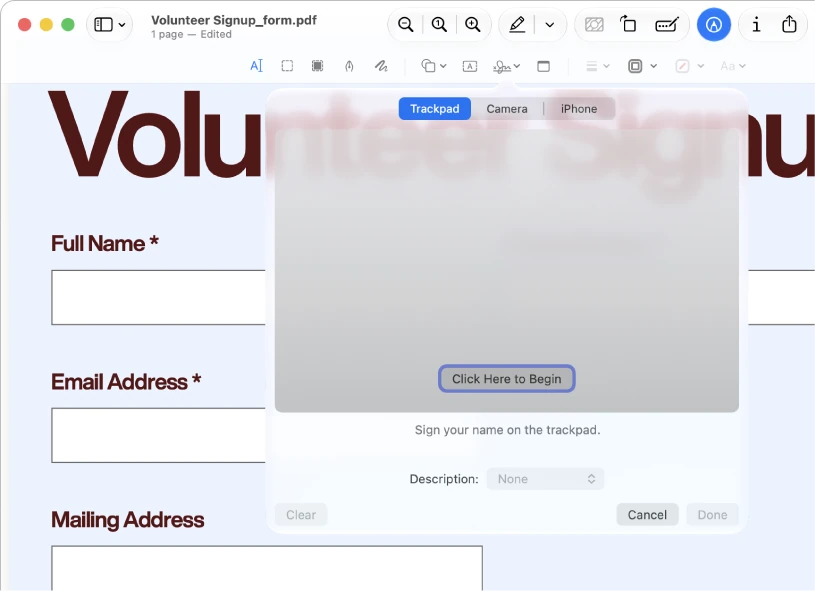
- Annotate: click the Show Markup Toolbar button. In that toolbar, Text adds a box to type in, Shapes adds shapes such as arrows, and Sign places a drawn or captured signature.
- Fill in a form: if it has supported fields, click them and type.
Know the limits of Preview
Some documents have restrictions, complex forms or digital signatures that require a particular tool. A picture of your signature added with Markup is not the same as a certified digital signature.
YOUR TURN
Try it now
You did it if Finder shows two files: the complete original photo and the cropped copy with its new name.
Your progress is saved only in this browser. No sign-up.