
Find your way around the Mac screen: what the desktop is, what the Dock is for, and why the menus at the top change with the app you are using.
Three places to get your bearings
Almost everything you do on your Mac starts in one of these three places. It is worth recognizing them before you open anything.
- The desktop: the workspace you see after signing in.
- The menu bar: the strip across the top. The Apple menu, with the apple symbol, is on the left; the Wi-Fi, sound and battery controls are on the right.
- The Dock: the row of icons usually at the bottom. It opens the apps you use often.
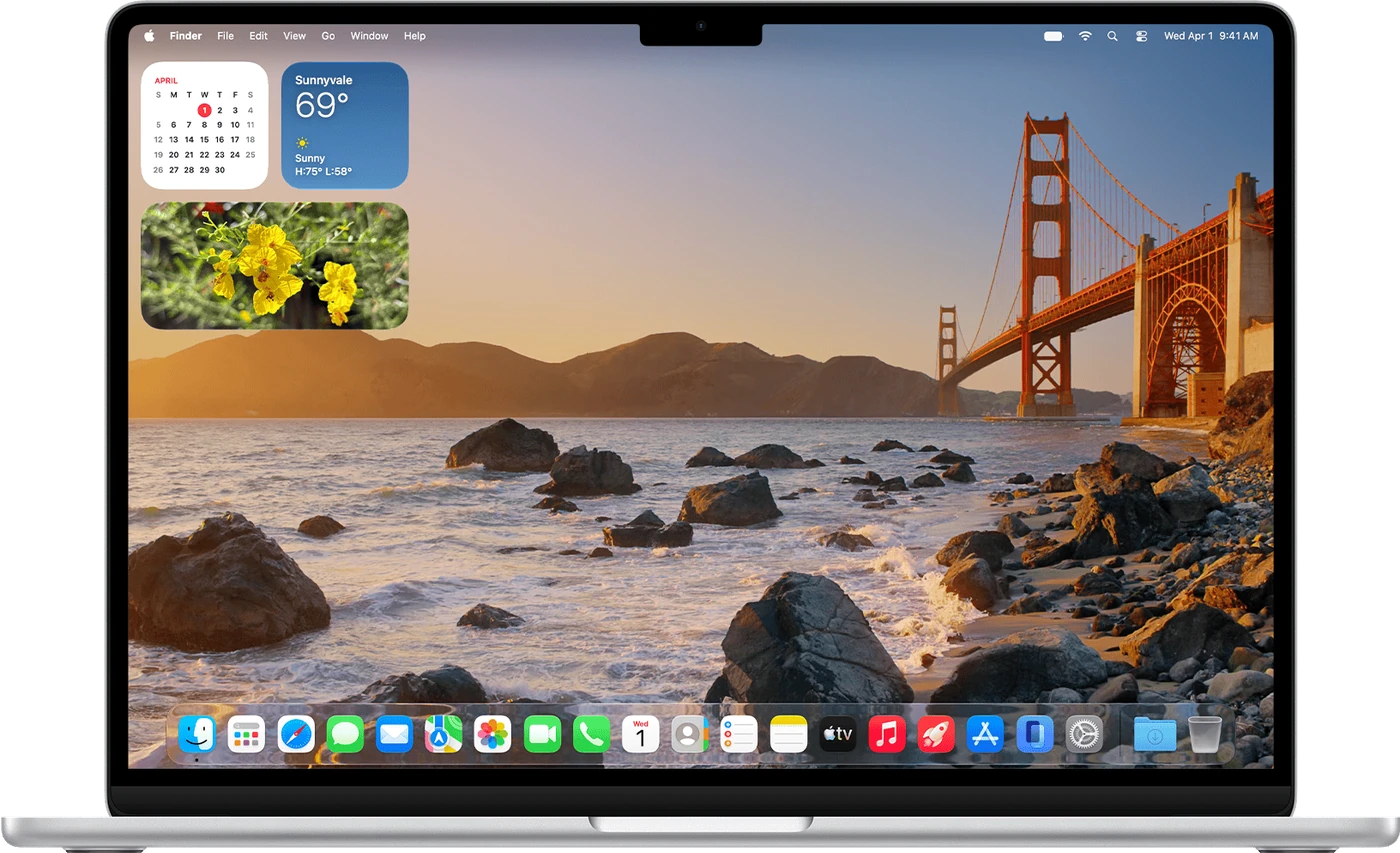
The Apple menu holds System Settings and the options to lock the screen, restart or shut down. On the right side of the bar, open Control Center to adjust Wi-Fi, sound and brightness. Click the date and time to see your notifications and widgets.
Open an app and recognize its controls
- Click an icon in the Dock once to open that app. Files on the desktop, by contrast, open with a double-click.
- Look at the name beside the Apple menu: it shows which app is active. The File, Edit and Window menus change when you switch to another app.
- Use a window's red button to close it and the yellow button to minimize it.
- To quit the app, choose Quit from the menu that carries its name or press Command + Q.
Many menu commands have a keyboard shortcut. You will find them in our guide Mac keyboard shortcuts.
Arrange the Dock your way
To keep an app in the Dock, open it, secondary-click its icon, go to Options and choose Keep in Dock. To remove it, drag the icon out until you see Remove. This removes the shortcut; it does not uninstall the app.
You can change the Dock's size and position in System Settings, under Desktop & Dock. These are presentation settings: your apps and documents stay where they are.
The secondary click
A secondary click opens a menu of actions for the item you point at. On a trackpad, click with two fingers. You can also hold the Control key while you click. If the gesture does not respond, search System Settings for Trackpad and check Secondary click.
Slide two fingers to scroll through a page. To drag an item, keep pressing it while you move it.
YOUR TURN
Try it now
You did it if the Calculator icon is still in the Dock and no longer has the dot under it.
Your progress is saved only in this browser. No sign-up.