
Let your Mac handle a repeated task for you with Shortcuts, and try Siri and Apple Intelligence knowing what data you share and what to check.
Choose a task that repeats
Shortcuts is an app that combines actions to complete a task. It can help prepare a set of images, open work tools or transform text.
Many automations do not need artificial intelligence. A simple, predictable sequence can do the job with less setup.
Try a simple shortcut
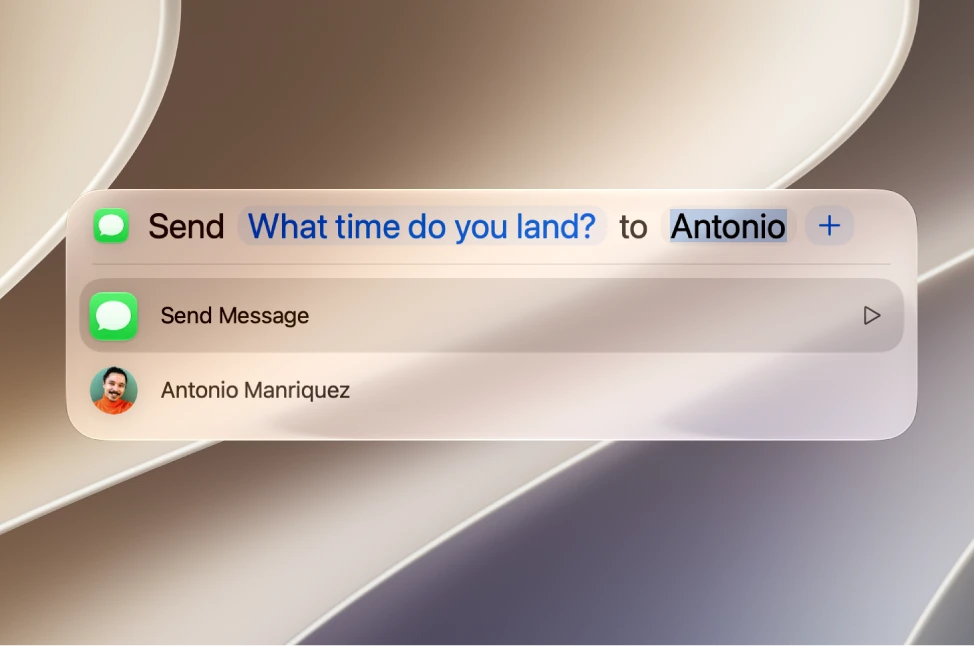
- Open Shortcuts with Spotlight, the Mac's search: press Command + Space bar, type Shortcuts and press Return.
- Click Gallery in the sidebar and look for a shortcut that matches a task you understand.
- Click the shortcut to see its description, then click the More button to inspect its actions before running it.
- Identify what it receives, what it changes and where it saves or sends the result.
- Click Add Shortcut. The shortcut is added to your collection.
- Test with sample text or files: move the pointer over the shortcut and click the button to run it.
- Compare the output with what you expected and check where it saved the files.
An automation can repeat a mistake quickly. Give the shortcut a clear name and keep a simple way to run it manually. Add a keyboard shortcut only once you know it works.
Know the limits of Siri and Apple Intelligence
Siri can help with supported tasks, and Apple Intelligence adds features on supported hardware and configurations. In macOS 27, features such as Siri AI may be in beta and depend on model, language, region and usage limits. Not every Mac or every feature has the same availability.
- Open System Settings, the app where you adjust your Mac, and click Siri in the sidebar. The Turn on Siri button, the requirements and the controls are there.
- To talk to Siri, press and hold the Microphone key in the row of function keys, or click the Siri icon in the menu bar.
- Try a small task, such as rephrasing a sample paragraph, without private information.
- If a feature uses an external service, read what information will be sent and the choices it offers before continuing.
Review every answer before acting
A convincing answer can contain errors. Check names, figures, dates and actions before sending messages, deleting files or making decisions.
Keep control over operations that affect other people or important information.
YOUR TURN
Try it now
You did it if you can say what the shortcut received, what it did and where the result ended up. If it offers no clear improvement, keep the manual process.
Your progress is saved only in this browser. No sign-up.