
Keep what you want to remember in Notes and let Reminders alert you to what you need to do, so you no longer depend on memory or loose scraps of paper.
Choose the tool for what you need
- Notes: for ideas, jottings, reference lists and attachments.
- Reminders: for actions that have a date, a follow-up or a moment to be completed.
Writing a date in a note does not automatically create an alert. If you need your Mac to alert you, that task belongs in Reminders.
Both apps can store information in different accounts. Some features are available only when notes and reminders are stored in iCloud, the service that belongs to your Apple Account, and not with accounts from other providers. Check the location before saving work information in a personal account.
Make a note you can find
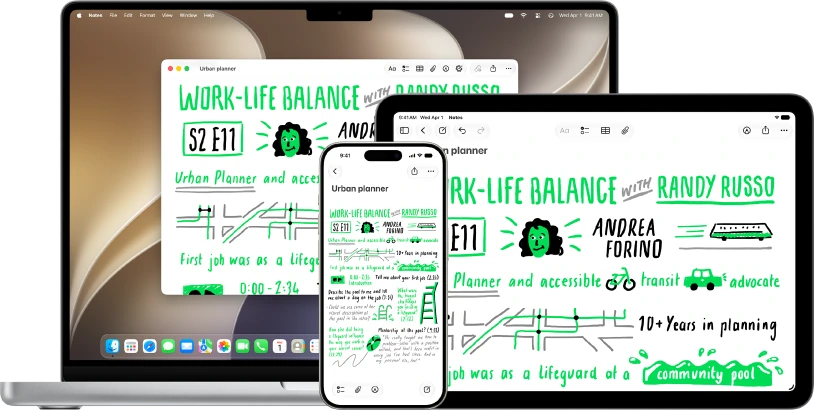
- Open Notes.
- In the sidebar, click the folder where you want to put the note. If you do not see the sidebar, open the View menu and choose Show Sidebar.
- Click the New Note button in the toolbar and type a specific title, such as Trip preparation. The first line becomes the note's title.
- Write the content in short paragraphs, or click the Checklist button to add a list with checkboxes.
- To add a file or an image, click the Attachment button in the toolbar and choose an option, or drag it into the note.
- To find a word in your notes, click the Search button and type it in the search field.
To keep a note you use often at the top of the list, select it, open the File menu and choose Pin Note. Before sharing a note, check whether you are inviting someone to collaborate or sending a copy. These are different actions: collaboration may let another person change the content.
Turn a task into a reminder
- Open Reminders.
- Click the Add List button at the top of the sidebar and type a name for your personal list.
- Click the Add button next to the search field in the top-right corner and type a specific task, for example Check backup.
- Click Add Date and choose a date. Then click Add Time and choose a time; without a time, the reminder is for the whole day.
- If you want alerts, open System Settings, click Notifications in the sidebar, then Reminders, and turn on Allow Notifications.
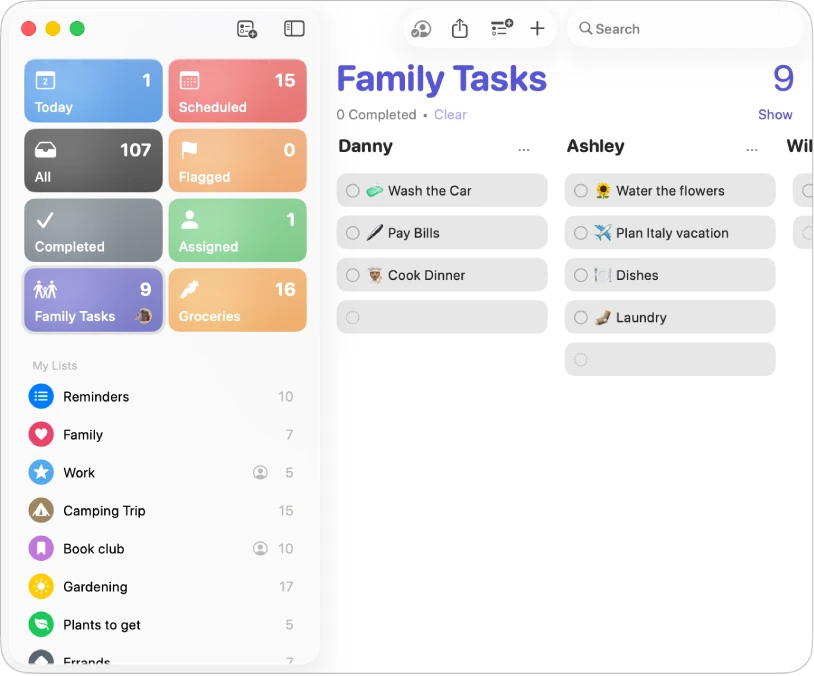
Use lists or subtasks when a task has several steps. Marking a task as completed removes it from your pending tasks; to see it again, scroll to the top of the list until you see Completed and click Show. For repeating tasks, check the repeat rule so they reappear at the right time.
YOUR TURN
Try it now
You did it if the note appears when you search Notes for the word Learning and the reminder shows tomorrow's date with its time.
Your progress is saved only in this browser. No sign-up.