
Look after your Mac with simple habits: charge it well, clean it without damage, keep it up to date and know what takes up space before deleting.
Mind the heat, the charger and the battery
- Use your Mac on a firm surface that allows ventilation.
- Avoid leaving it in a hot car or covering its air openings.
- Use a compatible charger and cable in good condition. Stop using damaged accessories.
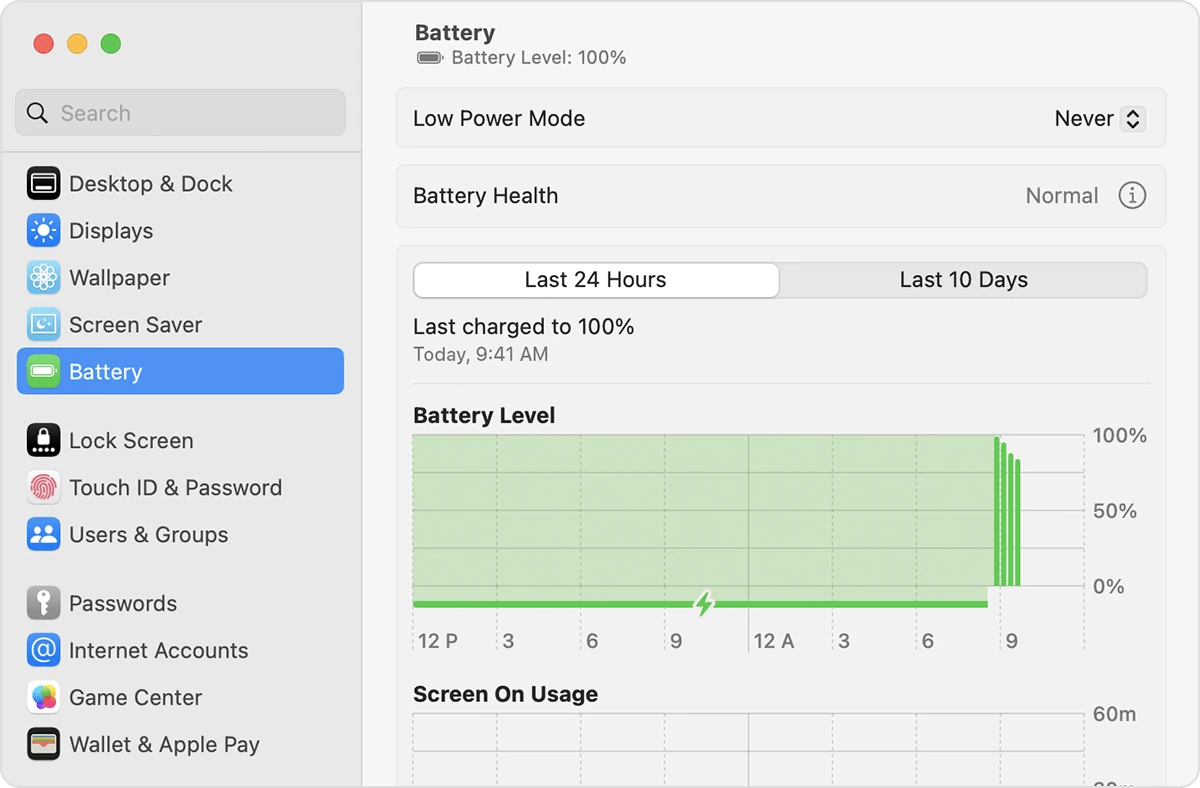
On a Mac laptop, review Battery in System Settings, the app where you adjust your Mac. Optimized charging and other options depend on the model and macOS. You do not need to drain the battery every day to look after it.
Clean the outside of your Mac
- Shut down your Mac.
- Disconnect power and accessories.
- Wipe with a soft, clean, lint-free cloth.
- For the display, follow your model's instructions and lightly dampen the cloth when appropriate.
Never spray liquid directly or let it enter the openings. Avoid abrasives and household products not intended for that finish. If your display has a special treatment, such as nano-texture, use the cloth and procedure Apple specifies for that model.
See what takes up space before deleting
- Open System Settings.
- Go to General and then Storage.
- Wait for the calculation to finish.
- Review the categories.
Start with downloads you recognize, verified duplicates and videos you no longer need. Keep a backup, meaning a safety copy of your files, before a large cleanup.
Review the Trash before emptying it. Remember that deleting from a synced folder can affect other devices.
Keep software up to date
To check for macOS updates, open System Settings, click General, then click Software Update. For App Store apps, open the Apple menu, which shows the number of available updates next to App Store, and choose App Store. Before a major macOS version, confirm compatibility and your backup.
Protect your Mac during breaks
For breaks, choose Sleep or Lock Screen from the Apple menu, the apple symbol in the bar at the top. You can also search System Settings for Hot Corners and assign an action to a corner. Check what each corner triggers.
To have your Mac ask for the password when you return, open System Settings and click Lock Screen in the sidebar. Next to Require password after screen saver begins or display is turned off, choose in the pop-up menu how much time should pass.
YOUR TURN
Try it now
You did it if you know how much free space your Mac has and you finished without deleting files or installing cleanup tools.
Your progress is saved only in this browser. No sign-up.