
Get your Mac ready on day one: connection, account and essential settings, and the difference between your Mac password and your Apple Account password.
Get these ready before you turn it on
A few minutes of preparation save you from interruptions halfway through setup.
- Connect your Mac to power.
- Have your Wi-Fi password at hand.
- If you are moving from another computer, keep your original files and a backup, meaning a safety copy, until you have checked that everything transferred correctly.
- For a work or school Mac, follow your administrator's instructions first.
Answer the setup screens
When you turn it on, your Mac asks a series of questions. This is the usual order and what is worth answering.
- Choose your language, your country and the keyboard layout. The layout should match the physical keys; you can change it later in System Settings.
- Decide whether to transfer information. Migration Assistant brings data from another Mac, a Time Machine backup or a compatible Windows PC. You can also do it later.
- Review the accessibility features. Turn on only the ones you need, or click Not Now to leave them for later.
- Join a trusted Wi-Fi network. Avoid setting up important accounts on an unfamiliar public network.
- Create your local user account and its own password. This is the one that unlocks your Mac.
- Sign in to your Apple Account if you want to use iCloud, the Apple service that stores and syncs your information over the internet. If you do not have an account, you can create one on that same screen.
- Finish with the last screens, such as privacy and Touch ID if your Mac includes it. Turn on only what you understand; you can adjust it later.
Tell your two passwords apart
They are easy to mix up. They are two keys for two different things, and they can be different.
- Your local user password unlocks your Mac and authorizes changes on it.
- Your Apple Account password, for your personal account with Apple, gives access to iCloud and Apple services.
Check your Mac once you reach the desktop
- Open the Apple menu, the apple symbol in the bar at the top.
- Choose About This Mac.
- Note the model and macOS version. Do not publish the serial number.
- Open the Apple menu again and choose System Settings.
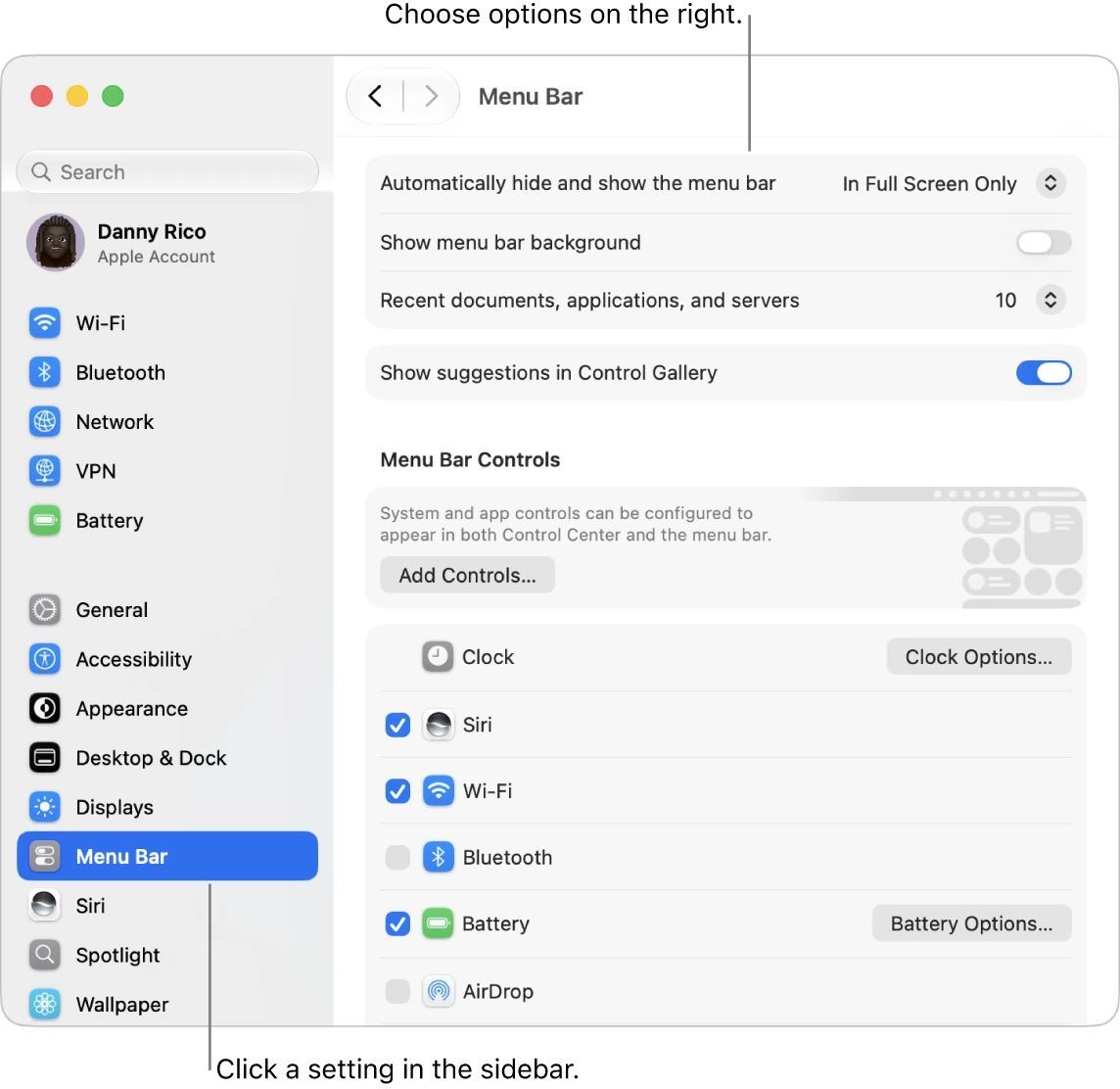
- Click General in the sidebar.
- Click Software Update to see whether a new version is available.
Before a major upgrade, confirm that your essential apps are compatible and that you have a backup. Set up your first backup before you collect important files.
YOUR TURN
Try it now
You did it if your Mac asked for your password to let you back in and you found the name of your Mac and the macOS version in About.
Your progress is saved only in this browser. No sign-up.