
Bring your email accounts together in Mail, send a message with a file attached and learn to spot a suspicious email before you reply to it.
Add the account you already have
Mail is your Mac's email app. It works with existing email accounts; opening Mail does not automatically create a new address.
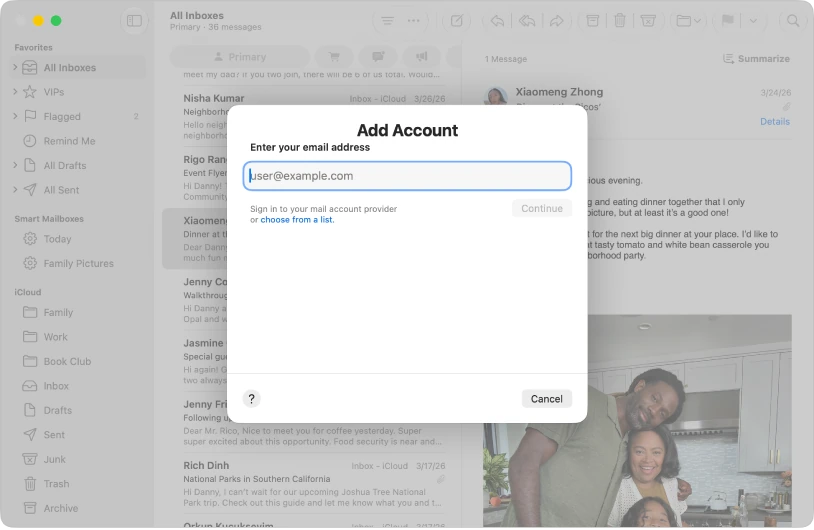
- Open Mail.
- If the assistant does not appear, open the Mail menu and choose Add Account.
- Enter your email address and click Continue. You can also click choose from a list and pick your provider, meaning the service that gives you your email address.
- Follow that provider's official sign-in process.
- Complete two-factor verification when the provider asks for it.
- Wait for the initial sync. With a lot of email, it can take a while.
For company email, confirm the details and policies with your administrator. Some services require their own additional steps. While you set up the app, you can use the service's website.
Write and send a message with an attachment
An attachment is a file that travels with the message, such as a photo or a document.
- Click the New Message button in the Mail toolbar.
- If you use several addresses, check the sending account.
- Type the recipient's address in the To field, the subject in the Subject field and your message below the subject.
- Click the Attach button in the toolbar, then Attach Files, select the file and click Choose File. You can also drag the file into the message window.
- Check that it is the right document and contains nothing you do not want to share.
- Review the recipients and attachments; when you are replying to a message, check whether you are replying to everyone. Then click the Send button.
Size limits are set by your email service. For large files, a link with controlled access may be a better choice.
Find and save what you receive
- Search: type a sender or a word from a subject in the search field in the Mail toolbar. If you do not see it, click the Search button.
- Organize: flag important messages and sort them into mailboxes when that helps. Available categories depend on your version.
- View an attachment: select it and press the Space bar to preview it with Quick Look, without opening it. To save it, move the pointer over the message header, click the Attach button, then click the name of the file.
Saving a copy in Documents gives it a clear location outside the message. It does not change the file's permissions or create a backup by itself.
Spot a suspicious message
A sender's display name can imitate someone you know. Before you reply or click, check three things.
- Review the sender's actual address and where the links lead.
- For a change of bank details or an unexpected payment, confirm through another channel you know.
- Never send passwords or verification codes by email.
YOUR TURN
Try it now
You did it if the Test message arrives in your own email with the document attached.
Your progress is saved only in this browser. No sign-up.