
Improve a photo in a few taps: crop, brighten and correct color calmly, knowing that inside Photos you can go back to the original.
Decide first what you want to improve
Open a photo and think of one concrete improvement: straightening the horizon, brightening a face or removing a distracting edge. If you change many controls at once, it will be hard to tell what helped.
Edits made inside Photos generally let you go back to the original as long as that item stays in the library. A copy that was exported, sent or edited in another app may follow different rules.
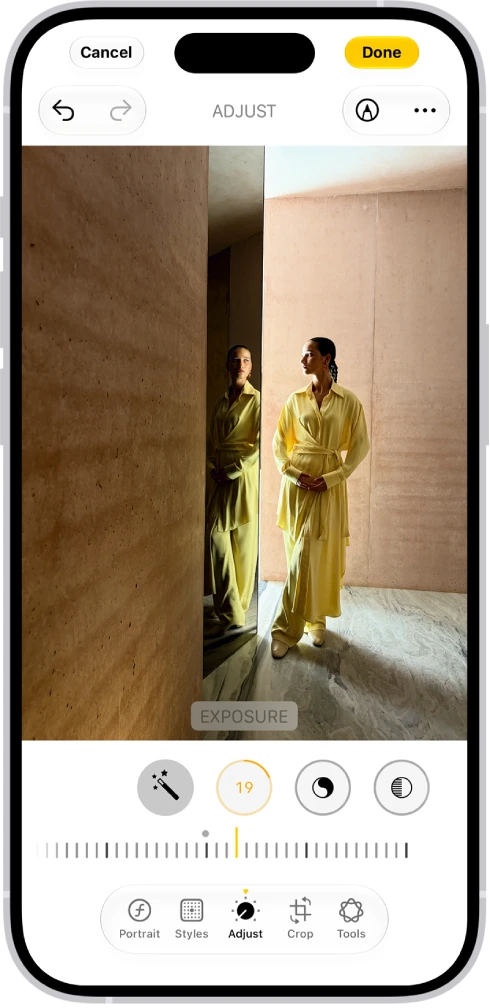
Edit a photo step by step
- Open the image and tap the Edit button.
- Think about the size and orientation you need before cropping.
- Tap the Crop button to adjust the edges, rotate or straighten. Check hands, text and important details: a heavy crop also reduces the detail available for printing.
- Tap Adjust and swipe left under the photo to see the light and color settings.
- Tap a setting and drag the slider in moderation. Exposure changes overall brightness; controls such as shadows or highlights can help in particular areas.
- Correct the color if needed, without excessive saturation or unnatural skin tones.
- Tap the photo to compare with the original, and use the Undo and Redo buttons at the top of the screen. Check the photo enlarged too.
- Tap Done to save.
If you are not happy with the result after saving, open the edited photo, tap the More button and tap Revert to Original.
Get to know the intelligent tools in iOS 27
On compatible devices, inside Edit, tap Tools to see Clean Up, Extend and Reframe. They let you remove elements or generate content to change the composition. They depend on Apple Intelligence, Apple's set of artificial intelligence features, and on the model, region, language and possible usage limits.
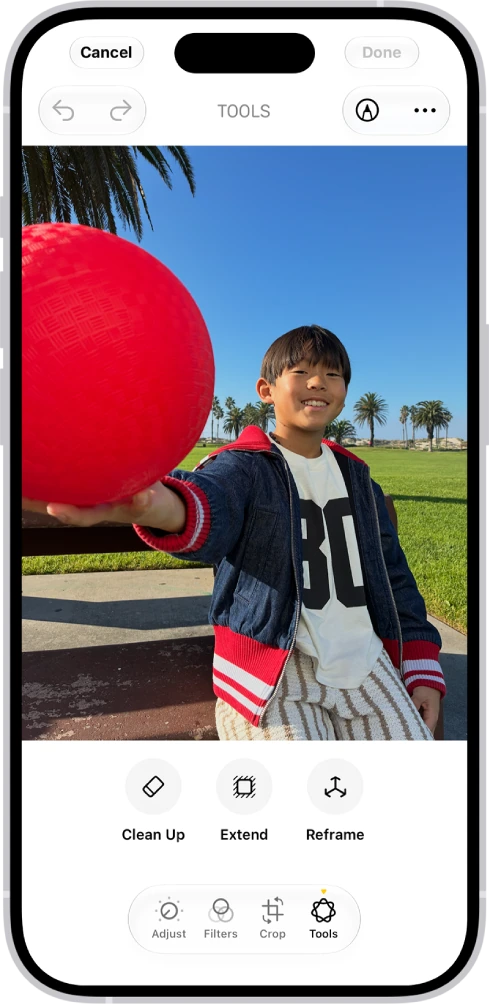
Check the result enlarged: backgrounds, text, hands and edges can come out wrong. Keep the original and do not present an altered image as a faithful record when the context requires showing what actually happened.
Repeat an adjustment on similar photos
To repeat a correction on photos taken in similar light, open the edited photo, tap the More button, tap Copy Edits, then tap Copy. Then open another photo, tap the More button and tap Paste Edits. Review every result: the same correction does not work equally well indoors and outdoors.
YOUR TURN
Try it now
You did it if the photo looks cropped and brighter, and you found Revert to Original: that option confirms the original photo is still saved.
Your progress is saved only in this browser. No sign-up.