
Record videos that look and sound good: prepare the shot in ten seconds, choose the resolution sensibly and check the result before you leave.
Get ready ten seconds before
A moment that will not happen again deserves a short check before you record.
- Decide whether the video will mainly be watched vertical or horizontal and keep that orientation throughout the shot.
- Clean the lenses.
- Check battery and storage.
- Do not cover the microphones with fingers or accessories.
- Test the sound if the voice matters.
Record a normal clip
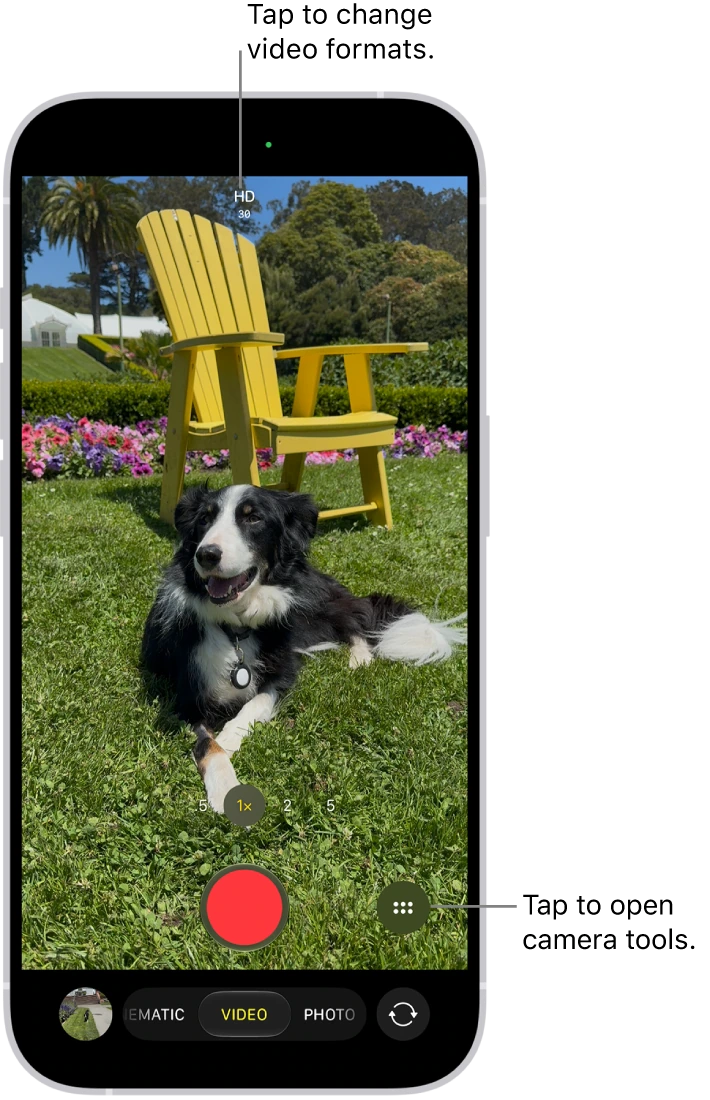
- Open Camera and tap Video.
- Check resolution and frames per second: they are the values at the top of the screen. Tap them to see the formats available and tap one to use it.
- Tap the subject to guide focus and exposure.
- Frame the shot leaving space if the subject will move.
- Tap the Record button or press either volume button to start.
- Move slowly, hold the iPhone with both hands and avoid abrupt zoom changes.
- Tap the Record button again, or press a volume button, to stop.
- Play the whole clip and check the voice, the noise, the sharpness and that the recording really ended and was saved.
To begin, choose a combination of resolution and frame rate that your devices play and share easily: higher resolution and more frames create larger files and may need more light. If formats are missing, open Settings, tap Camera, then Record Video. While recording, the Pause button lets you pause and then resume.
Meet QuickTake and the special modes
These modes are for specific situations, and none of them is needed for a good everyday video. To choose Slo-mo, Time-lapse or Cinematic, swipe left or right across the modes in the Camera app.
- QuickTake: in Photo, touch and hold the Shutter button to record. Slide it onto the lock and release to keep recording without holding it; tap the Record button to stop. It is useful for a quick moment, but review the options when you need a specific video configuration.
- Slo-mo and Time-lapse: they tell an action in different ways. Time-lapse benefits from stable support and a scene that changes over time.
- Cinematic: the mode and its depth editing require compatible models.
- Action: it stabilizes motion on supported devices and works best in good light. To turn it on, in Video tap the Camera Controls button in the top-right corner, then Action. It records at a maximum resolution of 2.8K, not 4K, and its stabilization leaves less framing room.
YOUR TURN
Try it now
You did it if both clips were saved, you can hear them and you can say which one looks steadier.
Your progress is saved only in this browser. No sign-up.