
Get your new iPhone ready without losing anything: prepare your account, move your information from the old phone and check what matters before retiring it.
Gather what you need before you start
Setup goes better when everything is at hand and you are not in a hurry. Before you turn on the new iPhone, gather these.
- Both phones, charged.
- A Wi-Fi network you trust.
- The password for your Apple Account, the account you use for Apple services.
If the iPhone belongs to a company, follow your administrator's instructions first.
Complete the initial setup
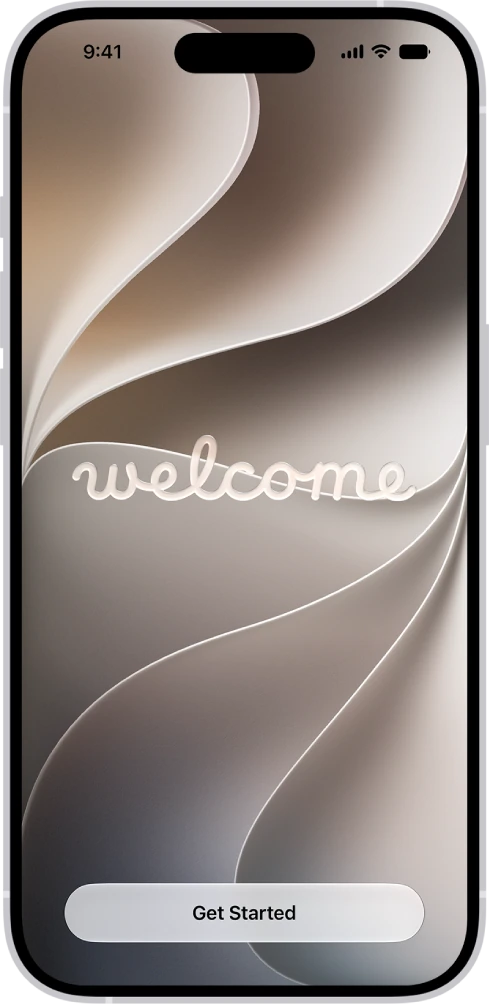
- Turn on the iPhone and choose language, country and network.
- If you are using Quick Start, keep the iPhone near the old phone.
- Choose where your information comes from: another iPhone, a backup or a supported Android transfer using Apple's process. A backup is a saved copy of your information.
- Sign in with your existing Apple Account if you already use Apple services.
- Set a strong passcode, and Face ID or Touch ID if your model supports it.
- Activate your line using your carrier's instructions.
- Review privacy and the options for iCloud, the Apple service that keeps your information on the internet.
A transfer can take time and does not always include every app sign-in. SIM or eSIM (a digital SIM built into the phone, with no card), line transfers and available features depend on the model and the carrier.
Check that everything arrived
Seeing the icons does not mean all the data is ready. Run these checks on the new iPhone before you retire the old one.
- Make a normal test call.
- Review your contacts.
- Open a few older photos.
- Open your messaging, authentication and work apps: they may have their own transfer process.
Prepare a backup and confirm its completion date. If something is missing, keep the old phone and review the process before repeating it or deleting information.
Find out your model and version
iOS 27 does not provide every feature on every model, so it helps to know yours. In Settings, tap General, then About to see the model and version. Under General, Software Update shows the installed version and whether an update is available.
YOUR TURN
Try it now
You did it if you can say which model and version you have, and the photo opened on the new iPhone. Do not erase the old phone yet.
Your progress is saved only in this browser. No sign-up.