
Find any photo with Library, Collections and Search in iOS 27, and know what to check before you assume a picture is lost.
Meet the three ways to reach a picture
As photos pile up, it helps to know where to look. The Photos app offers three paths.
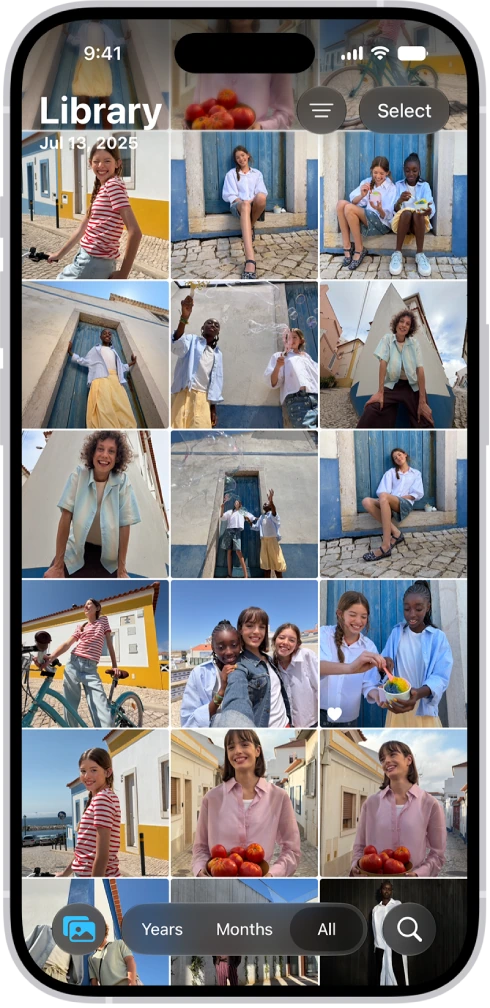
- Library: brings together all your photos and videos, organized by date.
- Collections: shows groups such as albums, people, media types and utilities.
- Search: finds pictures by the clues available, such as date, place, recognized people or words in the picture.
Search results depend on the content and on the phone having finished analyzing it. The exact availability of each section depends on your iOS 27 version and model.
Browse the Library and read a photo's details
- Open Photos and tap Library.
- Swipe down to browse the photos, or tap Years or Months to go to a specific time.
- Spread two fingers on the screen to enlarge the thumbnails.
- Tap a photo to open it.
- Swipe up, or tap the Info button, to see the date, the location and other details.
- Back in the Library, tap the Sort and Filter button and choose Captured or Added.
- Tap the Search button in the bottom-right corner and type a single clue: a city, a month, an identified person or a text you remember.
For files that arrived from Mail, Messages or AirDrop, tap Collections, then the Recently Saved collection below Pinned. It also appears in the Utilities section.
Arrange Collections your way
- See a whole group: tap Collections, then a heading; tap a collection to open it.
- Change size and order: tap the Layout and Reorder button at the top of the screen. You can choose a grid size, Collapse All, or Reorder to drag a collection and tap Done.
- Keep what you use most close: touch and hold a collection and tap Pin; it will appear in Pinned. To remove it, touch and hold it and tap Unpin.
In the Utilities section you will find collections such as Duplicates, Hidden and Recently Deleted, when relevant. A collection that does not appear does not prove photos are missing: some are shown only when there is content that meets their conditions.
Check before you give a photo up for lost
A thumbnail waiting to download or a hidden collection is not the same as a deletion. Before you worry, check the following.
- The active filters: in Library, tap the Sort and Filter button, then Remove Filters.
- The library, if you share one: on that same button, tap Both Libraries.
- Syncing: tap Collections, then your account in the top-right corner, to see the last time it synced with iCloud.
- The file's original date: search for that too.
- The Recently Deleted collection, under Utilities: it keeps deleted items for 30 days.
YOUR TURN
Try it now
You did it if you saw the date of both photos, understand why each one appears where it does in the Library, and your collection is now in Pinned.
Your progress is saved only in this browser. No sign-up.