
Message and call with peace of mind: pick the right recipient, send a photo and make a FaceTime call while watching what you share.
Choose who you write to and how
Messages is the app for writing to other people. It can use iMessage, Apple's messaging service, and carrier services such as SMS, MMS or RCS where the carrier supports them. Connectivity, features and charges can differ from one to another.
Save your contacts with a name and country code. One person may have several numbers or email addresses, so check which one is selected before sending personal information.
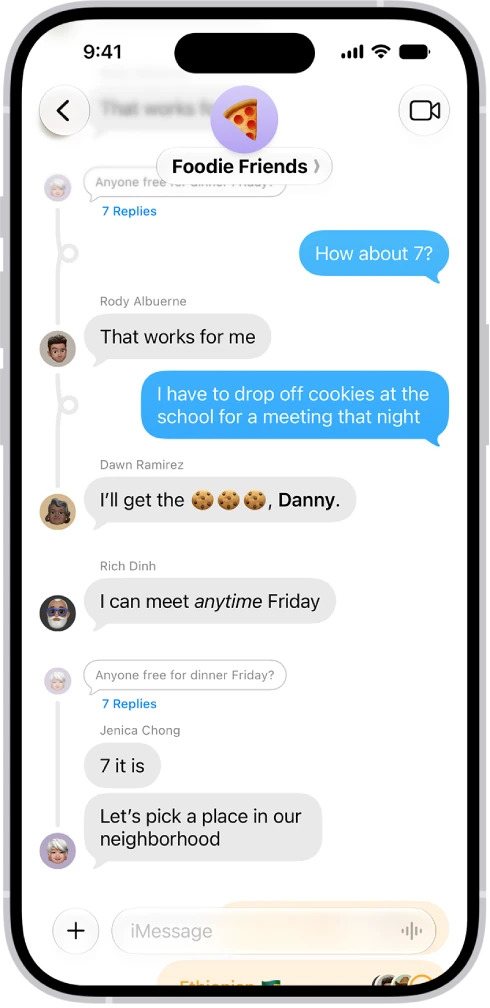
Send a message with a photo
- Open Messages and tap the Compose button at the bottom of the screen.
- Tap the To field and type the name or number of the correct recipient.
- If you have more than one line, check which one you will send from.
- Tap the text field, write a clear sentence and review it: autocorrection and dictation can change names, numbers or words.
- To attach a photo, tap the Add button, to the left of the text field, and tap Photos. Consider what the image reveals and whether you need to share the full original.
- Tap the Send button.
If you want to keep a picture you received, tap the Save Photo button next to the picture and check the library. Staying in the chat is not the same as having an independent copy.
In groups, review the participants before replying. Deleting a message from your phone does not guarantee deleting what another person already received.
Call with FaceTime
FaceTime is Apple's app for video and audio calls. A call needs connectivity and may use cellular data.
- Open FaceTime and tap New Call.
- Type the name, number or email of a person who can receive the call.
- Tap FaceTime for a video call, or the Audio Call button for an audio call.
- During the call, tap the screen to show the controls.
- Tap the microphone button to mute yourself or the camera button to turn the camera off when you need privacy.
Watch what you show when sharing your screen
Sharing a photo is not the same as sharing your screen: the other person sees everything you have open. You do it during a FaceTime call, with the More button, Screen Sharing and Share My Screen, and you stop it with the More button and Stop. Before you do it, close private conversations, codes and documents.
What to check if alerts do not arrive
- The connection.
- Notification permissions and Focus, the feature that silences alerts while you concentrate or rest.
- The contact's details.
- Which number or address is enabled to receive messages and FaceTime; for FaceTime, check it in Settings, Apps, FaceTime.
YOUR TURN
Try it now
You did it if your draft shows the contact's correct name and number, and you sent nothing and started no call.
Your progress is saved only in this browser. No sign-up.