
Learn what changes when you tap 0.5x or 1x and which format suits you, so your photos stay sharp, open on other devices and do not fill your iPhone.
Understand what 0.5x and 1x do
The zoom buttons in the Camera app, at the bottom of the frame, decide how much fits in the photo and how much detail it keeps. Tap one to change zoom, or touch and hold it and drag the slider to fine-tune.
- 1x usually represents the main camera.
- 0.5x, when present, gives a wider angle.
- Other zoom levels may use another camera, a sensor crop or processing. Not every number on screen is a separate optical lens.
Heavy zoom can reduce detail and magnify movement, especially in low light. For an important picture, try a moderate zoom, move if it is safe and check the enlarged shot before you leave.
Compare zoom levels from one spot
- Photograph the same scene with each zoom button you have.
- Notice how much fits in the frame and how the edges change.
- Open the pictures in the Photos app.
- Enlarge them to compare the real detail.
- For a face: do not bring the wide-angle camera very close. Step back a little and try a more natural framing.
- For a landscape or an interior: the wide angle can help, but check the lines and the people near the edges.
Choose format and resolution
The format decides how much space each photo takes and how easily it opens on other devices. To see it, open Settings, tap Camera, then Formats.
| Option | What it saves | Advantage |
|---|---|---|
| High Efficiency | HEIF for photos and HEVC for supported video | Can save space |
| Most Compatible | JPEG and H.264 | Makes some exchanges easier |
Options such as 24 or 48 megapixels, HEIF Max and ProRAW depend on the model and the conditions. A higher number creates larger files and does not guarantee a better photo in low light or with movement. Choose a high option when you really need to crop or print with more detail.
- 12 MP or 24 MP: Settings, Camera, Formats, Photo Mode.
- 48 MP: in Formats, turn on Resolution Control or ProRAW & Resolution Control, depending on your model.
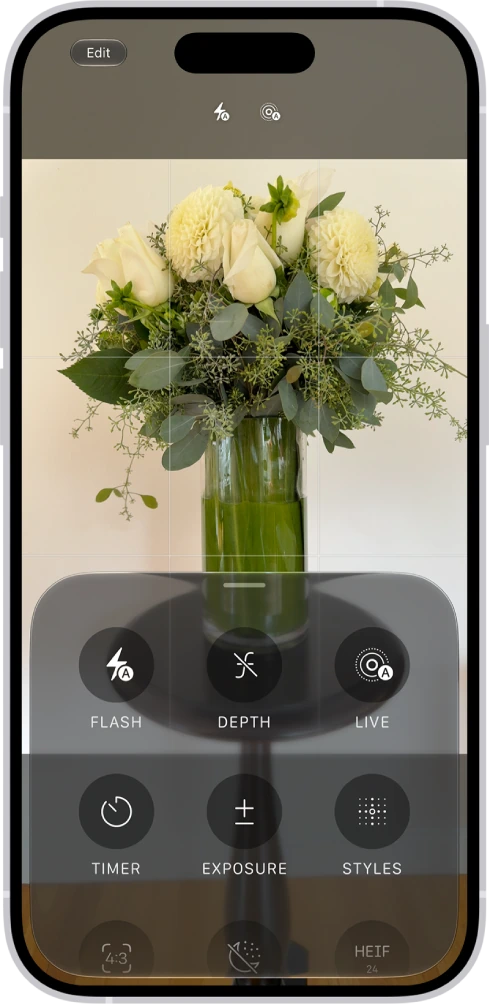
- Format of each photo: in Camera, tap the Camera Controls button in the top-right corner, then Format.
ProRAW gives editing room on compatible models, but it takes more space and is unavailable in some modes, such as Portrait. You do not need it to learn or for most everyday photos.
Get close with macro and mind the aspect ratio
On supported models, moving close makes Camera switch to the Ultra Wide camera for macro, meaning very close photos. A button with a flower then appears: tap it to turn that automatic switch off or back on. If it will not focus, move back a little: tapping the screen does not remove the minimum focusing distance.
Choosing 4:3, square (1:1) or 16:9 changes the framing: swipe up from the camera modes, tap Aspect and choose one. Leave space around what matters if you will later need another ratio for printing or posting.
Quick reference: choose for the task
| Need | First step |
|---|---|
| Everyday photo | Ordinary Photo, moderate zoom and good light |
| Moving subject | More light and a short Burst (several photos in a row) |
| Still night scene | Stable support and supported Night mode |
| Maximum editing flexibility | Consider ProRAW only if your device and your way of working need it |
| Sharing across devices | Check the format and the received copy |
YOUR TURN
Try it now
You did it if you have two photos of the same scene with different framing and you now know which format your iPhone has active.
Your progress is saved only in this browser. No sign-up.