
Take flattering portraits and selfies by minding distance, light and background, and know when Portrait mode and Photographic Styles help.
Start with the person, not the effect
A portrait flatters the person when the light and the background help. Prepare the scene before you think about a special mode.
- Find soft light and a simple background.
- Clean the camera.
- Leave space around the head if you plan to crop later.
- In groups, keep faces at similar distances from the phone. Strong blur may leave someone outside the sharp plane.
Take a natural selfie
To use the front camera, open Camera and tap the button in the bottom-right corner. Look at the front lens when you want eye contact. Do not hold the phone right against your face: a comfortable distance and a moderate angle usually look more natural.
Take a portrait with Portrait mode
Portrait mode blurs the background to make the person stand out. Its lenses, supported subjects and useful distances depend on the model.
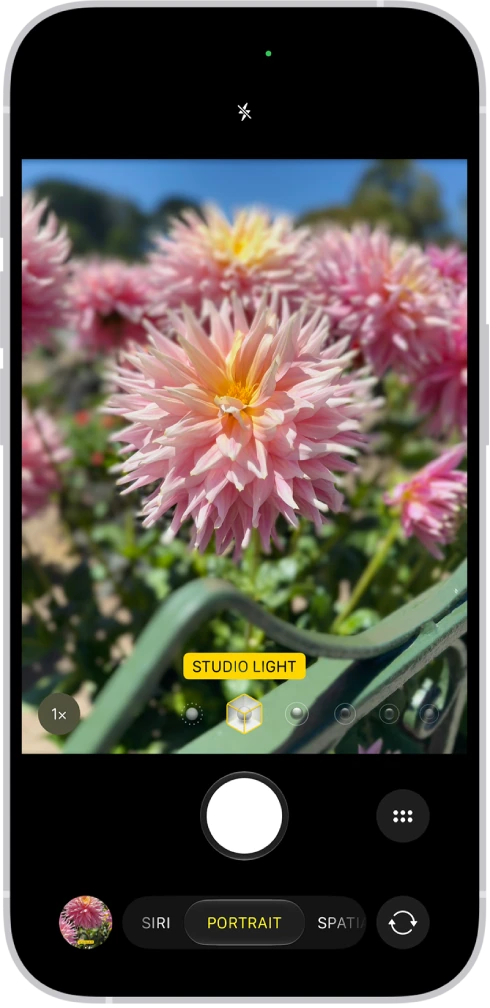
- Open Camera and swipe left across the modes to Portrait, if your iPhone offers it.
- Follow the prompts to move closer or farther away.
- Separate the person a little from the background where possible.
- Tap on the screen the face you want to prioritize.
- If the skin looks too bright or dark, drag the exposure control next to the focus area up or down.
- Take several photos and check that eyes are open and the picture is sharp.
To change how much the background blurs, swipe up from Portrait mode, tap Depth and drag the slider.
Adjust the blur later, if the photo allows it
Some photos store depth information that lets you adjust the effect later, including certain shots taken in Photo mode. It depends on the device, the subject and whether that information was saved. Not every old photo or ordinary picture can become an editable portrait.
- In Photos, open a photo taken in Portrait mode.
- Tap the Edit button.
- Tap Portrait and drag the Depth Control slider at the bottom of the screen.
- Tap Done.
Compare with the original and reduce the effect if it cuts into hair or blurs parts of the person.
Try Photographic Styles calmly
Photographic Styles adjust specific colors in the photo, differently from a simple filter, and exist only on supported models.
- In Camera, swipe up from the camera modes.
- Tap Styles and swipe left or right to preview each one.
- To return to the normal look, choose Standard.
On recent models, editing the style afterward requires capturing in High Efficiency (Settings, Camera, Formats). Test with an ordinary scene before using a strong style at an occasion you cannot repeat.
YOUR TURN
Try it now
You did it if you have two selfies in different light and you chose the one that shows your eyes and hair more clearly.
Your progress is saved only in this browser. No sign-up.